÷
Displaying and Using the OnoScreen Remote
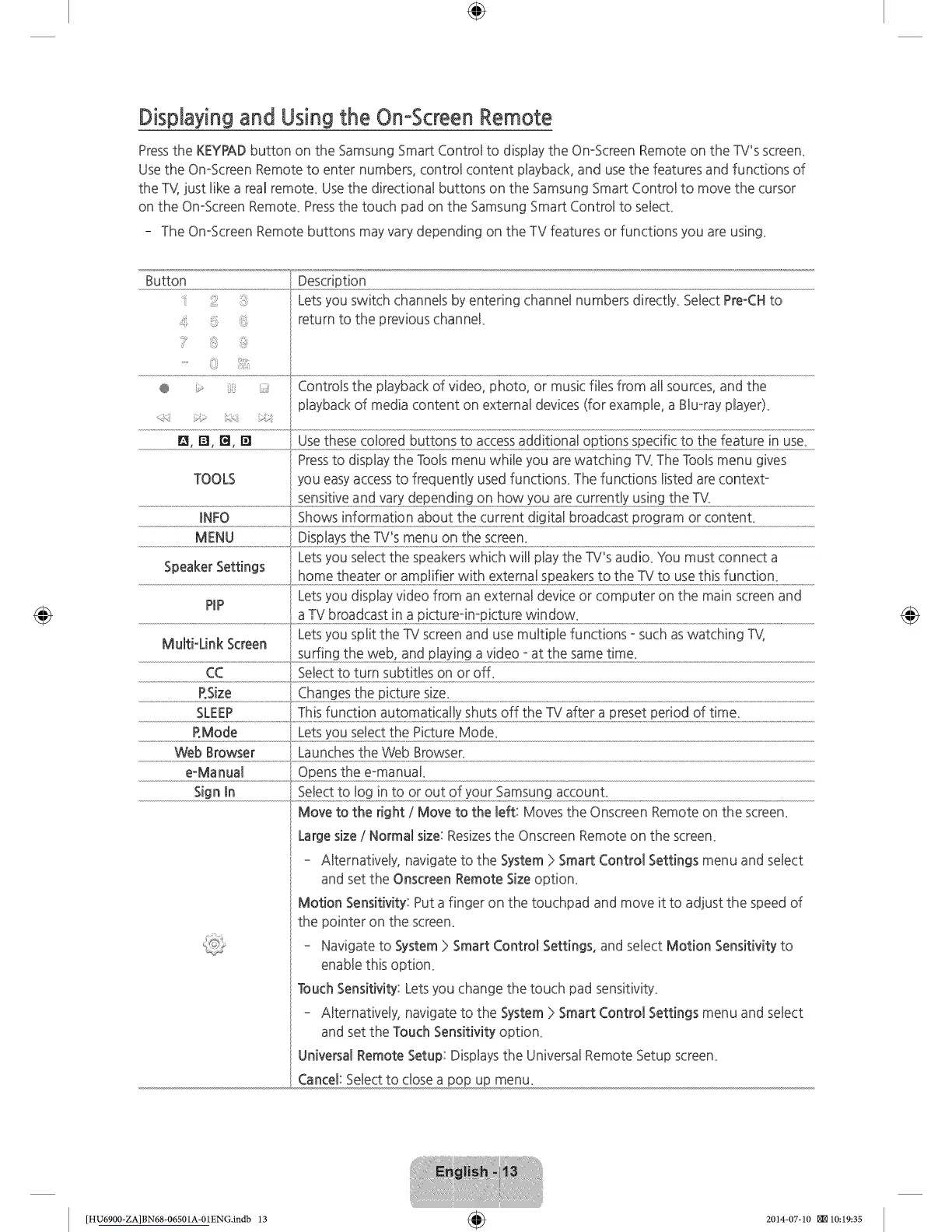
Pressthe KEYPADbutton on the Samsung Smart Control to display the On-Screen Remote on the TV's screen.
Use the On-Screen Remote to enter numbers, control content playback, and usethe features and functions of
the TV}just like a real remote. Use the directional buttons on the Samsung Smart Control to move the cursor
on the On-Screen Remote. Pressthe touch pad on the Samsung Smart Control to select
- The On-Screen Remote buttons may vary depending on the TV features or functions you are using.
......Button..........................................................................................Desc;!.pt!on..............................................................................................................................................................................................................................................................................................................................................................................
::: : Letsyou switch channels by entering channel numbers direcdy. Select Pre-CH to
!_ :i return to the previous channel.
® > Controls the playback of video, photo, or music files from all sources, and the
playback of media content on external devices (for example, a Blu-ray player).
p_
_, r_,r_,[] .......
Pressto display the Tools menu while you are watching TV.The Tools menu gives
TOOLS you easyaccessto frequently used function£ The functions listed are context-
................................................................................................................................sens!t!veandvardeeenq!.nqo o re;urrent!yus!ng.theTV:.........................................................................................
MENU
Letsyou select the speakers which will play the TV's audio. You must connect a
Speaker Settings
PiP Letsyou display video from an external device or computer on the main screenand
Letsyou split the TV screen and use multiple functions - such as watching TV,
Multi-Link Screen
surfing the web, and playing a video - at the same time.
CC Select to turn subtitles on or off_
P.Size Changes the picture size.
RMode Letsyou select the Picture Mode.
.........................Webmowse(
e-Manual Opens the e-manuaL
S_gnm ....
Move to theright/Move to theleft:Moves theOnscreenRemote on thescreen.
Largesize/ Normalsize:ResizestheOnscreenRemote on thescreen.
- Alternatively,navigatetotheSystem> SmartControlSettingsmenu and select
and set the Onscreen Remote Size option.
Motion Sensitivity: Put a finger on the touchpad and move it to adjust the speed of
the pointer on the screen.
- Navigate to System > Smart Control Settings, and select Motion Sensitivity to
enable this option.
Touch Sensitivity: Lets you change the touch pad sensitivity.
- Alternatively, navigate to the System > Smart Control Settings menu and select
and set the Touch Sensitivity option.
Universal Remote Setup: Displays the Universal Remote Setup screen.
, Cancel: Select to close a pop up menu.
[HU6900-ZA]BN68-06501A-01ENG.indb 13 _ 2014-07-10 _10:19:35







 To Next Page