EasyManua.ls Logo

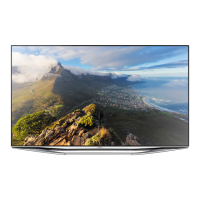
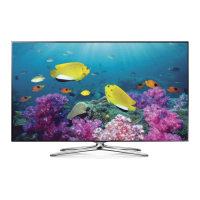
Samsung 7100 Series - User Manual

Samsung 7100 Series
45 pages
Print Icon
To Next Page IconTo Next Page
Loading...
LED TV
user manual
Thank you for purchasing this Samsung product.
To receive more complete service, please register
your product at
www.samsung.com/register
Model _____________ Serial No. _____________
If you have any questions, please call us at 1-800-SAMSUNG (1-800-726-7864) for assistance.

Questions and Answers

  • M
    Michael ClarkAug 15, 2025
    Why won't my Samsung 7100 turn on?
    • S
      Shannon OrtizAug 16, 2025
      First, ensure the AC power cord is securely plugged into both the wall outlet and the TV. Then, verify that the wall outlet is functioning correctly. Finally, press the 'P' button on the TV itself to rule out a remote control issue.
  • J
    Joan BakerAug 19, 2025
    Why does my Samsung LED TV keep powering off by itself?
    • A
      andrewkingAug 19, 2025
      Disable the TV's energy efficiency and automatic off features. Check if the Sleep Timer (System > Time > Sleep Timer) is enabled. If not, check if No Signal Power Off (System > Eco Solution > No Signal Power Off) or Auto Power Off (System > Eco Solution > Auto Power Off) are enabled.
  • S
    Shannon JonesAug 22, 2025
    How to stop my Samsung 7100 LED TV from flickering and dimming?
    • N
      Nathaniel AvilaAug 22, 2025
      Disable Energy Saving by navigating to System > Eco Solution > Eco Sensor and/or Energy Saving by navigating to System > Eco Solution > Energy Saving, then check the screen again.
  • Z
    zsmithAug 25, 2025
    What to do if there is no picture on my Samsung 7100?
    • T
      Timothy PerezAug 25, 2025
      First, check all cable connections by removing and reconnecting them to both the TV and any external devices. Ensure the video outputs of your external devices (like Cable/Sat Box, DVD, Blu-ray) match the TV's input connections. Also, make sure all connected devices are powered on and the correct input source is selected on the TV. If problems persist, try rebooting the connected device by unplugging it and then reconnecting its power cable.
  • K
    katherine93Aug 28, 2025
    How to fix a Samsung LED TV remote that is not working?
    • S
      Sara FarrellAug 28, 2025
      Try replacing the remote control batteries, ensuring they are installed with the correct polarity (+/–). Clean the sensor's transmission window on the remote. Lastly, point the remote directly at the TV from about 5 to 6 feet away.
  • E
    Eric EspinozaAug 30, 2025
    Why is the screen color off on my Samsung 7100 LED TV?
    • J
      Jaclyn ChapmanAug 31, 2025
      Run a Self Diagnosis Picture Test (Support > Self Diagnosis > Picture Test). If the picture problem is caused by the TV, the problem should be visible in the Picture Test. If the problem is not visible, confirm that the TV's video input jacks are connected to the correct external video device output jacks and that none of the connections are loose. If possible, test your external video devices by connecting them to another TV.
  • B
    Brandon MaySep 2, 2025
    How to find channels on my Samsung LED TV?
    • L
      Laura LoweSep 2, 2025
      Try re-running the Setup (Go to Menu > System > Setup) or run Auto Program (Go to Menu > Broadcasting > Auto Program).
  • T
    Terry StaffordSep 5, 2025
    Why doesn’t my cable box remote work with my Samsung 7100 LED TV?
    • M
      Mrs. Jennifer ChristensenSep 5, 2025
      Program the Cable/Set remote control to operate the TV.
  • K
    Kristen GarciaSep 8, 2025
    How to adjust screen brightness on Samsung LED TV?
    • S
      swansonterrySep 9, 2025
      Navigate to the Picture settings and adjust the Backlight, Contrast, Brightness, Sharpness, Color, Tint (G/R), and other picture quality settings to your preference.
  • C
    Crystal AriasSep 12, 2025
    How to adjust Auto Motion Plus on Samsung LED TV to fix blur?
    • B
      Blake Salazar DDSSep 12, 2025
      Use the Auto Motion Plus feature, which can be found by navigating to Picture > Picture Options > Auto Motion Plus.

Samsung 7100 Series Specifications

General IconGeneral
Display TechnologyLED
Smart TVYes
HDMI Ports3
USB Ports2
Wi-FiYes
Motion Rate120

Related product manuals