23
Copyright © 2009 Samsung. All right reserved.
Samsung Mobile
function guide
» Camera
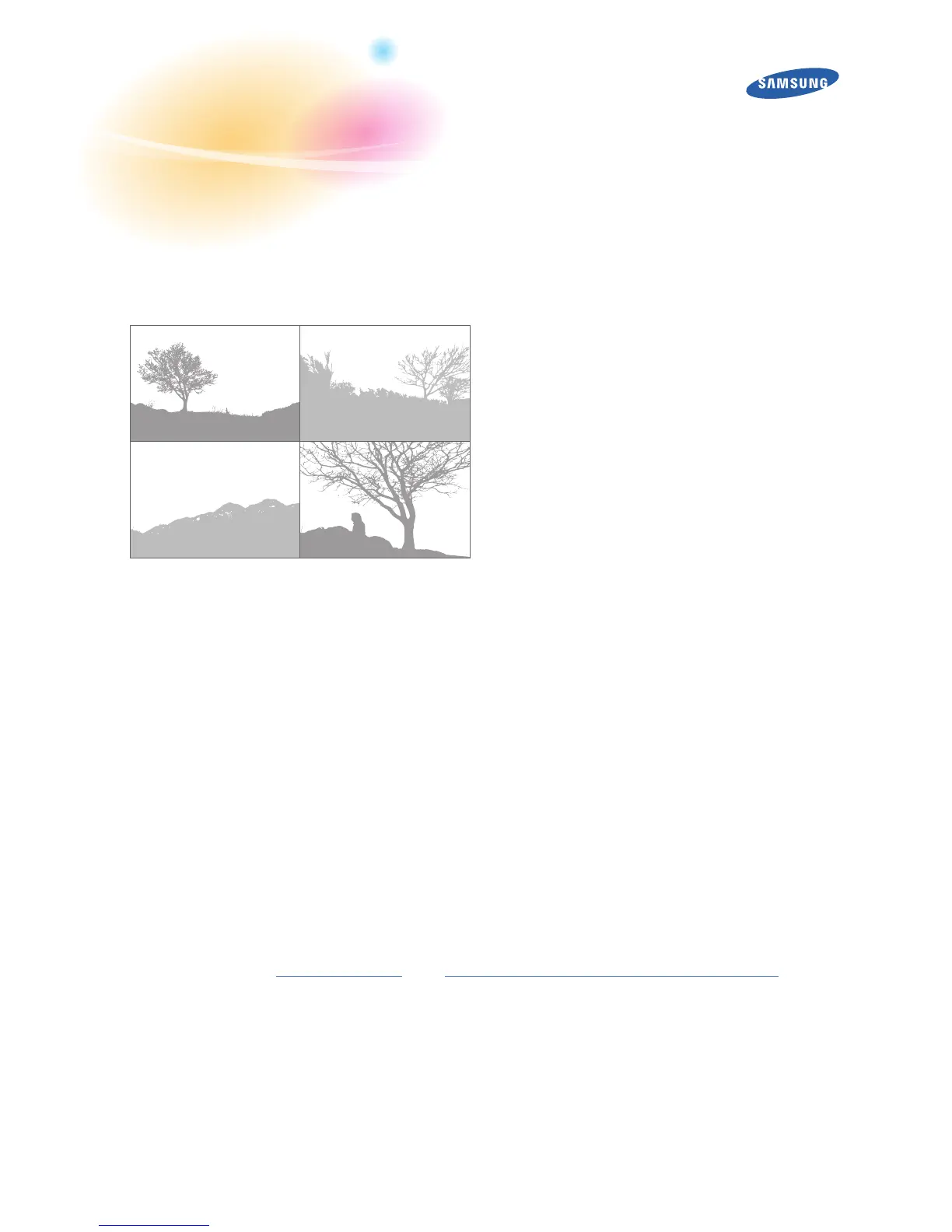
Create a photo mosaic
With this feature, you can capture a series of photos and combine them into a
mosaic.
To create a photo mosaic,
In Idle mode, access Menu mode and launch the camera application.
1
Depending on your phone model, you can use the camera button or a N
shortcut key to launch the camera application.
If the viewnder appears in Landscape mode, rotate your phone anti-
2
clockwise.
Access the camera options and select the shooting mode for a photo mosaic.
3
Select the style of mosaic to create.
4
Return to the viewnder.
5
Align the subject in the viewnder as desired and adjust any settings as
6
needed (see
Camera options
and
Customise camera and camcorder seings
).
Press the camera button or the appropriate shortcut key to capture each
7
image.
The camera application will display each image you capture in part of the
mosaic. Continue capturing images until the mosaic is complete.



 To Next Page