28 English
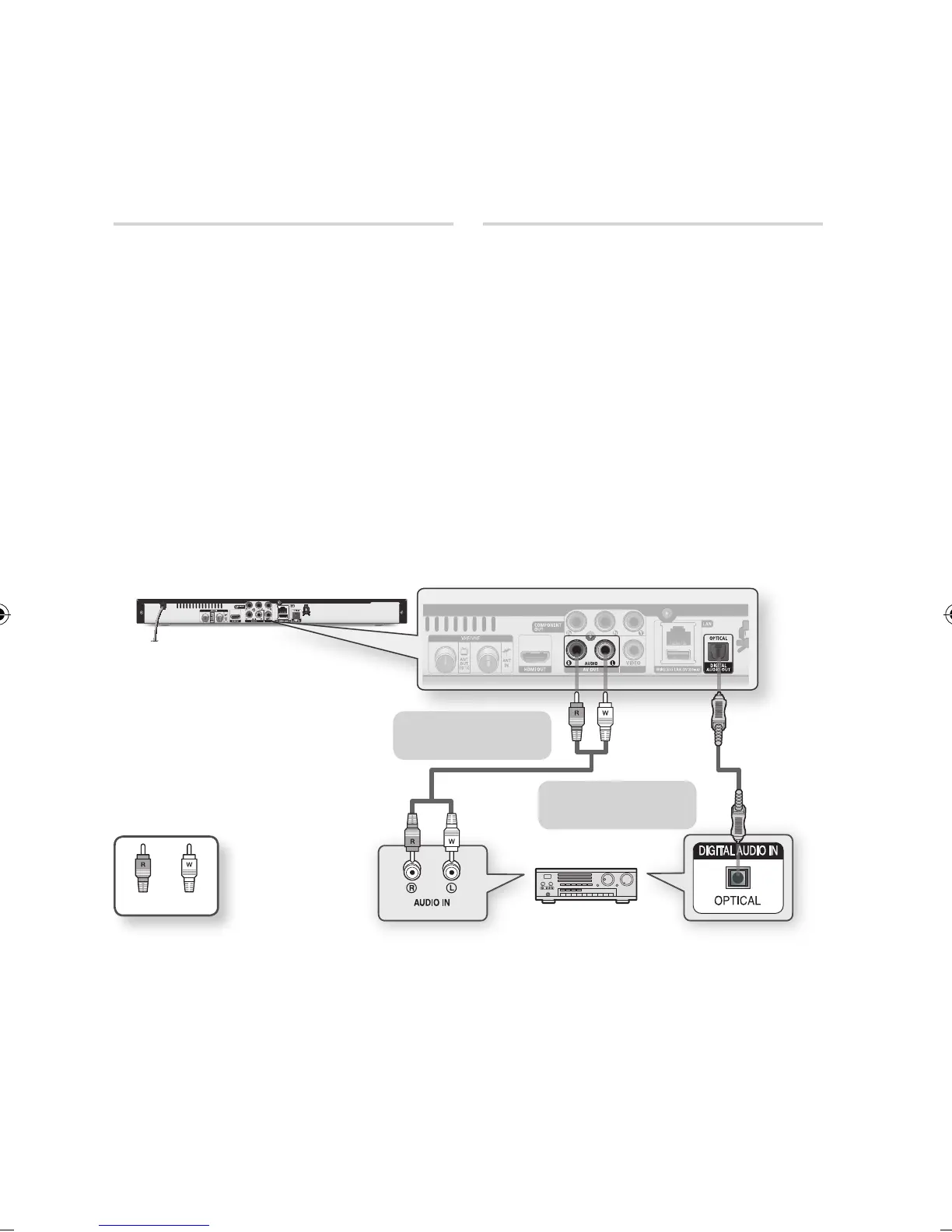
Case 2 : Connecting to an Audio
System (2 Channel Amplifier)
- Good Quality
1. Using the audio cables, connect the AUDIO
OUT (red and white) terminals on the rear of
the product to the AUDIO IN (red and white)
terminals of your Amplifier.
2. Using the video signal cable(s), connect
the HDMI, COMPONENT or VIDEO OUT
terminals on the rear of the product to the
HDMI, COMPONENT or VIDEO IN terminal
of your TV. (See pages 24~26)
3. Turn on the product, TV and Amplifier.
4. Press the input select button of the Amplifier
to select the external input in order to hear
sound from the product. Refer to your
Amplifier’s user manual to set the Amplifier’s
audio input.
Case 3 : Connecting to an Audio
System (Dolby Digital, DTS
Amplifier) - Better Quality
1. Using an optical cable, connect the DIGITAL
AUDIO OUT (OPTICAL) terminal on the rear
of the product to the DIGITAL AUDIO IN
(OPTICAL) terminal of your Amplifier.
2. Using the video signal cable(s), connect
the HDMI, COMPONENT or VIDEO OUT
terminals on the rear of the product to the
HDMI, COMPONENT or VIDEO IN terminal
of your TV. (See pages 24~26)
3. Turn on the product, TV and Amplifier.
4. Press the input select button of the Amplifier
to select the external input in order to hear
sound from the product. Refer to your
Amplifier’s user manual to set the Amplifier’s
audio input.
WhiteRed
Case 2 : Audio cable
(not included)
Case 3 : Optical cable
(not included)
✎
NOTE
`
When following the case 3 connection, discs with PCM audio soundtracks will only be heard over the front two
channels.
02064Q-BD-D5900-HC-ENG-.indb 28 2012-01-12 오전 11:15:33




 To Next Page