EasyManua.ls Logo

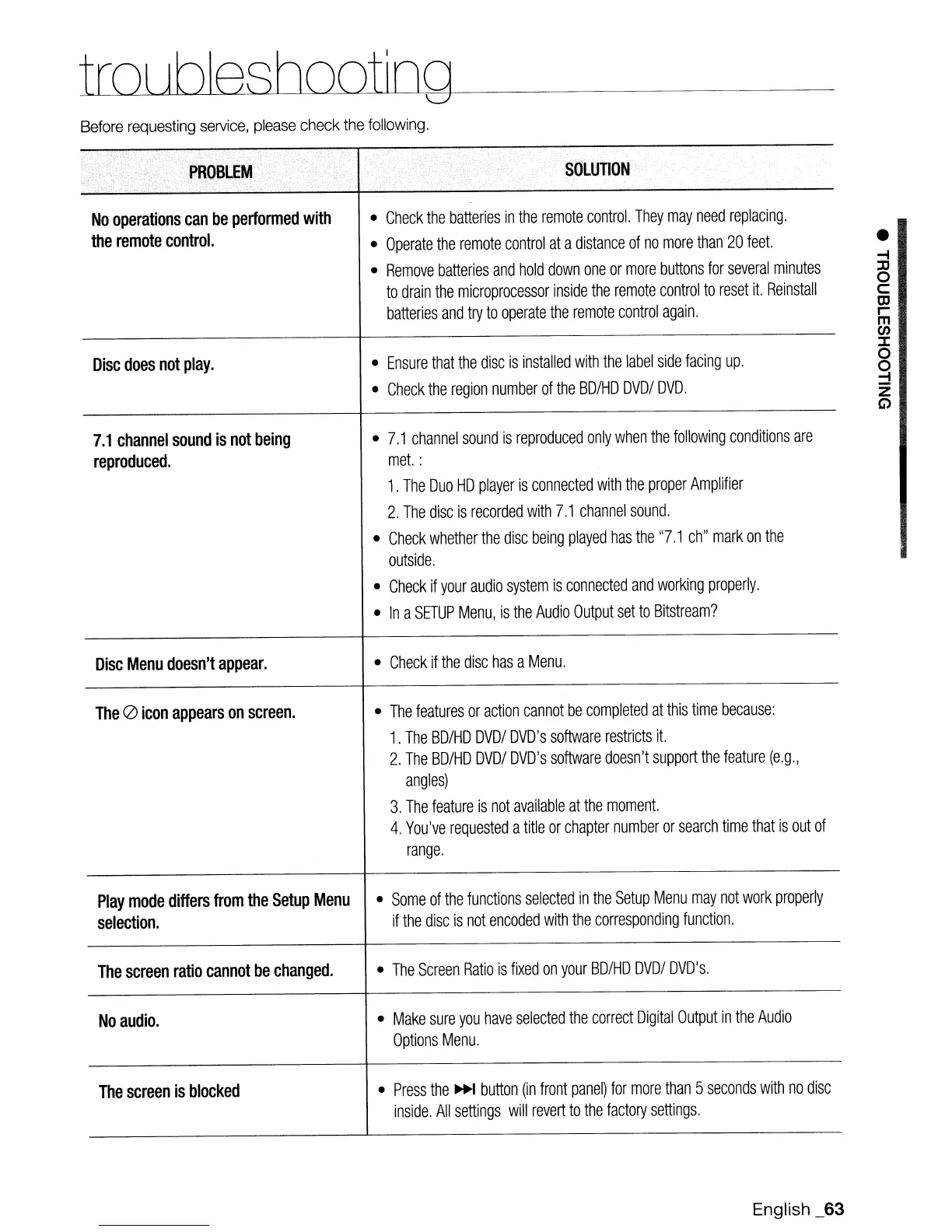
Samsung BD-UP5000 - Troubleshooting; Remote Control Issues; Disc Playback Problems; Audio and Menu Issues

Samsung BD-UP5000
76 pages
Print Icon
To Next Page IconTo Next Page
To Previous Page IconTo Previous Page
Loading...
1roLJbJesbootlogf---
_
Before
requesting
service,
please
check
the
following.
,
PROBLEM
SOLUTION
,
No
operations
can
be
performed
with
•
Check
the
batteries
in
the
remote
control.
They
may
need
replacing.
the
remote
control.
•
Operate
the
remote
control
at
a
distance
of
no
more
than
20
feet.
•
Remove
batteries
and
hold
down
one
or
more
buttons
for
several
minutes
to
drain
the
microprocessor
inside
the
remote
control
to
reset
it.
Reinstall
batteries
and
try
to
operate
the
remote
control
again.
Disc
does
not
play.
•
Ensure
that
the
disc
is
installed
with
the
label
side
facing
up.
•
Check
the
region
number
of
the
BD/HD
DVDI
DVD.
7.1
channel
sound
is
not
being
•
7.1
channel
sound
is
reproduced
only
when
the
following
conditions
are
reproduced.
met.
:
1.
The
Duo
HD
player
is
connected
with
the
proper
Amplifier
2.
The
disc
is
recorded
with
7.1
channel
sound.
•
Check
whether
the
disc
being
played
has
the
"7.1
chI'
mark
on
the
outside.
•
Check
if
your
audio
system
is
connected
and
working
properly.
•
In
a
SETUP
Menu,
is
the
Audio
Output
set
to
Bitstream?
Disc
Menu
doesn't
appear.
•
Check
if
the
disc
has
a
Menu.
The
(2)
icon
appears
on
screen.
•
The
features
or
action
cannot
be
completed
at
this
time
because:
1.
The
BD/HD
DVDI
DVD's
software
restricts
it.
2.
The
BD/HD
DVDI
DVD's
software
doesn't
support
the
feature
(e.g.,
angles)
3.
The
feature
is
not
available
at
the
moment.
4.
You've
requested
a
title
or
chapter
number
or
search
time
that
is
out
of
range.
Play
mode
differs
from
the
Setup
Menu
•
Some
of
the
functions
selected
in
the
Setup
Menu
may
not
work
properly
selection.
if
the
disc
is
not
encoded
with
the
corresponding
function.
The
screen
ratio
cannot
be
changed.
•
The
Screen
Ratio
is
fixed
on
your
BD/HD
DVDI
DVD's.
No
audio.
•
Make
sure
you
have
selected
the
correct
Digital
Output
in
the
Audio
Options
Menu.
The
screen
is
blocked
•
Press
the
~
button
(in
front
panel)
for
more
than
5
seconds
with
no
disc
inside.
All
settings
will
revert
to
the
factory
settings.
English _63
•
-I
:D
o
C
OJ
r
m
en
:x:
o
o
-I
Z
G)

Table of Contents