EasyManua.ls Logo

Samsung BD-UP5000 - Step 5: Resolution According to Output Mode; Step 6: HDMI & Component Troubleshooting; Step 7: Basic Operation

Samsung BD-UP5000
76 pages
Print Icon
To Next Page IconTo Next Page
To Previous Page IconTo Previous Page
Loading...
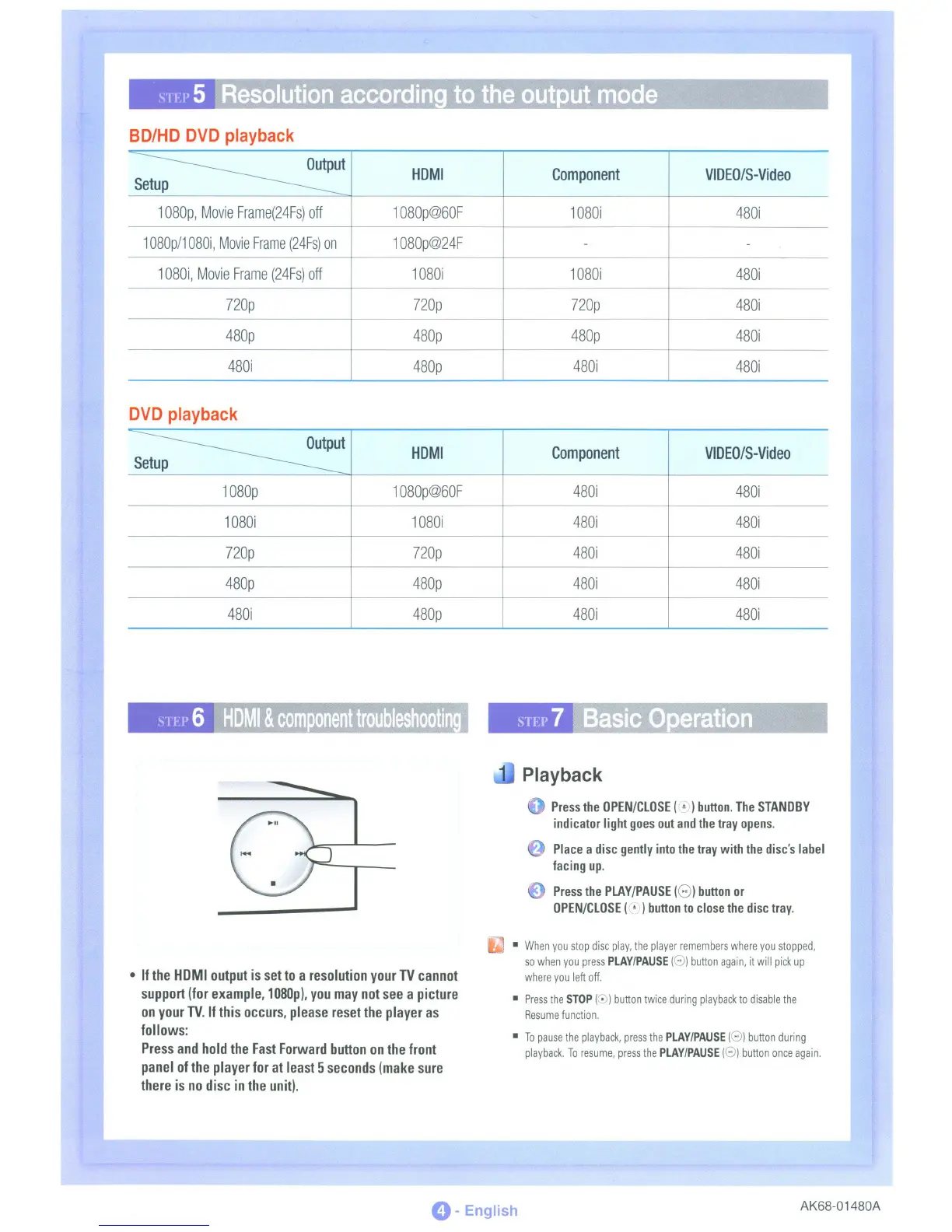
BD/HD
DVD
playback
~t
HOMI
Component
VIOEO/S-Video
Setup
1080p,
Movie
Frame(24Fs)
off
1080p@60F
1080i
480i
1
080p/1
080i,
Movie
Frame
(24Fs)
on
1080p@24F
- -
1080i,
Movie
Frame
(24Fs)
off
1080i 1080i
480i
720p 720p
720p
480i
480p
480p
480p
480i
480i
480p
480i
480i
DVD
playback
~t
HOMI
Component
VIOEO/S-Video
Setup
1080p
1080p@60F
480i
480i
1080i 1080i
480i
480i
720p 720p
480i
480i
480p
480p
480i
480i
480i
480p
480i 480i
•
If
the
HDMI
output
is
set
to
a
resolution
your
TV
cannot
support
(for
example,
1080p),
you
may
not
see
a
picture
on
your
TV.
If
this
occurs,
please
reset
the
player
as
follows:
Press
and
hold
the
Fast
Forward
button
on
the
front
panel
of
the
player
for
at
least
5
seconds
(make
sure
there
is
no
disc
in
the
unit).
Playback
Press
the
OPEN/CLOSE
( :)I
button.
The
STANDBY
indicator
light
goes
out
and
the
tray
opens.
Place
a
disc
gently
into
the
tray
with
the
disc's
label
facing
up.
Press
the
PLAY/PAUSE
(Gl
button
or
OPEN/CLOSE
( ! )
button
to
close
the
disc
tray.
•
When
you
stop
disc
play,
the
player
remembers
where
you
stopped,
so
when
you
press
PLAY/PAUSE
(8)
button
again,
it
will
pick
up
where
you
left
off.
•
Press
the
STOP
(8)
button
twice
during
playback
to
disable
the
Resume
function.
•
To
pause
the
playback,
press
the
PLAY/PAUSE
(8)
button
during
playback.
To
resume,
press
the
PLAY/PAUSE
(8)
button
once
again.
0-
English
AK68-01480A

Table of Contents