EasyManua.ls Logo

Samsung GT-S5830 - User Manual

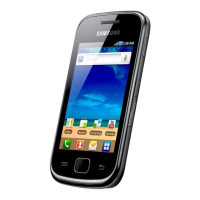
Samsung GT-S5830
134 pages
Print Icon
To Next Page IconTo Next Page
Loading...
Some of the contents in this manual may dier from your device depending on the software of the device or your service
provider.
English. 07/2011. Rev. 1.0
To install Kies (PC Sync)
Download the latest version of Kies from the Samsung 1.
website (www.samsung.com/kies) and install it on your
PC.
Using a PC data cable, connect your device to your PC. 2.
Samsung Kies will launch automatically.
If Samsung Kies does not automatically launch, double-
click the Samsung Kies icon on your PC.
Refer to the Kies help for more information.

Table of Contents

Other manuals for Samsung GT-S5830

Questions and Answers

  • C
    Chad WeberAug 20, 2025
    What to do if my Samsung GT-S5830 Cell Phone asks for a password when device lock feature is enabled?
    • J
      Jason WalkerAug 20, 2025
      If the device lock feature is enabled on your Samsung Cell Phone and it's asking for a password, you must enter the password you set for the device.
  • H
    hollandaaronAug 22, 2025
    Why is my Samsung GT-S5830 Cell Phone hot to the touch?
    • M
      mitchelljohnAug 22, 2025
      It's normal for your Samsung Cell Phone to become hot when using power-intensive applications or using applications for extended periods. This should not affect your device's lifespan or performance.
  • S
    Sarah ConwayAug 25, 2025
    What to do if my Samsung GT-S5830 Cell Phone freezes or has fatal errors?
    • S
      Stephen CortezAug 25, 2025
      If your Samsung Cell Phone freezes or hangs, you may need to close programs or reset the device to regain functionality. You can also press and hold [ ] for 8-10 seconds to reboot the device automatically or perform a factory data reset.
  • D
    debbievaughanAug 26, 2025
    What to do if my Samsung Cell Phone requires a PIN when using the device for the first time?
    • G
      glassannAug 26, 2025
      When using your Samsung Cell Phone for the first time, or if the PIN requirement is enabled, you must enter the PIN supplied with the SIM or USIM card. You can disable this feature using the Lock SIM card menu.
  • A
    Andrea GarciaAug 27, 2025
    What to do if my Samsung GT-S5830 Cell Phone displays "Service unavailable" or "Network error"?
    • H
      Holly LangAug 27, 2025
      If your Samsung Cell Phone displays "Service unavailable" or "Network error", it may be due to weak signals or poor reception. Try moving to another area and try again.
  • T
    Terry WhiteAug 29, 2025
    What to do if outgoing calls are not connected on Samsung GT-S5830 Cell Phone?
    • J
      jessicadeanAug 29, 2025
      If outgoing calls are not connecting on your Samsung Cell Phone, ensure that you have pressed the Dial key, that you have accessed the right cellular network, and that you have not set call barring for the phone number you are dialling.
  • R
    Richard BlackburnAug 31, 2025
    What to do if calls are not connected when dialling from contacts on Samsung GT-S5830?
    • C
      Cameron AlexanderAug 31, 2025
      If calls are not connecting when dialling from contacts on your Samsung Cell Phone, ensure that the correct number is stored in the contact list. Re-enter and save the number, if necessary. Also, ensure that you have not set call barring for the contact's phone number.
  • S
    Sonya GreeneSep 2, 2025
    What to do if my Samsung GT-S5830 SIM or USIM card is blocked?
    • A
      Angela ClarkSep 2, 2025
      If your Samsung Cell Phone SIM or USIM card is blocked because you entered your PIN incorrectly multiple times, you need to enter the PUK code provided by your service provider.
  • R
    Richard MasonSep 4, 2025
    Why are calls being dropped on my Samsung GT-S5830?
    • J
      Johnny TownsendSep 4, 2025
      Calls may be dropped on your Samsung Cell Phone if you are in an area with weak signals or poor reception. Try moving to another area and try again.
  • M
    Mr. Brandon WangSep 6, 2025
    What to do if incoming calls are not connected on Samsung GT-S5830?
    • S
      schwartzrebeccaSep 6, 2025
      If incoming calls are not connecting on your Samsung Cell Phone, ensure that your device is turned on, that you have accessed the right cellular network, and that you have not set call barring for the incoming phone number.

Summary

Assembling Your Device

Install SIM and Battery

Install the Subscriber Identity Module (SIM) card and battery into the device.

Charge the Battery

Charge the device using a travel adapter or a PC data cable before first use.

Getting Started with Your Device

Turn Device On and Off

Learn how to power the device on and off using the power key.

Device Layout and Keys

Familiarize yourself with the device's physical layout and key functions.

Touch Screen Usage

Learn basic actions like tapping, holding, and dragging on the touch screen.

Communication Features

Calling Features

Learn to make, answer, reject, and manage calls and call options.

Messaging Services

Create, send, and view text (SMS), multimedia (MMS), and voice mail messages.

Entertainment and Media

Camera Operations

Capture photos and videos, customize settings, and record videos.

Personal Information Management

Contact Management

Create, find, organize, and manage contacts and your namecard.

Web and Internet Access

Internet Browsing

Access and bookmark web pages, search by voice, and view history.

Connectivity Options

Bluetooth Operations

Turn on, pair, send, and receive data with Bluetooth devices.

Wi-Fi and Network Access

Activate, connect to, and manually add WLAN networks.

Device Settings and Configuration

Wireless and Network Configuration

Configure Wi-Fi, Bluetooth, Tethering, VPN, and Mobile Network settings.

Troubleshooting Common Issues

Device Codes and Network Errors

Solve problems related to PIN, PUK, passwords, and network reception.

Performance and Responsiveness Issues

Address device freezes, slow touch screen response, and overheating.

Safety Precautions

Electrical Hazards and Fire Prevention

Prevent electric shock, fire, and explosion by following safety guidelines.

Samsung GT-S5830 Specifications

General IconGeneral
Panel typeTFT
Display diagonal3.5 \
Display resolution480 x 320 pixels
Display number of colors16.78 million colors
Ringer typeMP3
Orientation sensorNo
Processor frequency- GHz
Internal memory- MB
Maximum memory card size32 GB
Internal storage capacity0.158 GB
Flash typeLED
Photo effectsBlack&White, Negative film, Sepia
White balanceAuto, Cloudy, Daylight, Fluorescent, Incandescent
Rear camera typeSingle camera
Rear camera resolution (numeric)5 MP
3G standardsHSDPA
Data network3G
Wi-Fi standards802.11b, 802.11g, Wi-Fi 4 (802.11n)
Bluetooth version2.1+EDR
3G bands supported900, 1700, 1900, 2100 MHz
SIM card capabilitySingle SIM
2G bands (primary SIM)900, 1800, 1900 MHz
Image formats supportedJPG
HDMI ports quantity0
USB 2.0 ports quantity1
Form factorBar
Product colorBlack, White
PlatformAndroid
App distribution platformGoogle Play
Operating system installedAndroid 2.2.1
Personal info management (PIM)Alarm clock, Calculator, Calendar, Notes
Multimedia Messaging Service (MMS)Multimedia Messaging Service (MMS) is a standard way to send messages that include multimedia content to and from a mobile phone over a cellular network
Talk time (2G)11 h
Talk time (3G)6.5 h
Battery capacity1350 mAh
Standby time (2G)640 h
Standby time (3G)420 h
Weight and Dimensions IconWeight and Dimensions
Depth11.5 mm
Width59.9 mm
Height112.4 mm
Weight113 g

Related product manuals