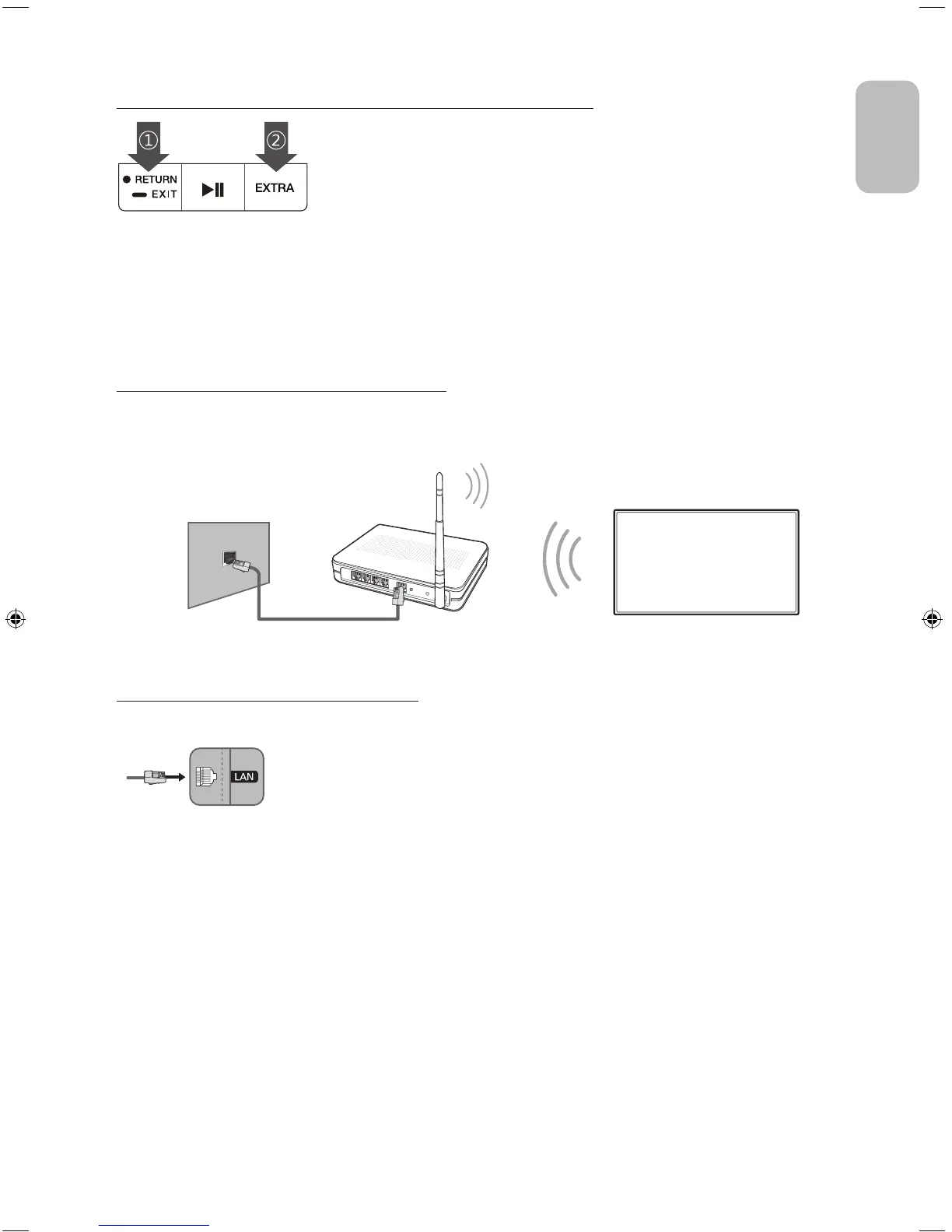
Pairing the TV to the Samsung Smart Control
If your Samsung Smart Control is not paired to your TV, press and hold the buttons
labelled ① and ② simultaneously for 3 seconds or more to pair the Samsung Smart
Control to the TV.
- The Samsung Smart Control can only be paired to one TV at a time.
Connecting to a Network
Connecting the TV to a network gives you access to online services, such as Smart Hub, as well as software updates.
Network Connection - Wireless
Connect the TV to the Internet using a standard router or modem.
Wireless IP Router or Modem with
a DHCP Server
LAN Cable (Not Supplied)
The LAN Port on the Wall
Network Connection - Wired
TV Rear Panel
Connect your TV to your network using a LAN cable.
- Use a Category 7 cable for the connection.
Controlling External Devices with the TV Remote
(Universal Remote Setup)
System
>
Universal Remote Setup
The universal remote control feature lets you control cable boxes, Blu-ray players, home theatres, and other external devices
connected to the TV using the TV's remote control.
For more information on using the Universal Remote function, see the e-Manual chapter, "Remote Control and Peripherals >
Controlling External Devices with the TV Remote - Using the Universal Remote."
- Certain external devices connected to the TV may not support the universal remote feature.
English
English - 7
[JU7500-XN-ZF]BN68-07074C-01L04.indb 7 2015-03-18 오후 4:52:06



 To Next Page