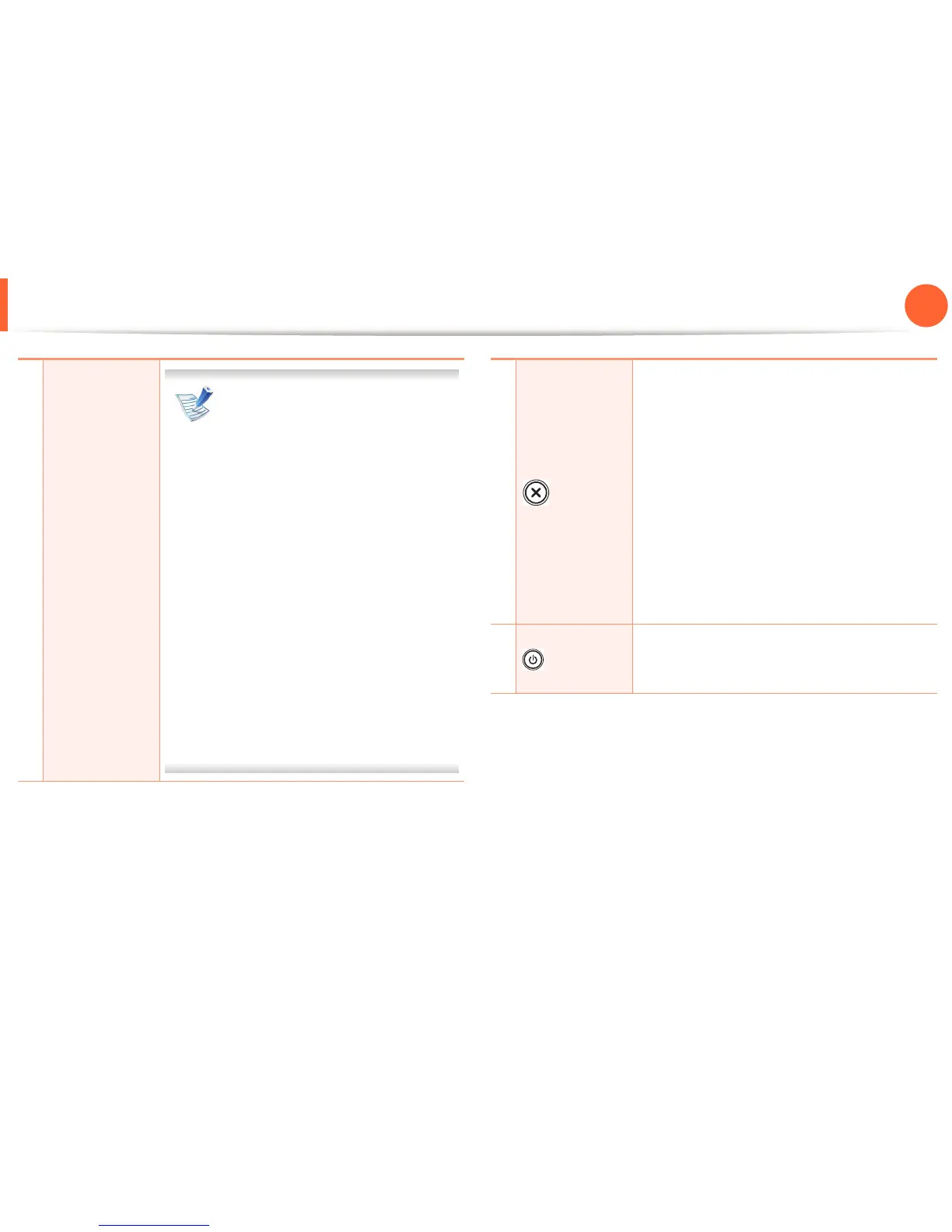
Control panel overview
20
1. Introduction
• Print Screen can only be used in
the Windows and Macintosh
operating systems.
• You can only use this function
with USB-connected machine.
• When printing the active
window/whole monitor screen
using the print screen button, the
machine may use more toner
depending on what is being
printed.
• You can only use this function if
the machine’s Easy Printer
Manager program is installed. If
you are a Macintosh OS user, you
need to enable Screen Print
Settings from the Easy Printer
Manager to use the Print Screen
feature.
5
(Cancel)
Stops an operation at any time and there are
more functions.
• Cancels the current job.
• Prints demo page: Press and hold this
button for about 2 seconds until the status
LED blinks slowly, and release.
• Supplied Info & Event Log: Press and hold
this button for about 6 seconds and release.
• Prints configuration reports/network
configuration reports
a
: Press and hold this
button for about 4 seconds until the status
LED blinks fast, and release.
6
(Power)
You can turn the power on/off or wake the
machine up from the power save mode with
this button.
a. Network and wireless models only (see "Features by models" on page 6).





 To Next Page