PRINTING TASKS
5.4
5
Click the other tabs on the top of the Properties dialog box
to access other features, if needed.
6
When you complete the print settings, click OK until the
Print dialog box is displayed.
7
Click OK to start printing.
• Most Windows applications will override settings you specify
in the printer driver. Change all print settings available in the
software application first, and any remaining settings with the
printer driver.
• The settings you change remain in effect only while you are
using the current program. To make your changes permanent,
make them in the Printers folder as follows:
1. Click the Windows Start button.
2. Select Settings, then Printers to open the Printers window.
Notes:
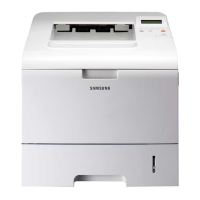
3. Select the Samsung ML-4500 printer icon.
4. Click the right mouse button and select Properties to open
the properties window.
Printing a Document


 To Next Page
 Loading...