Menu functions
72
Viewing a message
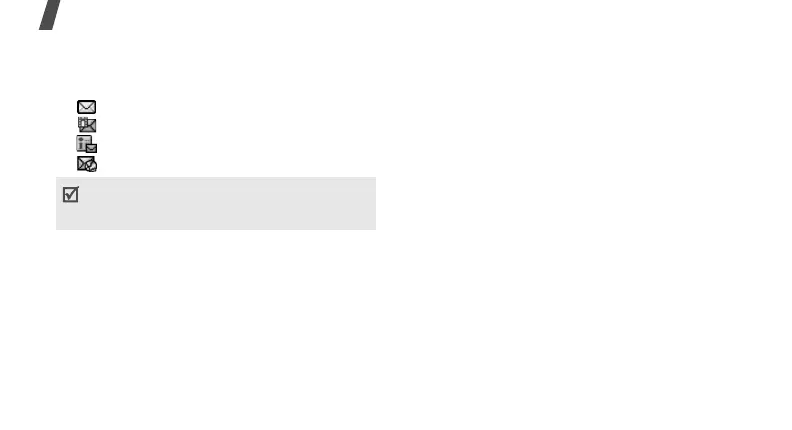
The following icons may appear on the message
list to show the message type:
• SMS
• MMS
• MMS notification
• Push message
Using message options
While viewing a message, press <
Options
> to
access the following options:
SMS messages
•
Reply via
: send a reply to the sender via
SMS or MMS.
•
Forward
: forward the message to other
people.
•
View as vivid message
/
View as text
message
: view the message in 3D view
mode or switch back to normal mode. This
option is available only when the message
consists of a single page.
•
Delete
: delete the message.
•
Move to phone
/
Move to SIM
: move the
message between the SIM card and the
phone’s memory.
•
Zoom view
: enlarge the font size so that
you can view enlarged text.
•
Add to block list
: add the sender’s number
to the Block list to reject the messages from
the sender.
•
Cut
address
: extract URL addresses, e-mail
addresses, or phone numbers from the
message.
•
Attached items
: save media content from
the message into your phone’s memory.
A
!
icon next to a message means that the
message is of high priority. A grey-coloured
message icon indicates low priority.



 To Next Page