56
Editing Keyboard
The Editing Keyboard provides a quick way to move the cursor
and highlight text. If the application in which you are working
supports editing, you can cut, copy or paste highlighted text.
To access the Editing Keyboard:
䊳
Swype from the
Swype Key
to the
SYM Key
.
Using Swype Speech Recognition
Enter text by speaking. Swype recognizes your speech and
enters text for you.
To use Speech recognition:
䊳
Touch the
Speech Recognition Key
.
At the
Speak now
prompt, speak the text you want to enter.
Entering Text Using the Samsung Keyboard
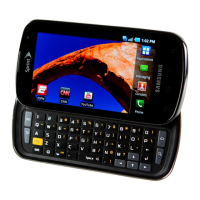
This device has a built-in, QWERTY keypad (portrait mode) or
keyboard (landscape mode). Using the QWERTY keypad/
keyboard, you can type letter, numbers, punctuation, and other
characters.
The Samsung keyboard is the default setting on the phone.
To use the Samsung keypad you must first configure the settings
for the Samsung keypad.
1. From a Home screen, touch
Menu
➔
Settings
➔
Language & keyboard
➔
Samsung keypad
➔
Portrait keypad
types
.
2. Touch
Keypad types
and select a text input method:
•
Qwerty Keypad
•
3x4 Keypad
•
Handwriting box 1
•
Handwriting box 2
3. Touch
Input languages
and touch one of the language
types.
4. Touch
XT9
to use XT9 Predictive text method. For more
information refer to the XT9 Advanced Settings.
5. Touch the
Keypad sweeping
field if you want to sweep the
keypad and change from ABC to ?123 mode.
6. Touch the
Auto-capitalization
field to automatically
capitalize the first letter of a sentence.
i
i500.book Page 56 Friday, October 7, 2011 11:20 AM


 To Next Page