EasyManua.ls Logo

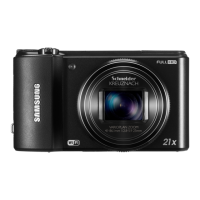
Samsung SMART Camera WB850F - User Manual

Samsung SMART Camera WB850F
188 pages
Print Icon
To Next Page IconTo Next Page
Loading...
Click a topic
This user manual includes detailed usage
instructions for your camera. Please read
this manual thoroughly.
WB850F/WB855F
Basic troubleshooting
Quick reference
Contents
Basic functions
Extended functions
GPS
Shooting options
Playback/Editing
Wireless network
Settings
Appendixes
Index

Table of Contents

Questions and Answers

  • M
    Michael RobinsonJul 26, 2025
    How to fix blurred photos on Samsung SMART Camera WB850F Digital Camera?
    • O
      Olivia SullivanJul 26, 2025
      If your photos are blurred when using your Samsung Digital Camera, it could be due to low light conditions or holding the camera incorrectly. To resolve this, half-press the shutter button to ensure the subject is focused. Additionally, setting the image stabilizer option can help prevent blurring.
  • T
    Timothy SmithAug 2, 2025
    What to do if photos are blurred when shooting at night with Samsung SMART Camera WB850F Digital Camera?
    • J
      James YuAug 2, 2025
      If your photos are blurred when shooting at night with your Samsung Digital Camera, it's likely because the camera is slowing the shutter speed to allow more light. To address this, select Night mode, turn on the flash, or adjust the ISO sensitivity options. Using a tripod can also prevent camera shake.
  • L
    lee00Aug 10, 2025
    Why are my subjects too dark on my Samsung SMART Camera WB850F Digital Camera?
    • S
      Scott HarrellAug 10, 2025
      If your subjects appear too dark in your Samsung Digital Camera photos due to backlighting, which occurs when the light source is behind the subject or there's high contrast between light and dark areas, avoid shooting toward the sun. You can also select Backlight mode or set the flash option to Fill in. Adjusting the exposure or setting the metering option to Spot if the subject is in the center of the frame can also help.
  • C
    Christopher WhiteAug 18, 2025
    How to prevent red eye effect on Samsung SMART Camera WB850F?
    • C
      Christian DuffyAug 18, 2025
      If the subject's eyes appear red in your photos taken with your Samsung Digital Camera, set the flash option to Red-eye or Red-eye Fix.

Summary

Health and Safety Information

General Safety Precautions

Covers warnings on camera handling, environment, and potential hazards for safe operation.

Basic Troubleshooting

Common Camera Problems and Solutions

Addresses issues like red-eye, blurred photos, and dark subjects with remedies.

Quick Reference

Basic Functions

Getting Started: Unpacking and Layout

Covers unpacking the camera, identifying parts, and initial setup procedures.

Core Operations and Settings

Details battery/card insertion, setup, icons, modes, and display/sound settings.

Capturing Photos and Zooming

Explains photo capture, zoom usage, and camera shake reduction techniques.

Extended Functions

Automatic and Scene Modes

Covers Smart Auto, Scene modes, and Smart Scene Detection for automatic shooting.

Manual and Semi-Manual Modes

Explains Program, Aperture, Shutter, and Manual modes for exposure control.

GPS Navigation and Features

Shooting Options and Settings

Resolution, Quality, and Timer

Configures image resolution, quality, and sets the shooting timer.

Focusing, Face Detection, and Brightness

Adjusts focus, uses face detection, and manages exposure and color.

Flash, ISO, and Burst Modes

Details flash options, ISO sensitivity, and various burst shooting modes.

Playback and Editing Functions

Viewing and Managing Photos;Videos

Covers starting playback, viewing files, and managing them in albums and folders.

Wireless Network Connectivity

Camera Settings Configuration

Appendix: Support and Specifications

Samsung SMART Camera WB850F Specifications

General IconGeneral
BrandSamsung
ModelSMART Camera WB850F
CategoryDigital Camera
LanguageEnglish

Related product manuals