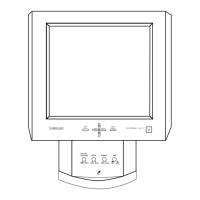
Opens the on-screen menu and exits from the menu. Also use to exit the
OSD menu or return to the previous menu.
Navigate buttons (Up-Down buttons)
Moves from one menu item to another vertically or adjusts selected menu
values.
Adjust buttons (Left-Right buttons) / Volume buttons
Moves from one menu item to another horizontally or adjusts selected
menu values. When OSD is not on the screen, press the button to adjust
volume.
ENTER button [ENTER]
Activates a highlighted menu item.
SOURCE button [SOURCE]
Switches from PC mode to Video mode. Selects the input source that an
external device is connected to.
[PC] → [DVI] → [AV] → [Component] → [HDMI1] → [HDMI2] → [Dis-
playPort] → [MagicInfo] → [TV]
Note
• The [RGB/COMPONENT IN] port is compatible with RGB (PC) and
Component signals.
However, the picture may display abnormally if the connected external
input signal is different from the selected video signal.
• A TV tuner box (sold separately) must be connected to use the TV.
Note
Using MagicInfo
• To use MagicInfo with an MXN-3, MPN-3 model, connect the MagicInfo output
on the already included network box to [HDMI IN 2 (MAGICINFO)] on
the product.
• To use MagicInfo with an MX-3, MP-3 model, install inside the product a net-
work box specified by Samsung and connect the MagicInfo output on
the network box to[HDMI IN 2 (MAGICINFO)] on the product.
D.MENU button
Opens the on-screen D.MENU.
Note
The D.MENU button is activated when a TV tuner is connected and oth-
erwise, the PIP button is enabled.
PIP button
Push the PIP button to turn the PIP screen On / Off.
Power button [ ]
Use this button for turning the LCD Display on and off.
Introduction




 To Next Page