EasyManua.ls Logo

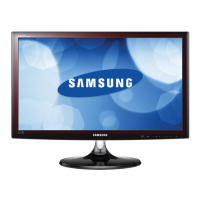
Samsung T19B300EW - User Manual

Samsung T19B300EW
47 pages
Print Icon
To Next Page IconTo Next Page
Loading...
LED TV MONITOR
(MFM TV)
user manual
Thank you for purchasing this Samsung product.
To receive more complete service, please register
your product at
www.samsung.com/register
TB300
TB350

Questions and Answers

  • V
    Vicki NobleAug 12, 2025
    What to do if my Samsung T19B300EW LED TV won't turn on?
    • B
      bryan93Aug 12, 2025
      First, ensure the AC power cord is securely plugged into both the wall outlet and the LED display. Then, verify that the wall outlet is working. Finally, press the POWER button on the LED display to rule out a remote control issue. If the LED display turns on, the problem might be with the remote.
  • V
    Victoria GillespieAug 15, 2025
    Why does my Samsung T19B300EW turn off automatically?
    • N
      Nicole PerezAug 16, 2025
      Check that the Sleep Timer is set to Off in the Time menu. If a PC is connected to the LED display, examine your PC power settings. Also, ensure the AC power cord is securely plugged into the wall outlet and the LED display. When watching from an antenna or cable connection, the LED display will turn off after 10-15 minutes if there is no signal.
  • S
    Shelly PerryAug 19, 2025
    Why doesn't my Samsung T19B300EW image look as good as it did in the store?
    • J
      juan68Aug 19, 2025
      If you have an analogue cable/set top box, upgrade to a digital set top box. Use HDMI to deliver HD (high definition) picture quality. Cable/Satellite subscribers: Try HD stations from the channel line up. Antenna connection: Try HD stations after performing Auto tuning. Adjust the Cable/Set top box video output resolution to 1080i or 720p. Make sure you are watching the LED display at the minimum recommended distance based on the size and definition of the signal.
  • K
    Krista ThompsonAug 23, 2025
    What causes distorted picture like macroblock errors on my Samsung T19B300EW LED TV?
    • D
      Donald JohnsonAug 23, 2025
      Picture distortion, especially in fast-moving scenes, can be caused by video content compression. Low signal level or bad signal quality can also cause picture distortion. Mobile phones used close to the LED display (up to 1m) may cause picture noise on analogue and digital LED displays.
  • M
    Matthew WilliamsAug 27, 2025
    How to fix poor color or brightness on Samsung T19B300EW?
    • L
      Laura CarrollAug 27, 2025
      Adjust the Picture options in the LED display menu (Picture Mode / Colour / Brightness / Sharpness). Adjust the Energy Saving option in the LED display menu (MENU - System - Eco Solution - Energy Saving). Try resetting the picture to the default settings (MENU - Picture - Reset Picture).
  • A
    Alison HudsonAug 30, 2025
    How do I remove a dotted line on the edge of my Samsung LED TV screen?
    • L
      likevinAug 31, 2025
      If the picture size is set to Screen Fit, change it to 16:9. You may also need to change your cable/satellite box resolution.
  • D
    Dustin GrantSep 3, 2025
    Why is my Samsung T19B300EW LED TV picture quality so poor?
    • C
      Cody PotterSep 3, 2025
      First, perform the Picture Test to confirm your LED display is properly showing a test image (go to MENU - Support - Self Diagnosis - Picture Test). If the test image displays correctly, the source or signal may be causing the poor picture.
  • L
    Lori FreemanSep 7, 2025
    What to do if the picture freezes or is distorted when changing channels on my Samsung LED TV?
    • M
      Margaret CamposSep 7, 2025
      If you're connected with a cable box, try resetting it by disconnecting and reconnecting the AC cord, then wait for it to reboot (this may take up to 20 minutes). Also, set the output resolution of the cable box to 1080i or 720p.

Summary

Getting Started

Safety Precautions

Warnings and guidelines for safe operation and installation.

Accessories

Lists included items and optional accessories for the LED display.

Viewing the Control Panel

Identifies and explains the functions of the LED display's control panel buttons.

Viewing the Remote Control

Details the functions of each button on the remote control for operation.

Connections

Connecting to an Antenna

Instructions for connecting an antenna for TV signal reception.

Connecting to an AV Device

Guides on connecting external AV devices like DVD players via HDMI or Scart.

Connecting to a COMMON INTERFACE slot

Instructions for using a CI/CI+ card for encrypted channels.

Connecting to a Audio device and PC

How to connect audio systems and computers via various ports.

Display Modes (D-Sub and HDMI;DVI Input)

Lists supported display modes, resolutions, and frequencies for PC input.

Changing the Input Source

How to select and manage different input sources connected to the display.

Basic Features

How to Navigate Menus

Explains how to use the on-screen display (OSD) menus and buttons.

Using the INFO button (Now & Next guide)

How to view current and upcoming program information.

Channel Menu

Covers channel scanning, tuning, locking, and management features.

Picture Menu

Adjustments for picture quality, modes, and screen settings.

Sound Menu

Settings for sound modes, effects, equalizer, and audio output.

System Menu

Configuration for time, timers, security, and eco solutions.

Advanced Features

Using the Media Play

How to play videos, photos, and music from USB devices.

Videos

Details on playing video files, supported formats, and codecs.

Photos

Information on viewing photos and slide shows, supported formats.

Music

How to play music files, supported formats, and equalizer settings.

Other Information

Analogue Channel Teletext Feature

How to use the analogue teletext service and its functions.

Attaching a Wall Mount;Desktop Stand

Instructions for installing the display on a wall or desk stand.

Troubleshooting

Common issues and their solutions for picture, sound, and connectivity.

Specifications

Technical details, dimensions, power, and operating conditions.

Samsung T19B300EW Specifications

General IconGeneral
Display diagonal19 \
Display brightness250 cd/m²
Display resolution1366 x 768 pixels
Native aspect ratio16:9
LED backlighting type-
Viewing angle, vertical160 °
Contrast ratio (typical)1000:1
Display diagonal (metric)47 cm
Viewing angle, horizontal170 °
3DNo
Backlight typeW-LED
Tilt angle range0 - 20 °
DVI-D ports quantity0
USB 2.0 ports quantityUSB 2.0 ports have a data transmission speed of 480 Mbps, and are backwards compatible with USB 1.1 ports. You can connect all kinds of peripheral devices to them.
RMS rated power10 W
Number of speakers2
Number of OSD languages29
Product colorBlack
Panel mounting interface75 x 75 mm
AC input voltage220 - 240 V
AC input frequency50 - 60 Hz
Power consumption (max)35 W
Power consumption (standby)0.5 W
Supported TV bandsDTV
Digital signal format systemDVB-C, DVB-T
Package depth141 mm
Package width523 mm
Package height363 mm
Package weight4600 g
Cables includedAC, VGA
Weight and Dimensions IconWeight and Dimensions
Depth (with stand)187 mm
Height (with stand)356.4 mm
Weight (with stand)3200 g
Depth (without stand)48.5 mm
Width (without stand)444.7 mm
Height (without stand)278.2 mm
Weight (without stand)2950 g

Related product manuals