
 Need help?
Do you have a question about the Samsung The Premiere LSP9T and is the answer not in the manual?
Explains symbols and covers critical precautions for installation and operation.
Guidelines for safe power cord use, grounding, voltage matching, and avoiding electrical hazards.
Instructions for cleaning the projector and safety measures for laser operation and eye safety.
Steps to protect the projector online, secure wireless access, and manage software updates.
Provides instructions and critical warnings for securely mounting the projector on a wall.
Solutions for projector not turning on, signal issues, and remote control not working.
This document is a user manual for the Samsung The Premiere LSP7T/LSP9T Laser Projector, providing comprehensive information on its operation, maintenance, and safety.
The Samsung The Premiere Laser Projector is designed to deliver a high-quality viewing experience. It comes with an embedded e-Manual for detailed information, accessible through the projector's settings. The e-Manual offers various assistance functions, including Search, Index, Sitemap, and Recently Viewed Topics, to help users quickly find relevant information. Additionally, "Try Now" buttons in the e-Manual allow users to access corresponding menu items and try features immediately, while "Link" buttons provide instant access to underlined topics.
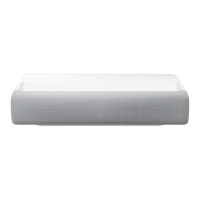
The projector's primary function is to project images onto a screen, offering a large-format display for entertainment. It features a lens, remote control sensor/LED indicators, speaker, ventilation, power button, and tilt-adjustment foot. The projector is designed for horizontal placement on a flat surface to ensure proper image alignment. It supports various image sizes and projection distances, which can be adjusted by moving the projector forward or backward. The projected screen can be focused and adjusted for right angles through the projector's settings.
The projector is controlled using the Samsung Smart Remote, which allows users to power the device on or off, navigate menus, adjust volume, change channels, and access the Smart Hub. The remote also includes a Voice Assistant function for hands-free control. For initial setup, the projector automatically starts the Initial Setup process, guiding users through basic settings. If the remote doesn't pair automatically, it can be manually paired by pointing it at the projector's remote control sensor and holding specific buttons. The projector also has a power button at the rear, which, when pressed while the projector is on, brings up a Control menu for basic functions like power off, volume adjustment, channel change, and source selection.
Maintaining the projector involves several key aspects to ensure its longevity and optimal performance. Regular cleaning is crucial; the manual advises unplugging the power cord and wiping the product with a soft, dry cloth. It explicitly warns against using chemicals like wax, benzene, alcohol, thinners, insecticide, air fresheners, lubricants, or detergents, as these can damage the projector's appearance or erase printing. Users are also cautioned not to spray water or any liquid directly onto the projector to prevent failure, fire, or electric shock.
For optimal performance and security, Samsung recommends promptly installing software updates. These updates can be received automatically by enabling "Auto Update" in the projector's settings. The manual also emphasizes securing the wireless access point and network with unique, hard-to-guess passwords and standard encryption (e.g., WPA2) to prevent unauthorized access. Users are advised to use strong passwords for all Internet accounts and to avoid suspicious websites or programs, installing only authorized apps from Samsung Smart Hub.
Troubleshooting guidance is provided for common issues such as the projector not turning on, lack of picture/sound, or remote control malfunction. Users are encouraged to perform a projector self-diagnosis, check cable connections, reboot connected devices, and run "Auto Program" for channel searches if using an antenna or cable wall connector. For remote control issues, replacing batteries and ensuring correct polarity are suggested.
The manual also includes important safety instructions. It warns against exposing the projector to rain or moisture, disposing of batteries in fire, and exposing batteries to excessive heat. Users are advised to contact an authorized Samsung service center for installation in challenging environments (e.g., heavy dust, extreme temperatures). Caution is given regarding touching the projector after prolonged use, as some parts may become warm. When turning off the projector completely, it's important to wait until the fan stops to allow the unit to cool down.
Regarding laser safety, users are warned not to block the light from the projector lens during operation, as this can cause heat, melting, burns, or fire. Direct staring into the light or projecting it into anyone's eyes is strictly prohibited. The projector is a Class 1 laser product, and additional warnings are provided for supervising children, ensuring they do not stare into the beam, and using caution with the remote control when in front of the projection lens. Optical aids like binoculars or telescopes should not be used within the beam. Opening or disassembling the projector is discouraged due to potential exposure to laser radiation.
For antenna installation, the manual recommends bending the outdoor antenna line to prevent rainwater ingress and installing it away from electrical wires to avoid contact during heavy winds. To decrease power consumption, users are advised to unplug the power cord when the projector will not be used for an extended period, as it draws a small amount of power in Standby mode.
 General
| Display Type | DLP |
|---|---|
| Display Technology | DLP |
| Resolution | 4K UHD (3840 x 2160) |
| Brightness | 2800 ANSI Lumens |
| Contrast Ratio | 2, 000, 000:1 |
| Light Source | Laser |
| Light Source Life | 20, 000 hours |
| HDR | HDR10+ |
| Audio | 4.2 Channel, 40W |
| Screen Size | 100" to 130" |
| Smart Features | Tizen OS, Bixby, Alexa, Google Assistant |
| Ports | Ethernet, Optical Audio Out |




 To Next Page