EasyManua.ls Logo

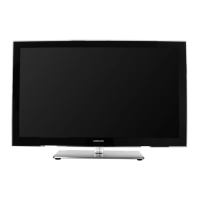
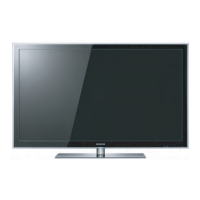
Samsung UN55D6000 - User Manual

Samsung UN55D6000
303 pages
Print Icon
To Next Page IconTo Next Page
Loading...
E-MANUAL
imagine the possibilities
Thank you for purchasing this Samsung product.
To receive more complete service, please register
your product at
www.samsung.com/register
Model _____________ Serial No. _____________

Questions and Answers

  • M
    mcleanmelindaJul 30, 2025
    What to do if the connected device is not displayed on my Samsung UN55D6000 Flat Panel TV?
    • B
      Brittany EvansJul 30, 2025
      If a connected device isn't displayed, first check if the device supports Anynet+ functions and ensure the HDMI cable is properly connected. Verify that Anynet+ (HDMI-CEC) is enabled in the Anynet+ setup menu. Try rescanning for Anynet+ devices. Anynet+ requires an HDMI connection. If there was a power failure or the HDMI cable was disconnected, repeat the device scan. Some HDMI cables may not fully support Anynet+ functions.
  • L
    Laurie ArnoldAug 3, 2025
    How to check picture quality on Samsung Flat Panel TV?
    • A
      Alec GentryAug 3, 2025
      First, perform the Picture Test to see if your TV is properly displaying the test image. You can access this by going to MENU - Support - Self Diagnosis - Picture Test. The poor picture may be caused by the source or signal.
  • J
    Joseph EspinozaAug 9, 2025
    Why is Anynet+ not working on my Samsung Flat Panel TV?
    • A
      Andrew WellsAug 9, 2025
      Anynet+ may not work for several reasons. First, ensure that all devices are Anynet+ compatible, as the system only supports these devices. You can only connect one receiver (home theater). Check that the power cords and Video/Audio/HDMI cables of the Anynet+ devices are properly connected. Also, verify that Anynet+ (HDMI-CEC) is enabled in the Anynet+ setup menu and that the TV remote control is in TV mode and is Anynet+ compatible. Anynet+ might not function during certain operations like searching channels or using Smart Hub. If you've reconnected the HDMI cable, rescan for devices or restart the TV. Finally, confirm that the Anynet+ function is enabled on the Anynet device.
  • T
    Tammy MartinAug 14, 2025
    How to start Anynet+ on Samsung UN55D6000 Flat Panel TV?
    • R
      Ryan SanchezAug 14, 2025
      To start Anynet+, ensure the Anynet+ device is properly connected to the TV and that Anynet+ (HDMI-CEC) is set to On in the Anynet+ Setup menu. You can also press the TOOLS button to display the Anynet+ menu and select the desired option.
  • K
    kylebaldwinAug 19, 2025
    What to do if the TV sound is not output through the receiver on my Samsung UN55D6000 Flat Panel TV?
    • S
      stonewilliamAug 19, 2025
      If the TV sound is not being output through the receiver, connect the optical cable between the TV and the receiver. Also, the ARC function enables digital sound output using the HDMI IN 2(ARC) port, but it only works when the TV is connected to an audio receiver that supports the ARC function.
  • J
    jeffrey74Aug 25, 2025
    How to exit Anynet+ on Samsung Flat Panel TV?
    • W
      wrodriguezAug 25, 2025
      To exit Anynet+, select View TV in the Anynet+ menu. Alternatively, press the SOURCE button on the TV remote control and select a non-Anynet+ device. You can also press z and PRE-CH to change the TV mode.

Summary

Menú Canal

Using the Channel Menu

Navigate and use the TV's channel selection features.

Schedule Manager

Set up and manage scheduled channel viewing times.

Channel List

View and manage the list of available TV channels.

Memorizing Channels

Scan and store available TV channels into the channel list.

Auto Program

Automatically scan for and store all available channels.

Basic Features

Changing the Preset Picture Mode

Select predefined picture settings for different viewing environments.

Adjusting Picture Settings

Customize picture quality using options like brightness, contrast, and color.

Changing the Picture Size

Adjust aspect ratio and screen size for optimal viewing.

Changing the Picture Options

Access advanced picture settings for fine-tuning image parameters.

Using the TV with Your PC

Connect and configure the TV to be used as a computer display.

Changing the Preset Sound Modes

Select predefined sound profiles for different types of content.

Adjusting Sound Settings

Customize sound effects, equalizer, and audio balance.

Preference Features

Wired Network Connection

Connect the TV to a network using a LAN cable for internet access.

Wireless Network Connection

Connect the TV to a wireless network using a Wi-Fi adapter.

Setting the Time

Set the TV's clock for timer functions and automatic updates.

Blocking Programs

Set parental controls to block programs based on ratings and PIN.

Economical Solutions

Adjust TV settings to reduce power consumption and save energy.

Advanced Features

3 D

Enable and configure the TV's 3D viewing capabilities with active glasses.

Smart Hub

Access internet-based content, apps, and streaming services on the TV.

Setting up Smart Hub

Configure account management, reset, and property settings for Smart Hub.

Using Smart Hub

Enjoy media files from USB devices or PCs via the Smart Hub interface.

Connecting a USB Device

Connect USB storage devices to the TV for media playback.

Videos

Play video files from connected storage devices or network sources.

Music

Play music files from connected storage devices or network sources.

Photos

View photo files or initiate slideshows from connected devices.

Using Samsung Apps

Download and use applications from the Samsung Apps store on the TV.

Social TV

Share TV viewing experiences and use social networking services on the TV.

Search

Search for content across various sources like apps, videos, and AllShare.

Web Browser

Browse the internet directly on the TV using the built-in web browser.

Troubleshooting for Smart Hub

Resolve common issues related to Smart Hub functionality and services.

Troubleshooting for Web Browser

Address problems encountered while using the TV's web browser.

Other Information

TroubleShooting

Review common issues and find solutions for TV problems.

Anti-theft Kensington Lock

Secure the TV physically using a Kensington lock slot.

License

View licensing information for software and technologies used in the TV.

Samsung UN55D6000 Specifications

General IconGeneral
Screen Size55 inches
Resolution1920 x 1080
Display TypeLED
Refresh Rate120Hz
Smart TVYes
HDMI Ports4
USB Ports3
Ethernet PortYes
Wi-FiNo
3DNo

Related product manuals