EasyManua.ls Logo

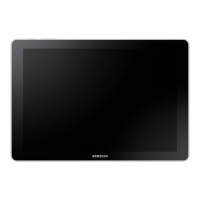
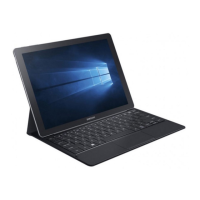
Samsung W700 - User Manual

Samsung W700
37 pages
Print Icon
To Next Page IconTo Next Page
Loading...
DRAFT
FOR INTERNAL USE ONLY
W700
TABLET
User Manual
Please read this manual before operating your device
and keep it for future reference.
This document is watermarked because certain important information in the document has not yet been verified.
This document has been sent to you as a draft and for informational purposes only.
The document should only be used for internal purposes and may not be distributed outside of the company.
Distributing the document outside of the company could result in legal exposure to the company if the preliminary,
unverified information in the draft turns out to be inaccurate.
Question and Answer IconNeed help?

Do you have a question about the Samsung W700 and is the answer not in the manual?

Summary

Legal Notices

Intellectual Property

Defines Samsung's proprietary intellectual property rights and user restrictions.

Open Source Software

Details open source software used and how to obtain the source code.

Disclaimer of Warranties; Exclusion of Liability

States product is sold 'as is' and limits Samsung's liability for damages.

Modification of Software

Warns against liability for issues arising from OS software modification.

Legal Information

Samsung Knox

Explains Samsung's security platform for enterprise use and potential licensing fees.

Samsung Electronics America (SEA), Inc

Provides contact details and address for Samsung Electronics America.

Getting Started

Front View

Identifies and describes the physical components on the front of the device.

Back View

Identifies and describes the physical components on the back of the device.

Assemble Your Device

Instructions for installing an optional memory card and charging the device.

Set Up Your Device

Instructions for turning the device on/off and securing it with a screen lock.

Set Up Accounts on Your Device

Steps to set up Google and Samsung accounts for device functionality.

Know Your Device

Home Screen

Explains the Home screen layout, icons, and basic elements like app folders and widgets.

Status Bar

Details the icons and information displayed in the device's status bar.

Navigation, Motions, and Gestures

Covers touchscreen navigation methods like tap, touch and hold, swipe, drag, and pinch.

Notification Panel

Explains how to view and manage notifications and quick settings.

Multi Window

Instructions on how to multitask using multiple applications simultaneously on a split screen.

Enter Text

Guide to using the Samsung keyboard, predictive text, and Google voice typing.

Applications

Apps List

How to access, uninstall, disable, or hide applications on the device.

Microsoft Applications

Overview of preloaded Microsoft apps like Word, Excel, OneDrive, OneNote, PowerPoint, and Skype.

Other Applications

Details preloaded Samsung apps like Milk Music, Samsung+, and Screen Saver.

Calculator

Instructions for basic and advanced functions of the Calculator app.

Calendar

Guide to managing calendar events, creating tasks, and sharing events.

Camera

Instructions for taking pictures and videos using the device's camera app.

Clock

How to use the Clock app for alarms, world clock, stopwatch, and timer functions.

Contacts

Steps for adding, managing, finding, and editing contacts in the Contacts app.
Summary

Legal Notices

Intellectual Property

Defines Samsung's proprietary intellectual property rights and user restrictions.

Open Source Software

Details open source software used and how to obtain the source code.

Disclaimer of Warranties; Exclusion of Liability

States product is sold 'as is' and limits Samsung's liability for damages.

Modification of Software

Warns against liability for issues arising from OS software modification.

Legal Information

Samsung Knox

Explains Samsung's security platform for enterprise use and potential licensing fees.

Samsung Electronics America (SEA), Inc

Provides contact details and address for Samsung Electronics America.

Getting Started

Front View

Identifies and describes the physical components on the front of the device.

Back View

Identifies and describes the physical components on the back of the device.

Assemble Your Device

Instructions for installing an optional memory card and charging the device.

Set Up Your Device

Instructions for turning the device on/off and securing it with a screen lock.

Set Up Accounts on Your Device

Steps to set up Google and Samsung accounts for device functionality.

Know Your Device

Home Screen

Explains the Home screen layout, icons, and basic elements like app folders and widgets.

Status Bar

Details the icons and information displayed in the device's status bar.

Navigation, Motions, and Gestures

Covers touchscreen navigation methods like tap, touch and hold, swipe, drag, and pinch.

Notification Panel

Explains how to view and manage notifications and quick settings.

Multi Window

Instructions on how to multitask using multiple applications simultaneously on a split screen.

Enter Text

Guide to using the Samsung keyboard, predictive text, and Google voice typing.

Applications

Apps List

How to access, uninstall, disable, or hide applications on the device.

Microsoft Applications

Overview of preloaded Microsoft apps like Word, Excel, OneDrive, OneNote, PowerPoint, and Skype.

Other Applications

Details preloaded Samsung apps like Milk Music, Samsung+, and Screen Saver.

Calculator

Instructions for basic and advanced functions of the Calculator app.

Calendar

Guide to managing calendar events, creating tasks, and sharing events.

Camera

Instructions for taking pictures and videos using the device's camera app.

Clock

How to use the Clock app for alarms, world clock, stopwatch, and timer functions.

Contacts

Steps for adding, managing, finding, and editing contacts in the Contacts app.
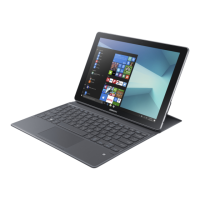
Samsung W700 Specifications

General IconGeneral
BrandSamsung
ModelW700
CategoryTablet
LanguageEnglish

Related product manuals