
 Need help?
Do you have a question about the Samsung Xpress M3065 Series and is the answer not in the manual?
Highlights the advantages and features of the printer.
Details features and software compatibility for different models.
Provides quick answers to common user questions and issues.
Explains the guide's purpose, conventions, and general icons.
Crucial warnings and precautions for safe operation and handling.
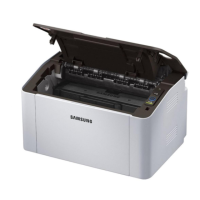
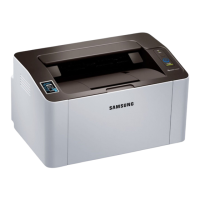
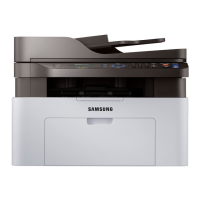
Introduces the physical components and layout of the printer.
Explains the buttons, icons, and functions of the printer's control panel.
Step-by-step guide on how to power on and start the printer.
Instructions for installing the printer driver on a local computer.
Guidance on how to remove and reinstall the printer driver.
This document serves as a user's guide for the Samsung Printer Xpress M3065 series, providing comprehensive information for both basic and advanced usage. It covers installation, operation, maintenance, and troubleshooting across various operating systems.
The Samsung Printer Xpress M3065 series is a versatile printing device designed for a range of tasks including printing, copying, scanning, and faxing. It supports various operating systems such as Windows, Mac, Linux, and Unix, and comes with a suite of software for enhanced functionality. These include SPL, PCL, PS, and XPS printer drivers, as well as Samsung Easy Printer Manager, Samsung AnyWeb Print, Samsung Easy Document Creator, Easy Capture Manager, SyncThru™ Web Service, SyncThru Admin Web Service, Easy Eco Driver, and various scan drivers (Twain and WIA).
The device offers direct printing utility and supports a variety of connectivity options including Hi-Speed USB 2.0, Ethernet 10/100 Base TX wired LAN, and 802.11b/g/n wireless LAN. It also features NFC (Near Field Communication) for easy mobile printing and supports Google Cloud Print™ and AirPrint for cloud-based and Apple device printing.
For document handling, the M3065 series includes an Automatic Document Feeder (ADF) and supports duplex (2-sided) printing, both automatic and manual. Fax functions include Multi Send, Delay Send, Priority Send, Forward to Fax, and Secure Receive. Copying capabilities include Duplex, Reduce/Enlarge, Collation, 2-up/4-up, and Adjust background. Scanning features include Scan to PC.
The printer emphasizes environmental friendliness with its Eco feature, designed to save toner and paper. Users can print multiple pages on a single sheet, print on both sides of the paper (double-sided printing), and benefit from automatic electricity conservation when the machine is not in use. The guide recommends using recycled paper for further energy saving.
For high-resolution printing, the device can achieve up to 4,800 x 600 dpi effective output (600 x 600 x 3 bit). It offers fast, on-demand printing, with speeds up to 30 ppm (A4) or 31 ppm (Letter) for single-side printing.
Convenience features include NFC tag printing, allowing users to simply touch their mobile device to the printer to initiate a print job. Google Cloud Print™ enabled apps facilitate printing from smartphones or computers on the go. Easy Capture Manager enables easy editing and printing of captured screen content using the Print Screen key. Samsung Easy Printer Manager and Printing Status provide monitoring and customization options for machine settings. Samsung Easy Document Creator helps users scan, compile, and save documents in multiple formats, including .epub, with options for sharing via social media or fax. AnyWeb Print simplifies screen-capture, preview, scrap, and printing from Windows Internet Explorer. Smart Update ensures the latest software version is installed during driver installation for Windows users.
The machine supports various paper sizes and offers features like watermark printing (customizable with words like "Confidential") and poster printing, where text and pictures are magnified and printed across multiple sheets to form a poster. It is compatible with various operating systems.
Wireless network setup is made easy with support for WPS (Wi-Fi Protected Setup™) button, USB cable or network cable configuration, and Wi-Fi Direct for convenient mobile printing.
The control panel, available in M3065FW and M3065FD models, features buttons for ID Copy, Scan to, Display screen, Left/Right Arrows for menu navigation and value adjustment, Menu, OK, Stop/Clear, Power/Wake Up, Start, Power Saver, Back, Status LED, and Eco mode. The M3065FD model additionally includes buttons for Darkness, Copy, Fax, Numeric keypad, Address Book, Redial/Pause(-), and On Hook Dial. The Print Screen button allows printing of active windows or full monitor screens, a feature available for Windows and Mac OS, and requires Samsung Easy Printer Manager for Mac users. Reduce/Enlarge functionality allows scaling of copied images from 25% to 400%.
The guide provides detailed instructions for maintenance, including ordering supplies and accessories, information on available supplies and maintenance parts, and proper storage of toner cartridges. It explains how to redistribute toner to extend cartridge life and provides steps for replacing both the toner cartridge and the imaging unit. Users can monitor supplies life and set toner low alerts. Cleaning the machine is also covered, along with tips for moving and storing the device.
Troubleshooting sections address common issues such as paper jams (including tips for avoidance, clearing original document jams, and clearing paper jams), understanding the status LED indications, and interpreting display messages.
Safety information is paramount, with warnings and cautions regarding electrical safety, operating environment, and operating methods. Users are advised to read safety information before use and keep the manual for future reference. Important safety symbols are explained, covering hazards that may result in severe personal injury or death, minor personal injury or property damage, and actions to avoid.
Specific safety guidelines include:
 General
| Printer Type | Laser |
|---|---|
| Print Resolution | 1200 x 1200 dpi |
| Monthly Duty Cycle | Up to 50, 000 pages |
| Display | 2-Line LCD |
| First Print Out Time (Black) | 8.5 seconds |
| Processor | 600 MHz |
| Memory (Standard) | 256 MB |
| Input Capacity (Standard) | 250 sheets |
| Paper Capacity | 250 sheets |
| Connectivity | USB 2.0, Ethernet |
| Output Capacity | 150 sheets |
| Media Sizes | A4, Letter, Legal |
| Supported Operating Systems | Windows, Mac, Linux |



 To Next Page