32
GB
Customising the Video Settings
1. Press the SETUP button on the unit or the
remote control to display the system setup
menu.
2. Press the
buttons on the unit or the remote
control to select Video and then press the
button on the unit or the /VOL+ button on
the remote control.
3. Press the
buttons on the unit or the remote
control to select Aspect Ratio / TV System /
Picture Mode and then press the OK button
on the unit or press the ENTER button on the
remote control.
4. Press the
buttons on the unit or the remote control to select an option, then
press the OK button on the unit or press the ENTER button on the remote control to
conrm.
5. Press the SETUP button on the unit or the remote control to exit the menu.
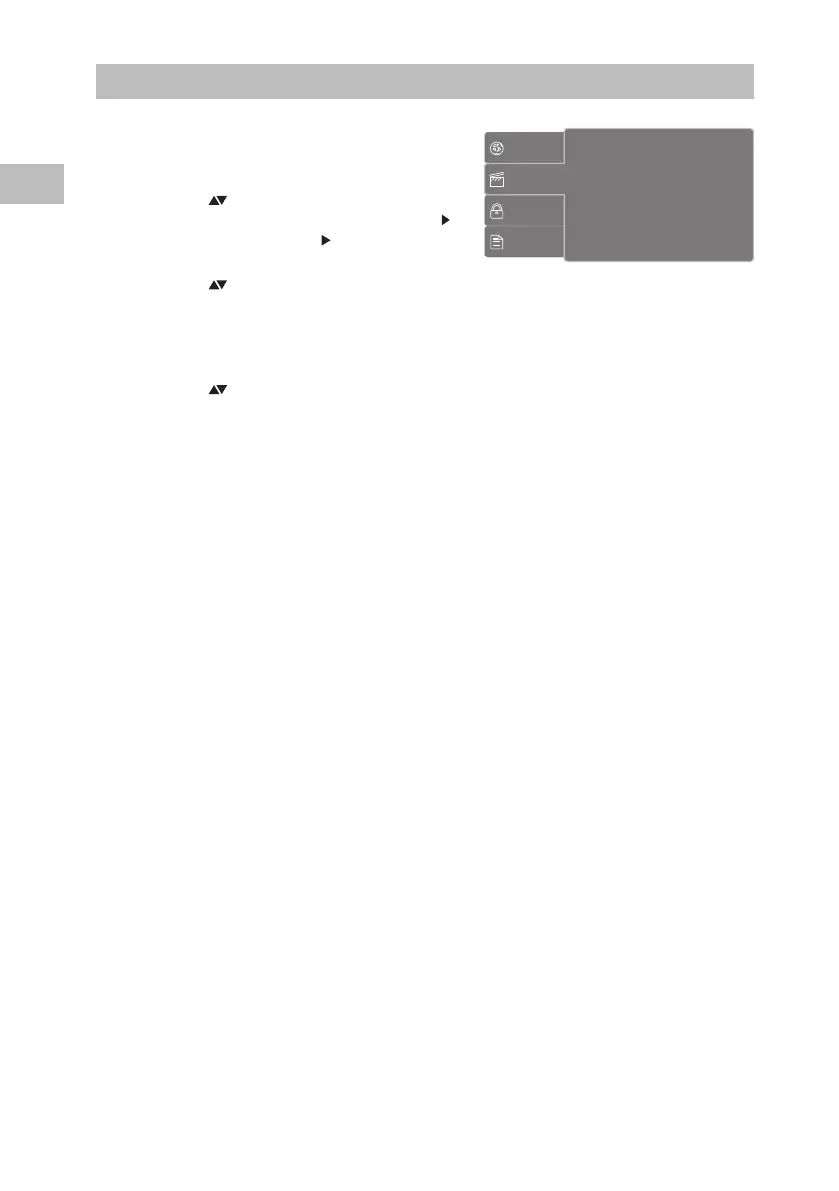
Aspect Ratio
Select the aspect ratio of the viewing screen (both internal display or external display) if the
disc has more than one aspect ratio (4:3LB / 4:3PS / 16:9).
4:3: Select “Aspect Ratio: 4:3” for outputting 4:3 ratio video for a conventional size TV.
Black bands might appear on the screen if playing a non 4:3 video.
16:9: Select “Aspect Ratio: 16:9” for outputting 16:9 ratio video for a widescreen TV. Black
bands might appear on the screen if playing a non 16:9 video.
TV System
Select the TV playing system according to the local TV system (NTSC/PAL/Auto).
Picture Mode
Picture Mode setting allows user to adjust the picture’s brightness
(Standard / Bright / Soft / User).
Language
Video
Rating
Misc
Aspect Ratio : 16:9
TV System
: PAL
Picture Mode : User
S95PD11E_IB_7L_RC_130606_Michelle.indb 32 6/6/13 4:08 PM


 To Next Page