EasyManua.ls Logo

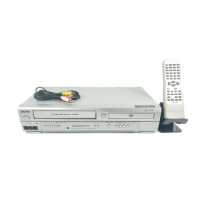
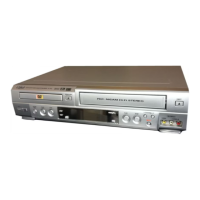
Sanyo DVW-7000 - User Manual

Sanyo DVW-7000
40 pages
Print Icon
To Next Page IconTo Next Page
Loading...
Only cassettes marked can be used with this DVD+VCR.
Please read this manual carefully before connecting your DVD+VCR and operating it for the first time.
Keep the manual in a safe place for future reference.
As an E
NERGY STAR
®
Partner,
SANYO has determined that
this product or product model
meets the E
NERGY STAR
®
guidelines for energy efficiency.
INSTRUCTION MANUAL
DVW-7000
DVD VIDEO PLAYER & 4-HEAD Hi-Fi STEREO VCR
English
REPRODUCTOR DE DVD VIDEO Y VCR ESTÉREO Hi-
Fi DE 4 CABEZALES
Español
SANYO'S HELP-LINE
Call the toll-free number below if you have any difficulties operating this product.
1-800-813-3435 (Weekdays: 7:30 AM - 4:00 PM Central Time)

Table of Contents

Other manuals for Sanyo DVW-7000

Questions and Answers

  • L
    Luis HughesAug 14, 2025
    Why is there no stereo audio on my Sanyo DVD VCR Combo?
    • E
      erica83Aug 14, 2025
      If you're not getting stereo sound on your Sanyo DVD VCR Combo, several factors could be at play. First, the broadcast program might not be in stereo. Also, check your connections: ensure the DVD VCR's A/V Out jacks are correctly connected to your TV's A/V In jacks. Make sure you've selected the correct input (AUX or A/V) on your TV. Finally, verify that the DVD VCR's BROADCAST TYPE mode is set to STEREO, not SAP or MONO. If the BROADCAST TYPE mode is set to SAP or MONO, set it to STEREO.
  • A
    Angela MillerAug 18, 2025
    What to do if the picture and sound are weak on my Sanyo DVD VCR Combo?
    • M
      Michael StanleyAug 18, 2025
      If the picture and sound of a broadcasting channel are weak or missing on your Sanyo DVD VCR Combo, it could be due to loose antenna or cable connections. Try tightening these connections or replacing the cable. Also, ensure you are using the correct TUNING BAND option; experiment with all available options.
  • Z
    Zachary LesterAug 21, 2025
    How to fix timer recording on Sanyo DVW-7000 DVD VCR Combo?
    • K
      kristina81Aug 21, 2025
      If timer recording isn't working on your Sanyo DVD VCR Combo, there are a few things to check. First, make sure the clock on the DVD VCR is set to the correct time. Also, verify that the timer has been programmed correctly. If the indicator doesn't appear after programming the timer, try reprogramming it again.
  • T
    Thomas McintoshAug 25, 2025
    Why are some channels skipped on my Sanyo DVW-7000?
    • K
      Kimberly StanleyAug 25, 2025
      If some channels are being skipped when using the CH. ADD/DEL option on your Sanyo DVD VCR Combo, it's likely because those channels were previously deleted using the same CH. ADD/DEL option. To restore these channels, use the CH. ADD/DEL function to add them back.
  • L
    Lisa LoweAug 28, 2025
    What to do if camcorder image is not showing on TV screen from Sanyo DVD VCR Combo?
    • Q
      qarmstrongAug 28, 2025
      If the camcorder image connected via A/V input to your Sanyo DVD VCR Combo isn't showing on the TV screen, the DVD VCR SOURCE SELECT might not be set to LINE1 or LINE2. Press the INPUT button to select the appropriate LINE input channel (LINE1 or LINE2).
  • A
    Angela ReidAug 31, 2025
    How to prevent moisture condensation on Sanyo DVW-7000?
    • P
      Patricia SheltonAug 31, 2025
      Moisture condensation can occur in your Sanyo DVD VCR Combo if it's moved from a cold place to a warm place or under extremely humid conditions. To prevent this, keep the DVD VCR plugged into an AC power outlet with the power on. If condensation has already occurred, wait a few hours for the unit to dry before using it.
  • A
    Antonio YoungSep 3, 2025
    What does it mean if the 'PROGRESSIVE SCAN MODE' message is displayed on my Sanyo DVW-7000 DVD VCR Combo?
    • T
      Tiffany WaltersSep 3, 2025
      If the "PROGRESSIVE SCAN MODE" message remains on the screen of your Sanyo DVD VCR Combo, it means the unit was turned off while setting the Progressive scan mode. To resolve this, keep pressing the STOP button for more than 5 seconds.
  • L
    Luis AvilaSep 7, 2025
    What causes a snowy picture on Sanyo DVW-7000?
    • L
      Lynn ParkSep 7, 2025
      A snowy picture on your Sanyo DVD VCR Combo indicates that video head cleaning is needed because the playback picture has become unclear. Use an equivalent high quality chemical non-abrasive (wet) head cleaning tape or have them cleaned professionally.
  • V
    vbrownSep 10, 2025
    How to fix video head clogging on Sanyo DVW-7000 DVD VCR Combo?
    • B
      Brian WheelerSep 10, 2025
      Video head clogging on your Sanyo DVD VCR Combo is caused by dirty video heads. Use a high quality head cleaning system or have them cleaned professionally.

Summary

Safety Precautions

General Safety Warnings

Covers electrical shock, fire hazards, and proper usage warnings.

Regulatory and Copyright Information

FCC compliance and copyright notices.

Important Safety Instructions

Safe Operation Guidelines

Detailed instructions for safe operation, installation, and maintenance.

Before Use - Initial Steps

Playable Discs

Lists compatible disc types like DVD, Audio CD, CD-R/RW.

Remote Control Setup

Instructions for installing batteries and understanding remote operation.

Before Use - Unit Care

Handling and Cleaning the Unit

Proper methods for handling, cleaning, and maintaining the unit's surface.

Disc Handling and Storage

Guidelines for handling, cleaning, and storing discs to ensure optimal playback.

Symbols and Output Settings

Explains symbols and how to set the output source for viewing on TV.

Front Panel Overview

Front Panel Controls

Details the functions of buttons and connectors on the front panel.

Display Window Status

Explains the indicators and information shown in the unit's display window.

Display Window Details

Remote Control Functions

Remote Control Buttons

Explains the function of each button on the remote control for DVD and VCR operations.

Rear Panel Connections

Rear Panel Ports

Details the various input and output jacks on the rear of the unit.

Connecting the Unit

Antenna and Cable TV Connections

Guides for connecting the unit to an antenna, cable TV, and TV.

TV Connections

Basic TV Connections

Step-by-step guide for basic RF coaxial and Audio/Video connections to a TV.

Advanced TV Connections

Instructions for connecting via S-Video and Component/Progressive Scan for better video quality.

Amplifier Connections

Audio System Connections

How to connect to amplifiers for stereo and multi-channel audio output.

VCR Operation - Setup

On-Screen Display (OSD)

Describes the information displayed on the TV screen during VCR operation.

Menu Navigation

Explains how to access and navigate the VCR's menu system.

VCR Setup - Tuning and Settings

VCR Setup Menu Options

Guides through setting up VCR preferences like OSD, Audio Mode, Broadcast Type.

Channel Tuning and Management

Instructions for auto-programming and managing TV channels.

VCR Setup - Clock

Setting the Clock

Steps for setting the unit's clock manually or using the Auto Clock feature.

DVD Operation - Basics

DVD Playback Overview

Explains how the manual covers DVD operations and symbols.

On-Screen Display for DVDs

How to display and navigate playback information for DVDs.

DVD Setup - Initial Settings

Initial Display and Language Settings

Guides for customizing initial settings like language, display mode, and aspect ratio.

DVD Setup - Audio and Features

Audio Output Configuration

Configuration for audio output modes (Dolby Digital, DTS, MPEG) and dynamic range control.

Auto Play and TVGuardian Settings

Settings for Auto Play functionality and TVGuardian (foul language filter).

DVD Setup - Parental Controls

Lock and Password Management

How to set a password, rating level, and country code for parental control.

Country Code Settings

Guidelines for setting the country code for DVD region compatibility.

TVG (TVGuardian) Functionality

TVG Mode and Word Filtering

Explains different TVG modes (Tolerant, Moderate, Strict) and word subsets.

Closed Caption Setup

How to set the CC channel for DVD playback with TVGuardian.

VCR Operation - Playback

Normal and Special Playback Modes

Steps for playing tapes and using special modes like search and slow motion.

Tracking Control

Adjusting tracking manually or automatically to improve picture quality.

Advanced Playback Features

Detailed functions for Search, Still Picture, Slow Motion, and Ad JUMP.

VCR Operation - Recording

Normal Recording

Instructions for recording TV programs directly from the tuner.

Timer Recording Setup

How to program the VCR to record shows automatically at scheduled times.

VCR Operation - Recording Management

Recording Speed and Repeat Options

Options to set recording speed (SP, SLP) and repeat modes (Once, Weekly, Daily).

Managing Timer Programs

How to view, check, and delete programmed recordings.

VCR Operation - Recording and Copying

Instant Timer Recording

Quick recording for a preset duration without using the timer.

Dubbing and DVD to VCR Copying

How to connect and dub content from external sources and copy DVDs to VCR.

VCR Operation - Audio Modes

VHS Hi-Fi Stereo and MTS Broadcast

Information on recording/playing Hi-Fi stereo tapes and understanding MTS broadcast signals.

VCR Operation - Tape Features

Tape Counter and Memory

Using the tape counter for locating specific points on a tape.

Additional Operation Notes

Notes on automatic rewinding, disc ejection, and setup reminders.

Auto Play System

How the automatic playback feature works for cassettes.

DVD Operation - Playback Basics

Playing a DVD Disc

Basic steps for inserting and playing a DVD disc.

DVD Playback Setup

Initial configurations for DVD playback like TV connection and output source.

DVD General Playback Features

Overview of common DVD playback functions like title/chapter navigation.

DVD Operation - Advanced Features

DVD Repeat and Surround Modes

How to repeat chapters, titles, or custom A-B sequences and use 3D Surround.

Time Search, Zoom, and Markers

Features for searching specific playback times, zooming video, and marking/recalling points.

DVD Operation - Disc Menus and Options

Accessing DVD Disc Menus

How to use Title Menu, Disc Menu, Camera Angle, Audio Language, and Subtitle options.

Audio CD and MP3 Playback

Playing Audio CDs and MP3 Files

How to play audio CDs and MP3 files from discs.

MP3 File Compatibility Notes

Important considerations and compatibility notes for MP3 file recordings.

Audio CD and MP3 Playback Controls

CD;MP3 Track and Playback Controls

Functions like Pause, Moving Tracks, Repeat, Random, and Repeat A-B for CDs and MP3s.

Programmed Playback for CDs and MP3 s

Creating and Repeating Playlists

How to create custom playlists and set repeat modes for programmed tracks.

Managing Programmed Tracks

Steps to erase individual tracks or the entire program list.

Troubleshooting - Common Issues

Troubleshooting No Power, Picture, Sound

Guide to diagnose and resolve common problems like no power, no picture, or no sound.

Troubleshooting Playback and Remote Issues

Solutions for playback errors, disc recognition, and remote control malfunctions.

Troubleshooting - Signal and Condensation

Troubleshooting Channel and Image Issues

Solutions for skipped channels, weak signals, camcorder image problems, and progressive scan messages.

Moisture Condensation Advice

Advice on handling moisture condensation and its effects.

Video Head Cleaning

Language Code List

Country Code List

Technical Specifications

Limited Warranty Information

Sanyo DVW-7000 Specifications

General IconGeneral
TypeDVD VCR Combo
Video FormatNTSC
DVD PlaybackYes
VCR PlaybackYes
Progressive ScanYes
Remote ControlIncluded
VHS FormatsVHS, S-VHS (Playback)
Playable Disk TypesDVD-R, DVD-RW, CD-R, CD-RW
Playable File FormatsJPEG, MP3
OutputsComposite, S-Video, Component
DVD FormatsDVD-Video, DVD-R, DVD-RW
Audio Playback FormatsMP3
Output Resolution480p
InputsComposite, S-Video

Related product manuals