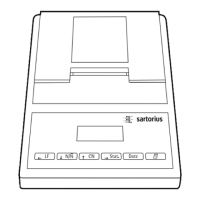
Settings for ISO/GLP-compliant Data Records
To configure ISO/GLP-compliant data records, begin by
opening the statistics application menu. To open the
statistics application menu immediately after switching
on the printer (or weighing instrument):
§ Press the U key while all display segments are lit
To open the statistics application menu during
operation:
§ Press and hold the U key for at least 5 seconds
> The display shows “-A1-”
To activate configuration of the ISO/GLP-compliant
data record, press the Y key
> The display is as shown on the left (example).
The dot indicates the currently active setting
§ To configure the ISO/GLP-compliant data record, press
either the I key or the U key until “1” is dis-
played
> The display is as shown on the left
§ To store the setting, press the Y key
§ To exit the statistics application menu, press the
T key
§ The corresponding settings must be configured in the
weighing instrument as well. Refer to the section on
ISO/GLP-compliant records or printouts in the weighing
instrument instruction manual for details.
> In all subsequent printouts, an ISO/GLP header and
footer similar to the example shown on the left are
printed automatically
$ To print the settings, press the P key
23
SARTORIUS
Model ED6202S
S/N 040240772
Id 564
Date : 22-Jan-08
Start: 10:25:14
Ser. :
End : 10:25:32
Name :


 To Next Page