EasyManua.ls Logo

Sawgrass Virtuoso SG800NA - User Manual

Sawgrass Virtuoso SG800NA
135 pages
Print Icon
To Next Page IconTo Next Page
Loading...
v20150210
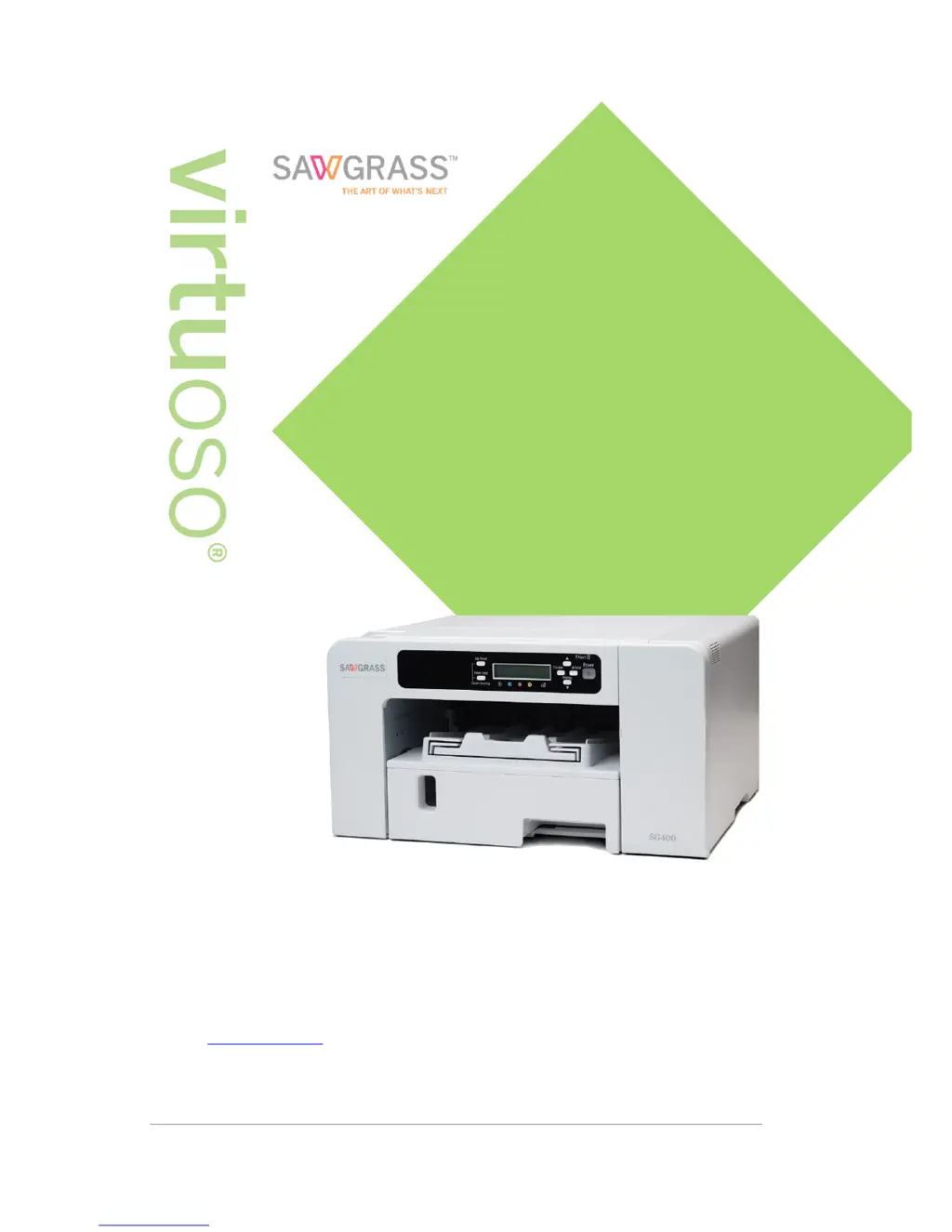
User Guide
SG400NA / SG400EU
SG800NA / SG800EU
This User Guide provides information and instructions related to the printer hardware.
Visit sawgrassink.com for more information and to download the printer software and
related instructions.

Table of Contents

Questions and Answers

  • W
    wallerdavidAug 8, 2025
    What to do if my Sawgrass Virtuoso SG800NA Printer does not start?
    • M
      Megan FigueroaAug 8, 2025
      If the Sawgrass printer does not start, first, ensure that the power key is lit, if not, turn the printer on. If the power indicator remains unlit or blinking after pressing the power key, verify that the power cord is correctly plugged into the receptacle. If the issue persists, try plugging another working appliance into the same receptacle to check its functionality. If the printer still fails to start, unplug the power cord and contact Sawgrass support.
  • C
    Christian AndersonAug 17, 2025
    What to do if my Sawgrass Virtuoso SG800NA shows error messages?
    • N
      Nicholas LewisAug 17, 2025
      If the Sawgrass printer displays error messages, try the following: * If the temperature is abnormally high or low, check the printer's installation area and relocate it. * If the paper size in the tray does not match the specified size, load the correct paper size and adjust the paper input menu accordingly. * For Ethernet port errors, disconnect all cables, turn the printer off, and then on again. * If there are issues with the waste collection unit, reset it correctly or replace it if it's full. * If the printer indicates no paper of the specified size and type is loaded, load the correct paper and update the paper input menu. * If a tray has run out of paper, reload it. * As a general solution, try turning the printer off and then on again.
  • R
    Richard NguyenAug 28, 2025
    How to fix paper feed issues on a Sawgrass printer?
    • M
      Mark GreenAug 28, 2025
      If your Sawgrass printer isn't feeding or delivering paper correctly: 1. Ensure the paper guides of the paper tray match the loaded paper; adjust and reload if necessary. 2. Make sure the paper is loaded correctly. 3. If the paper is curled, remove it and straighten any curl exceeding 2 mm (0.08 inches). 4. If paper is jammed, pull out the paper tray and open the output ramp to check for and remove the jammed paper. 5. Reload the paper after fanning it well and tapping it on a flat surface to even the edges. 6. Double-check the position of the paper guides before reloading. 7. If double-feeds occur when using the bypass tray with rough or friction-prone paper, switch to Trays 1, 2, or 3.

Summary

Introduction and Printer Overview

Manuals, Safety, and User Notes

Guide to manuals, safety information, important notices, and user notes for printer operation.

Printer Components and Controls

Details on printer parts, views, options, accessories, and control panel functions.

Model and Unit Specifications

Information on model-specific details and available units/options for different printer models.

Setup and Installation

Initial Setup Procedures and Area Checks

Covers setup procedure overview, installation area, and power source checks.

Attaching Options and Loading Materials

Instructions for attaching/detaching options like trays and loading paper.

Printer Connection Methods

Guides for connecting the printer via USB and Ethernet network interfaces.

Printer Operations and Settings

Control Panel Navigation and Menus

Overview of control panel settings including Paper Input and List/Test Print menus.

Maintenance Operations and Settings

Procedures for printer maintenance like nozzle checks, head cleaning, and adjustments.

System and Network Configuration

Settings for System Menu, Host Interface, and Network configuration.

Software and Monitoring

System Requirements and Software Setup

Details on system requirements and downloading/installing printer software.

Printer Monitoring and Configuration

Using Web Image Monitor for displaying status, making settings, and firmware updates.

Notification Settings

Configuring email notifications for printer status and errors.

Maintenance and Troubleshooting

Ink and Waste Unit Maintenance

Procedures for checking ink levels, replacing cartridges, and managing waste collection units.

Printer Cleaning, Moving, and Storage

Guidelines for cleaning the printer, moving it, and long-term storage precautions.

Troubleshooting Common Issues

Guidance on resolving common problems like paper jams, print quality, and errors.

Sawgrass Virtuoso SG800NA Specifications

General IconGeneral
Max Print Resolution1200 x 1200 dpi
ConnectivityUSB 2.0, Ethernet
Media Types SupportedSublimation Paper
Printer TypeSublimation Printer
Media HandlingManual Feed
Ink ColorsCyan, Magenta, Yellow, Black
Print TechnologyDye Sublimation
Operating System CompatibilityWindows 7, Windows 8, Windows 10, Mac OS X 10.9 or later
Ink TypeDye Sublimation Ink

Related product manuals