www.scheer-heizsysteme.de
MH-SERIES
More features and troubleshooting
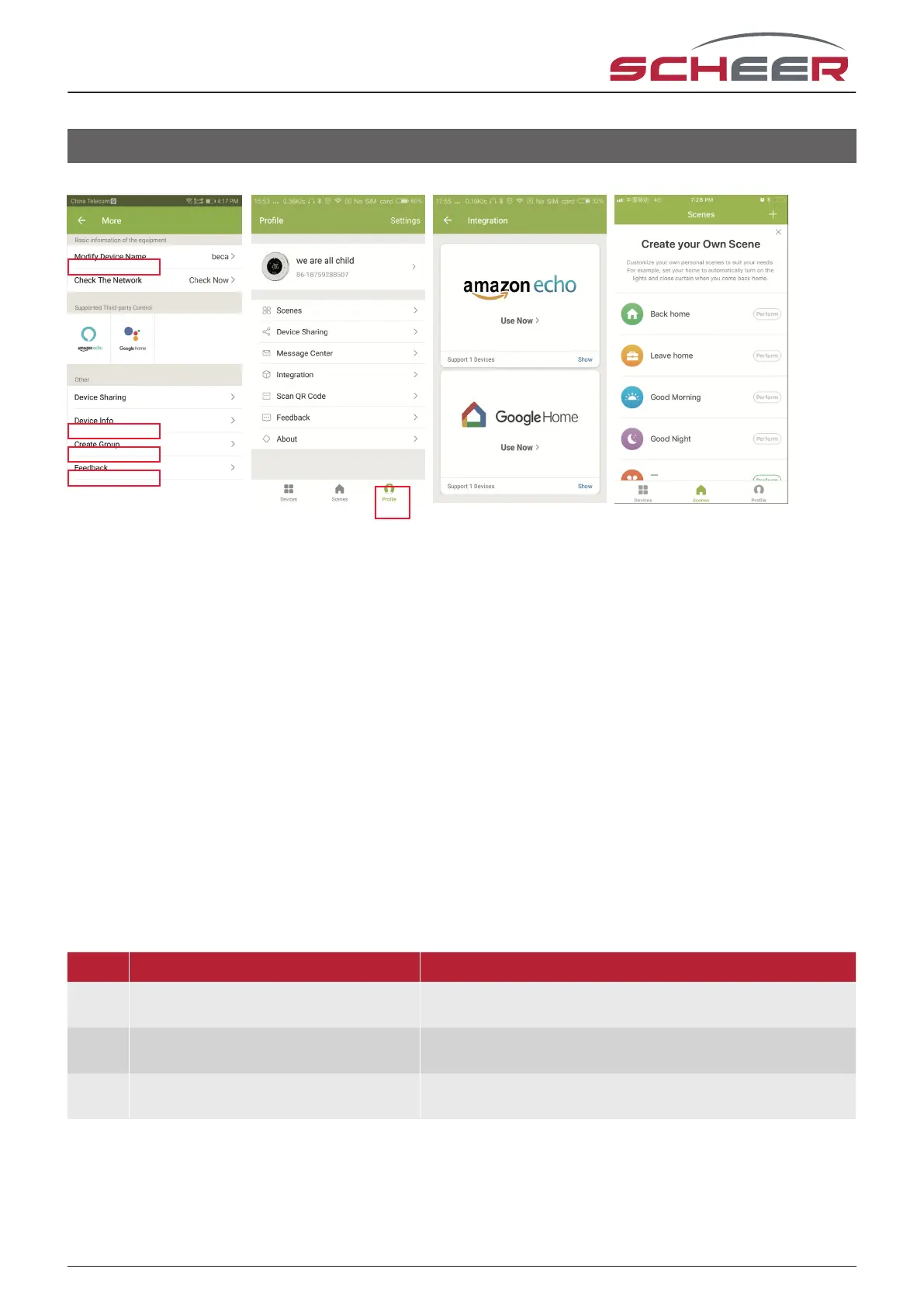
Abb. 6-1 Abb. 6-2 Abb. 7-1 Abb. 7-2
If you use several room thermostats, you have the option of grouping these room thermostats in the app. So
you can set the temperature of all three devices at once.
To do so, press the three dots in the top right corner of the app (Fig. 5-2) and then „Create group“ (Fig. 6-1).
Select all the devices you want and conrm.
In addition to creating groups, the device name can also be changed in the menu. Your device can be shared
and information about your device can be obtained.
How do I share a device?
Option 1: Follow the steps in the previous section, but click on „Share device“ in the menu.
Option 2: Click on your prole at the bottom right on the app start page (Fig. 6-2). Select Device Sharing and
add the account you want to share a device with. Now you see the account you shared with and which device
you have shared. Any number of devices can be shared.
How to connect your device to Amazon Echo or Google Home?
Go to the menu and press Amazon Echo or Google Home. Follow the instructions on the screen.
Simple failure Handling
No. Phenomenons Handling
1 Power is on but the display stays o
Check whether the connections between the LCD panel
and the thermostat body have come loose.
2
Display lights up, but does not show
anything
Use a new LCD panel or new Power Unit Box to
replace the old one.
3
Room tempreture massivly varies from
actual room temperature
Perform the temperature calibration in point 1 of the op-
tions for the high performance range
19



 To Next Page