41
Manage Programs and Recordings
Automatically Erase Oldest Recordings
To ensure that there is enough storage space for new recordings, turn on the
Auto Erase feature. When Auto Erase is on, oldest recordings are automatically
erased one by one until there is enough space to record your new programs.
Note: Any recordings that have a save time of “Until I Erase” are not
automatically erased.
1. Press List
. The Recorded List screen appears.
2. Press
B
Preferences. The Preferences screen appears.
3. Press Move Up to select “Turn ON Auto Erase.”
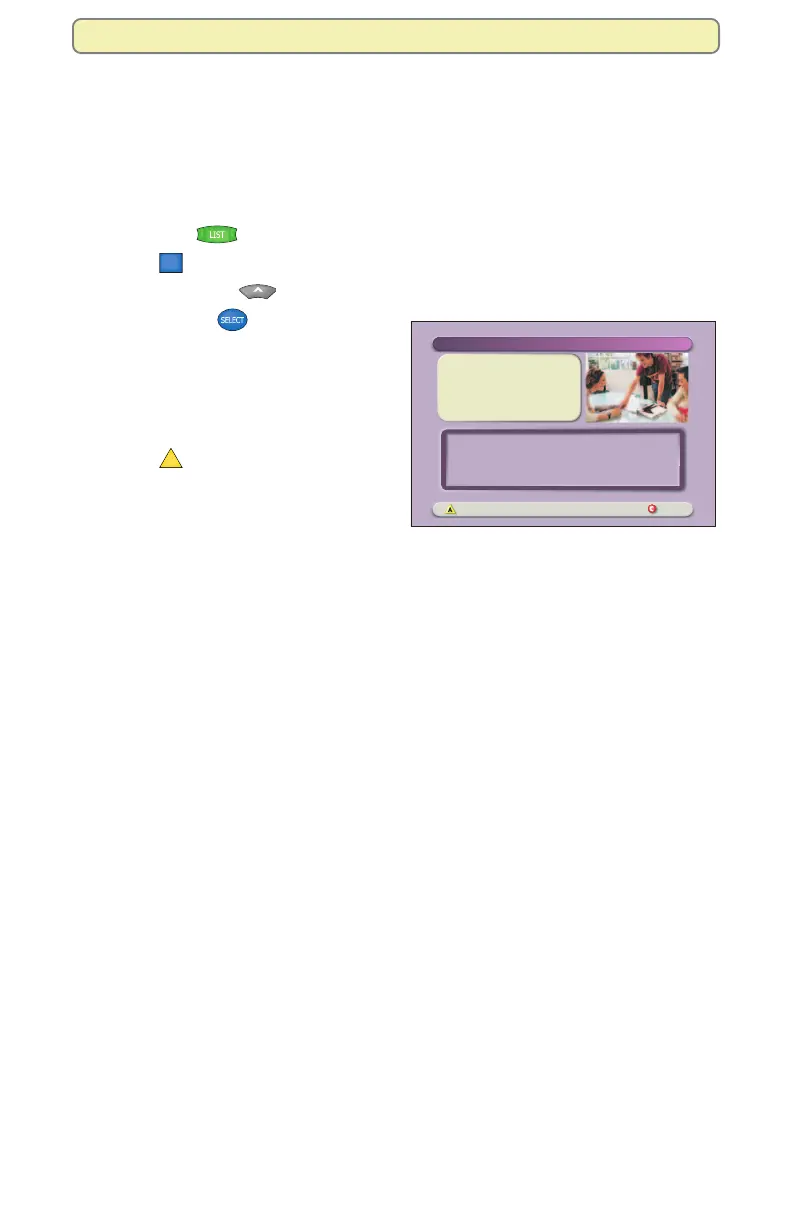
4. Press Select
. The Confirm
Auto Erase On screen appears and
displays the question “Are you sure
you want your oldest
recordings automatically erased if
space is needed?”.
5. Press
A
. The option now shows
“Turn OFF Auto Erase” and the
Information area displays the
current status of the Auto Erase
feature.
Yes, turn Auto Erase ON Cancel
Confirm Auto Erase ON
Are you sure you want your oldest recordings
automatically erased if space is needed?
PLEASE NOTE: Recordings marked ’Until I Erase’ will not
be erased until you delete them manually.






 To Next Page