42
Manage Programs and Recordings
CABLE
OUT
S - VIDEO
OUT
AUDIO OUT
OPTICAL
VIDEO
OUT 1 OUT 2
A
U
D
I
O
DIGITAL
AUDIO OUT
L
R
Y/V
Pr
Pb
T11304
VCR
RF IN
RL
AUDIO
IN
VIDEO
IN
RF OUT
RL
AUDIO
OUT
VIDEO
OUT
Copy Recordings From Your DVR to a VCR Tape
The Copy to VCR feature lets you copy recordings from your DVR to a VCR tape.
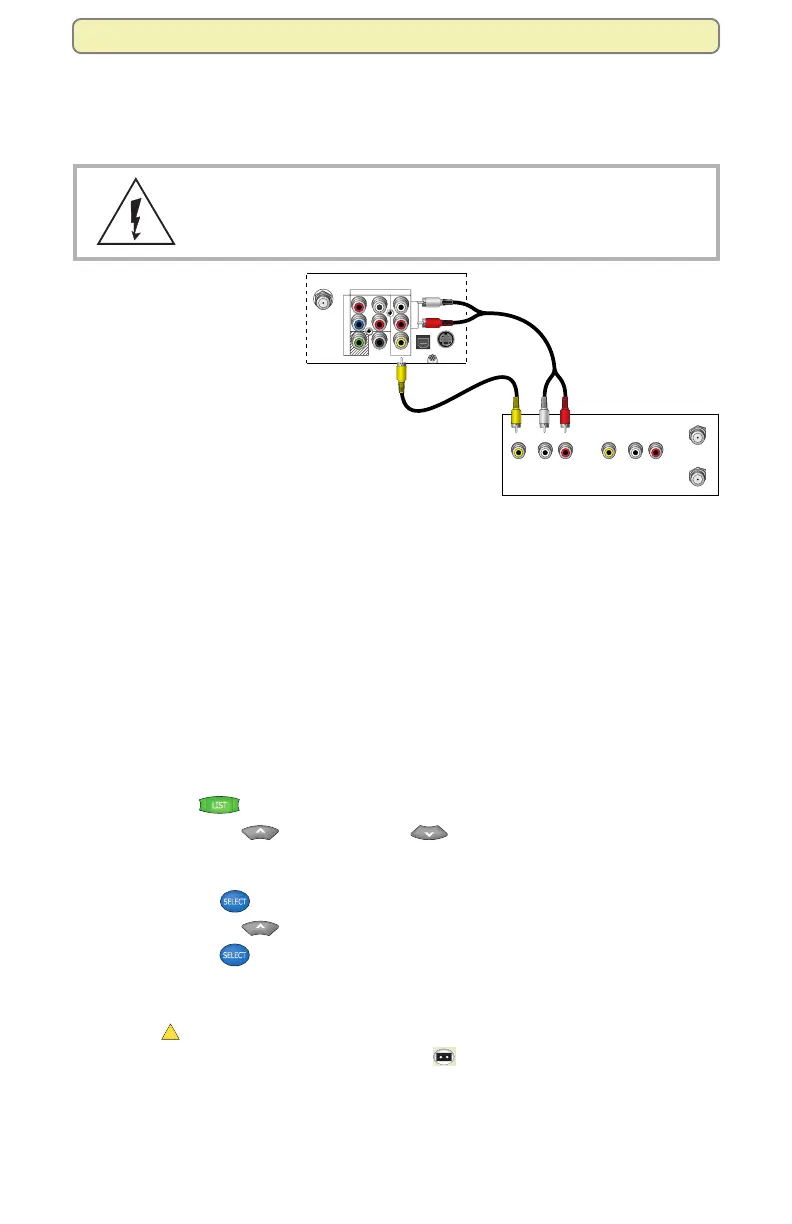
Verify that the OUT 2 outputs are connected to your VCR inputs.
WARNING: Avoid electric shock. Unplug all electronic
devices before connecting or disconnecting any device
cables to the DVR.
Note: This graphic shows
the 8300HD DVR back
panel layout. Other DVR
back panel layouts will vary.
Connecting to your VCR
using the OUT 2 outputs
allows you to watch or
record another program or
even change channels in the
Main screen, without
affecting the copy in progress.
Notes:
• The program that you are copying appears in the PIP window. You can turn
the PIP feature off and on without affecting the copy in progress. A “Copying to
VCR” banner displays for 3 seconds when you turn the PIP feature on.
• It is possible to record live TV directly to a VCR tape (instead of your DVR) by
connecting the main OUT 1 outputs directly to the VCR inputs. However, we
recommend that you use the method shown here to record programs to a
VCR tape.
Copy a Recording to a VCR Tape
1. Connect the VCR to the OUT 2 connection on the back of the DVR.
2. Make sure that a tape is in your VCR and that the VCR is set to record.
3. Press List
. The Recorded List screen appears.
4. Press Move Up
or Move Down to select the recording you want
to copy to the VCR. Make sure to select a program that is not currently
being recorded.
5. Press Select
. The Recorded Program Options screen appears.
6. Press Move Up to select “Copy to VCR.”
7. Press Select
. The Copy to VCR screen appears.
8. Make sure your VCR is properly connected to your DVR outputs, and press
Record on your VCR.
9. Press
A
Start copy. The recording begins copying to VCR tape. The
Recorded List displays the VCR symbol
for the recording that is copying
to VCR.
Note: You can watch the copying in progress through the PIP.





 To Next Page