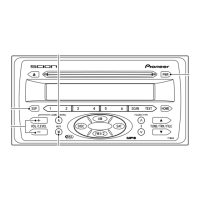
4 TYPE <UP>
Press to see Channel Category of
channel that is currently received.
When Channel Category is displayed
(TYPE is indicated), press again to
switch to the next category.
5 TYPE <DOWN>
Press to see Channel Category of
channel that is currently received.
When Channel Category is displayed
(TYPE is indicated), press again to
switch to the previous category.
6 PRESET 1-6
Press to recall previously stored
channels (Preset Channels).
Press and hold until you hear a beep,
and the channel you are currently
receiving will be stored as a Preset
Channel.
7 SCAN
Press and SCAN of the currently
selected type (Channel Category)
starts. At this time,
SCAN
is indicat-
ed in the display.
If you press and hold until you hear a
beep, SCAN of preset channels
starts.
Also at this time,
SCAN
is indicated
in the display.
8 TEXT
Press and indication in the display
changes as follows:
CH NAME = TITLE (SONG/PROGRAM
TITLE) = NAME (ARTIST NAME/FEA-
TURE) = CH NUMBER = CH NAME =
NOTICE
About the display
Up to a maximum of 10 alphanu-
meric characters can be displayed.
(Some information will not be
fully displayed.)
NOTICE
You can store up to 6 chan-
nels per band.
15


 To Next Page