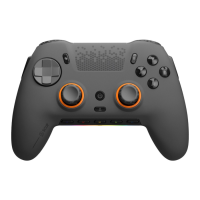
SCUF Envision | 7 Quick Start Manual | English
CONNECTIVITY:
Before using the controller, you will need to download and install the
Envision software on the device that the controller will be used on.
To download & install the Envision software, please open iCUE & plug
your controller into your device via USB-C cable. iCUE will detect the
controller and automatically download & install the software. It is
recommended to restart your PC after the software has been installed.
http://www.scuf.co/downloads
For Wired Play with Envision: Use the included USB-C cable and
connect your controller to your computer.
For Wireless Play with Envision Pro: Insert the included wireless USB
dongle into your computer. Flip the switch on the back of Envision Pro to
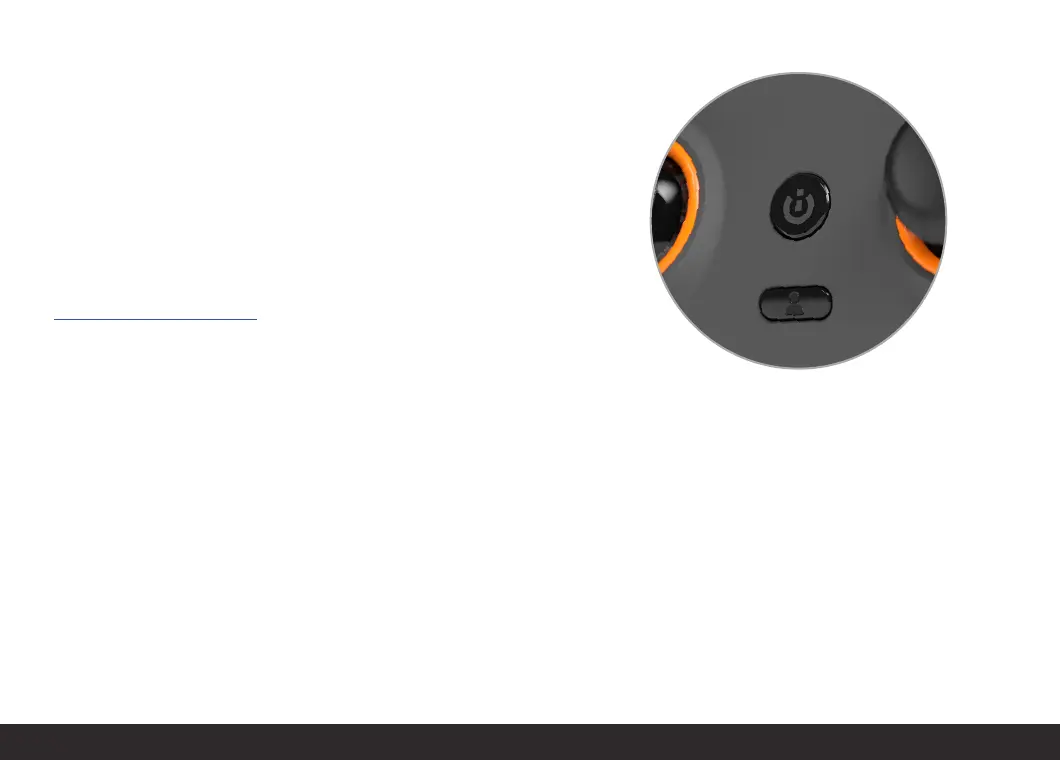
wireless mode. Press the start button to power on the controller. To turn
off the controller when it is in wireless mode, press and hold the start
button until the controller powers off.
For Wired Play with Envision Pro: Flip the switch on the back of Envision
Pro to wired mode. Insert the included USB-C cable into both Envision
and your computer. Press the start button to power on the controller.
Please note that Envision Pro cannot be paired with the Voyager
Slipstream module.
Fire it up.


 To Next Page