SCUF Envision | 6 Quick Start Manual | English
Power up.
CHARGING:
To charge Envision, use the included USB-C cable and connect it to your
computer while it is on or in rest mode. When charging is complete, the
light bar will stop blinking green.
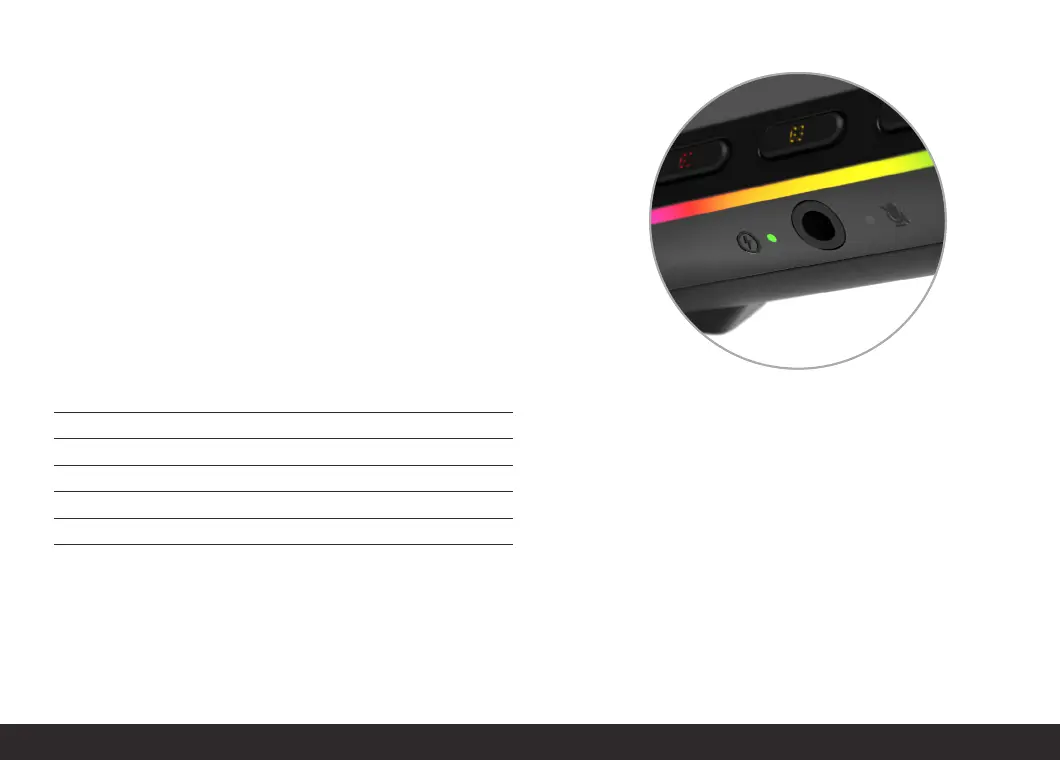
The Envision Pro controller comes equipped with a Power LED to indicate
battery life and when the controller is charging. Please refer to the table
below for Power LED color statuses and their meanings.
Power Status
Displays on start-up, when plugging in, and when un-plugging, or from
changing between wired and wireless modes.
STATUS POWER LED INDICATION
Battery Charging Pulse Green
Battery Critical – Recharge Required Rapid Blink Red
Battery Low – Recharge Soon Blink Red
Battery Medium Blink Amber
Battery High Blink Green
Battery Charged Solid Green
Please note that the non-Pro Envision’s Power LED Indicator will always
show a Solid Green bar when in use.



 To Next Page