
 Need help?
Do you have a question about the Seagate FireCuda 530 SSD and is the answer not in the manual?
Details on recommended use, heatsink, dimensions, M.2 connectors, and airflow for optimal performance.
Guidance on BIOS updates, selecting M.2 slots, primary drive setup, and data transfer before installation.
Essential precautions including unpacking, inspection, ESD safety, power cycling, and data backup.
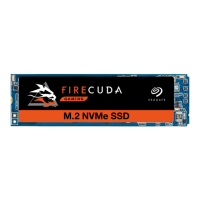
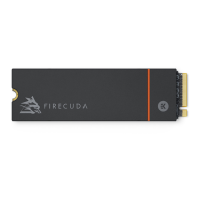
Identifies the FireCuda 530 SSD as the main component.
Specifies the required M.2 slot type (PCIe G4 x4) and operating system (Windows 10).
Step-by-step instructions for installing the FireCuda 530 SSD into an M.2 slot.
Information about SeaTools SSD GUI for drive health monitoring and testing.
Details on Seagate DiscWizard for backups, OS migration, and secure data erasure.
Links to download firmware and tools for secure data erasure.
Provides access to support resources for internal SSD products.
Directs users to online support channels and services.
Information and links related to warranty claims and replacements.
Details on professional data recovery services offered by Seagate.
Information about the Seagate Partner Program and related resources.
The Seagate FireCuda 530 SSD is an internal solid-state drive designed for high-performance computing, primarily intended for desktop PCs. This user manual provides comprehensive guidance on its installation, usage, and maintenance, ensuring optimal performance and longevity.
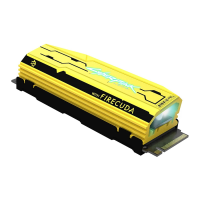
The FireCuda 530 SSD serves as a primary or secondary storage device within a computer system, leveraging the M.2 PCIe G4 x4 interface for exceptionally fast data transfer speeds. It is backwards compatible with PCIe G3 interfaces, offering flexibility across various motherboard generations. The core function of this SSD is to provide rapid boot times, quick application loading, and accelerated file transfers, significantly enhancing the overall responsiveness and efficiency of a computer. Users can install their operating system on the FireCuda 530 SSD to utilize it as a primary boot drive, or employ it as a dedicated drive for demanding applications, large files, and gaming, where its high throughput can be fully realized. The drive's design, including a pre-installed heatsink, is geared towards maintaining stable performance even under heavy workloads by effectively dissipating heat.
The FireCuda 530 SSD is designed for straightforward integration into compatible desktop systems. Before installation, users are advised to ensure their computer's BIOS is up to date and to identify an appropriate M.2 (M key) slot on their motherboard. Most modern motherboards offer multiple M.2 slots, providing options for installation. The manual emphasizes the importance of verifying that the system provides sufficient space for the SSD, especially considering its dimensions with the heatsink (80.15mm L x 22.9mm W x 18.25mm H), which exceeds standard M.2 specifications. M.2 connectors H3.2 and above are recommended for optimal fit and performance.
The installation process involves powering down the computer, unplugging cables, opening the case, and locating the M.2 PCIe slot. If an existing SSD occupies the intended slot, it must be removed. After physically inserting the FireCuda 530 SSD into the slot, ensuring the notch is correctly aligned and the drive is firmly seated, it is secured with a mounting screw. Some motherboards may have a pre-installed pad in the M.2_PAD space, which might need to be removed for a better fit. Once installed, users power on their computer, access the BIOS setup during boot, and ensure that a PCIe device is set in the boot sequence or boot priority list. Following successful installation, users can then install their computer operating system on the FireCuda 530 SSD if they intend to use it as their primary drive, or proceed with data migration from an existing drive.
For data management and system optimization, Seagate offers several software tools. SeaTools™ SSD GUI is a free utility that allows users to monitor the drive's health, status, and perform tests, helping to ensure its continued reliability. Seagate DiscWizard is an integrated software suite that facilitates backing up the operating system, applications, settings, and files. It also includes features for securely destroying confidential data, which is crucial for data privacy when decommissioning or re-purposing a drive. These tools are accessible via Seagate's support website, along with firmware downloads and other utilities for secure erase operations.
Maintaining the FireCuda 530 SSD primarily involves ensuring proper environmental conditions and utilizing available software tools. The manual highlights the importance of providing sufficient airflow and cooling within the computer case for optimal performance, especially given the drive's high-speed operation and the heat generated. The pre-installed heatsink is a critical component for thermal management and should not be removed, as doing so can damage the SSD.
Before installation, users are cautioned to take necessary precautions against electrostatic discharge (ESD), which can damage the SSD. This includes working at an ESD-safe workstation and grounding oneself to protect the device from static electricity. Powering down and power draining the computer according to its documentation before handling internal components is also a key safety and maintenance step. Backing up data from existing storage devices before any installation or migration is a fundamental best practice to prevent data loss.
Seagate provides comprehensive support and services for the FireCuda 530 SSD. Users can access online support and services through the Seagate website for troubleshooting and general inquiries. Warranty support information is also available online, detailing the terms and conditions for replacements or repairs. For instances of data loss, Seagate offers data recovery services, providing a potential solution for retrieving valuable information from a compromised drive. Additionally, the Seagate Partner Program offers resources for partners. Regular checks of the drive's health using SeaTools™ SSD GUI and keeping the firmware updated by downloading the latest versions from the Seagate website are recommended maintenance practices to ensure the drive operates at peak efficiency and reliability throughout its lifespan. These proactive measures, combined with careful handling during installation, contribute significantly to the long-term performance and durability of the FireCuda 530 SSD.
 General
| Capacity | 500GB, 1TB, 2TB, 4TB |
|---|---|
| Form Factor | M.2 2280 |
| Sequential Read | Up to 7300 MB/s |
| Sequential Write | Up to 6900 MB/s |
| MTBF | 1.8 million hours |
| NAND Flash Memory Type | 3D TLC |
| Random Read (4KB) | Up to 1, 000, 000 IOPS |
| Random Write (4KB) | Up to 1, 000, 000 IOPS |
| Warranty | 5 years |
| Interface | PCIe Gen4 x4 |
| Endurance | 1275 TBW |







 To Next Page