5). Brightness Auto Adjust
After long time using, the sensor backlight might lower down, which may lower the identify rate,
in this case please adjust the lightness.
Note᧶Device has been set the auto brightness control, so no need to adjust all the time.
Adjustment Method:
To select device in the Device List, click “Brightness Auto Adjust”, after see “please screen
sensor’s light”, cover the sensor windows with hand, click “OK” to confirm.
After setting all information, click “close” to ESC.
6). To Delete Device
To select the device in the Device List, click” Delete”.
Warning᧶
To delete device will clear all the user information in the database, please handle with
care.
Once to delete the device by mistake, please using the function of “Upload/Download” to
back up device’s user information.
8. 1.4 To Register, delete fingerprint/card
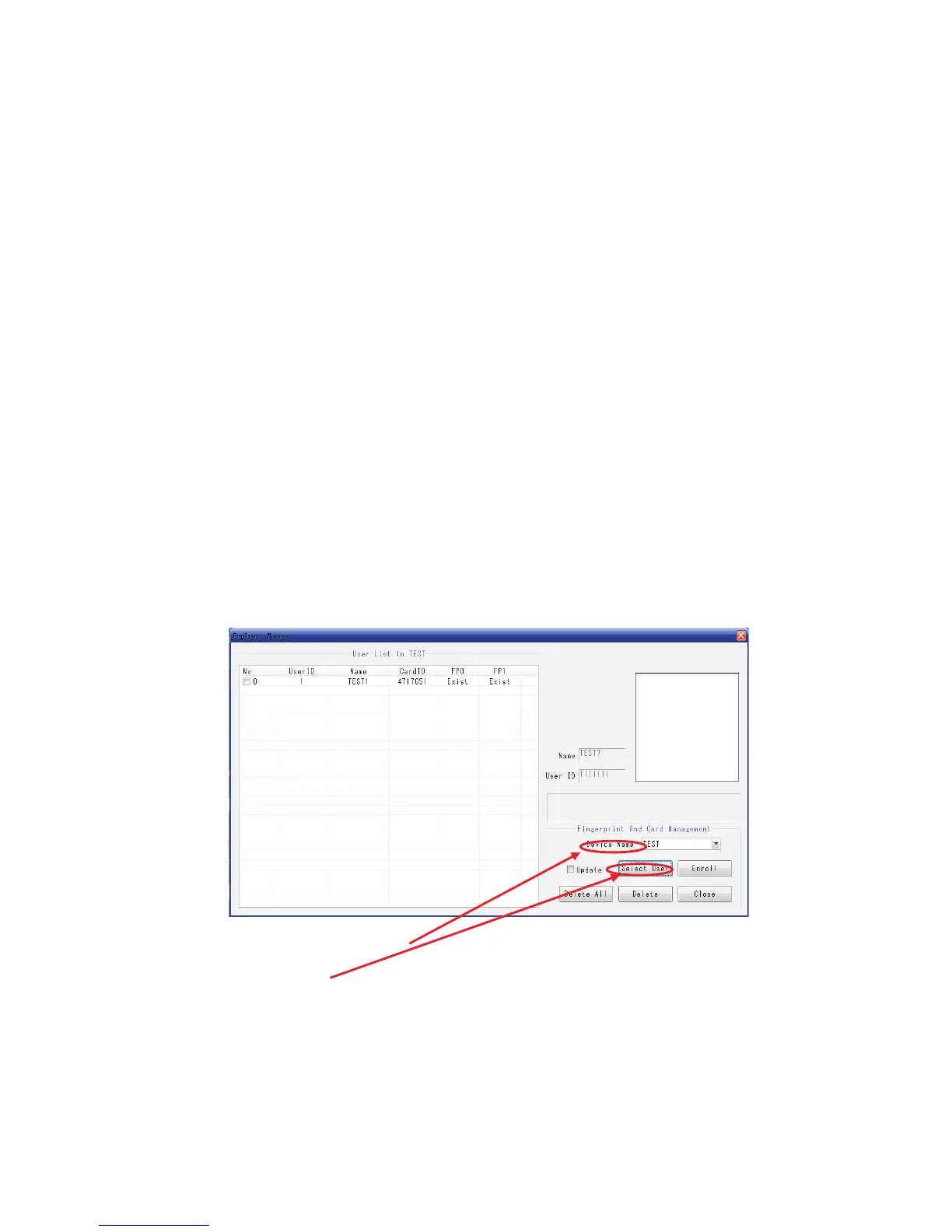
After inputting user information and Device Setting, click “Fingerprint/card Enrollment”᧶
Figure 6
a) To select the device from “Device Name” to enroll fingerprint and cards
b) To click “Select User” to select the user who will enroll fingerprint and cards:



 To Next Page