SG Gateway Appliance Quick Setup
Unpack the SnapGear unit
Check that the following items are included with your SnapGear unit:
Power adapter
SG CD
Network cable
On the rear panel of the SnapGear unit you will see network, serial and possibly USB
ports, a Reset/Erase button, and a power inlet.
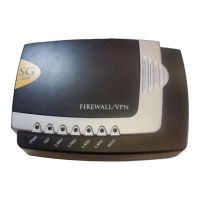
The front panel of the SnapGear unit contains activity LEDs (lights) that vary slightly
between models. These provide information on the operating status of the SnapGear
unit.
Note
Power is ON when power is applied (use only the power adapter packaged with the unit).
System/Heart Beat/TST flashes when the SnapGear unit is running.
Initially, all appliance models except for the SG300 also have all other front panel LEDs
flashing.
If these LEDs do not behave in this manner before your SnapGear unit is attached to the
network, perform a factory reset. Press the black Reset/Erase button on rear panel
twice within two seconds to restore factory default settings. If the LEDs are still not
flashing after 30 seconds, you may need to contact customer support.
12
Getting Started


 To Next Page