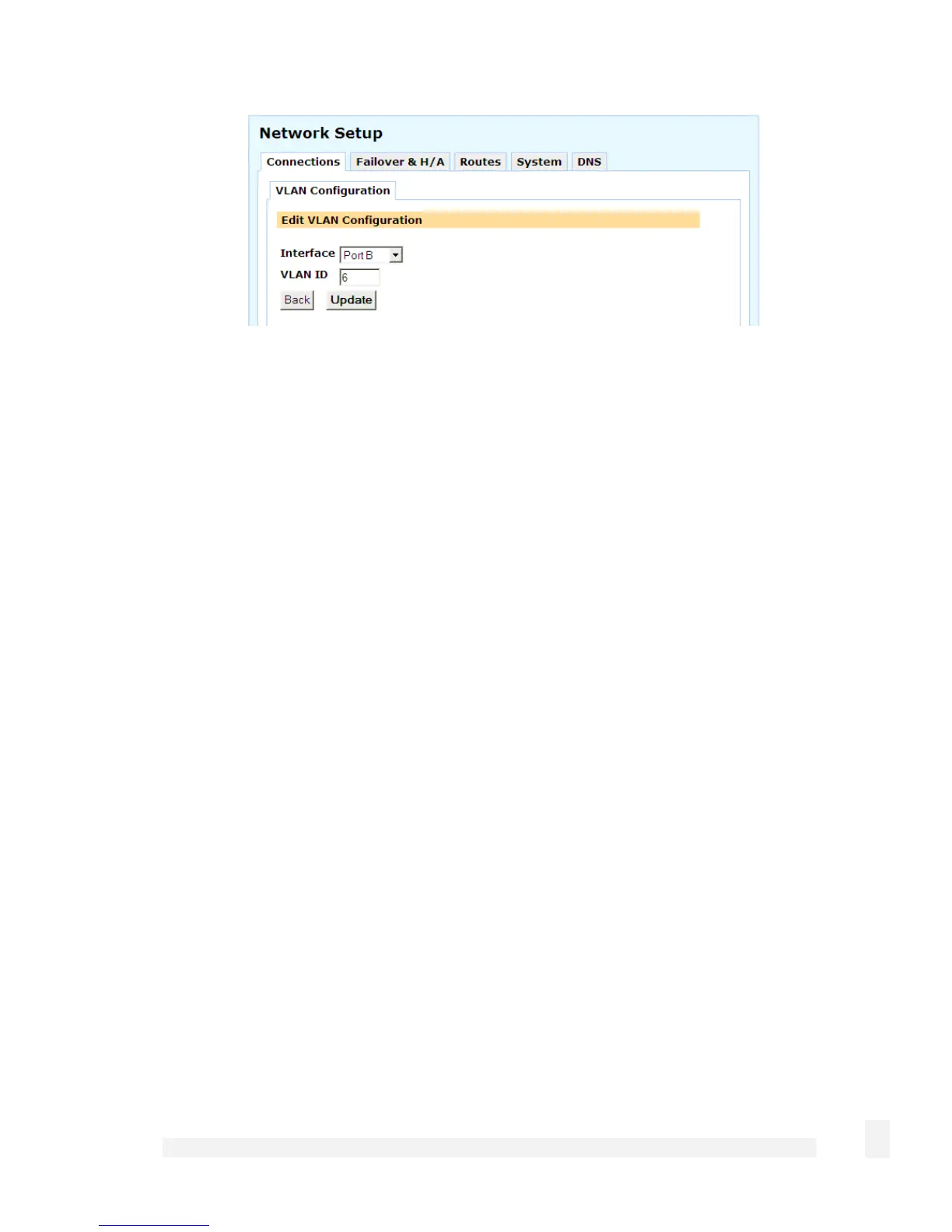
Interface: Select the network interface on which to add the VLAN.
VLAN ID: If this VLAN interface is to participate on an existing VLAN, the VLAN ID
number must match the existing VLAN’s ID.
Port / Mode: If this table is displayed, this interface has been enabled for port based
VLANS; see the Port Based VLANs section later in this chapter.
Click Update. You have now added a tagged VLAN interface that you may configure
through the main Network Setup > Connections menu as you would any other network
interface.
Editing VLANs
Once a VLAN has been added, you may edit the settings you entered in Adding VLANs
by clicking the Edit icon alongside the VLAN interface in the main Network Setup >
Connections table.
Removing VLANs
To remove a VLAN, click the Delete icon alongside the VLAN interface in the main
Network Setup > Connections table.
96
Network Setup



 To Next Page