3
2
C
C
O
O
N
N
S
S
O
O
L
L
E
E
A
A
N
N
D
D
C
C
O
O
N
N
T
T
R
R
O
O
L
L
L
L
E
E
R
R
O
O
P
P
E
E
R
R
A
A
T
T
I
I
O
O
N
N
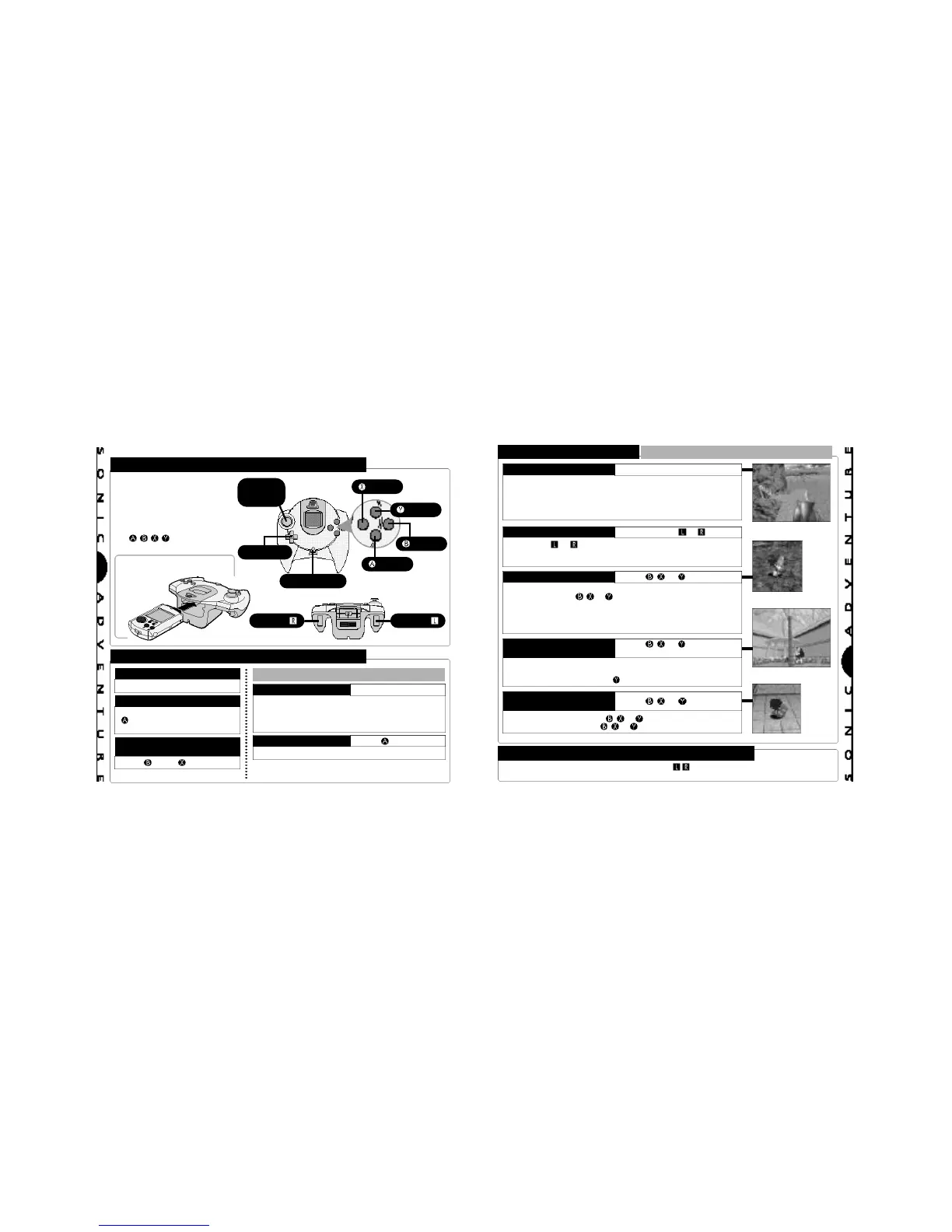
DREAMCAST CONTROLLER
BASIC CONTROLS
▼ Sonic Adventure is a one-
player game. Connect the
controller into Control Port A
of the Dreamcast.
▼ To return to the title screen at
any point during game play,
simultaneously pressandhold
the
, , ,
and StartButtons.
▲ Insert the memory card
into an expansion socket of
the controller.
ANALOG
THUMB
PAD
D-BUTTON
START BUTTON
BUTTON
BUTTON
BUTTON
BUTTON
TRIGGER TRIGGER
GAME START
Start Button
ITEM SELECTION
D-Button/Analog Thumb Pad [Select]
Button [Enter/Continue to the
Next Screen]
CANCEL/RETURN TO THE
PREVIOUS SCREEN
Button/ Button
ACTIONS COMMON TO ALL CHARACTERS
To walk, press the Analog Thumb Pad lightly in the
direction you wish to walk. Continue pressing in the
same direction to run. To reduce speed quickly,
press in a different direction.
WALK AND RUN
Analog Thumb Pad
Jump height varies with each character.
JUMP Button
▼ For details on performing actions unique to each individual
character, see “Character Introductions” from p. 18.
BASIC CONTROLS ACTIONS COMMON TO ALL CHARACTERS
CAUTION
Never touch the Analog Thumb Pad or Triggers / while turning the Dreamcast power ON.
Doing so may disrupt the controller initialization procedure and result in malfunction.
Stop the character and press up or down on the D-Button for a 180º
frontal view. This allows you to view the surrounding area around
the character. There are some areas you can use this button to
zoom the
camera in and out.
The camera position will return to normal once the character is moved.
VIEWING YOUR SURROUNDINGS
D-Button
Use Trigger or to pan the camera in a full 360º rotation.
NOTE: In some situations, such as when your character is near
a wall or in an enclosed area, panning may not be possible.
PANNING THE CAMERA Trigger or
To pick up items such as bombs or eggs, stand in front of the
item and press the , or button. Actions that are common
to all characters (e.g., walking, running, etc.) can be made while
carrying an item. However, actions that are unique to each
character (e.g., Sonic’s Spin Dash, Tail’s Flying, etc.) cannot be
performed while carrying an item.
CARRYING ITEMS , , or Button
Use this action to “shake” items or objects that cannot be
moved.
Also use this action to “wave” items or to “cuddle” your Chao.
It is recommended to use the Button when handling Chao.
SHAKING OR WAVING
ITEMS
, , or Button
and Analog Thumb Pad
To throw an item, press the , or Button while moving. To
set items down, press the , or Button while stopped.
THROWING OR SETTING
ITEMS DOWN
, , or Button




 To Next Page