TS8000x Programming Guide www.semtech.com 4 of 16
Rev 0.9 Sep 2016 Semtech
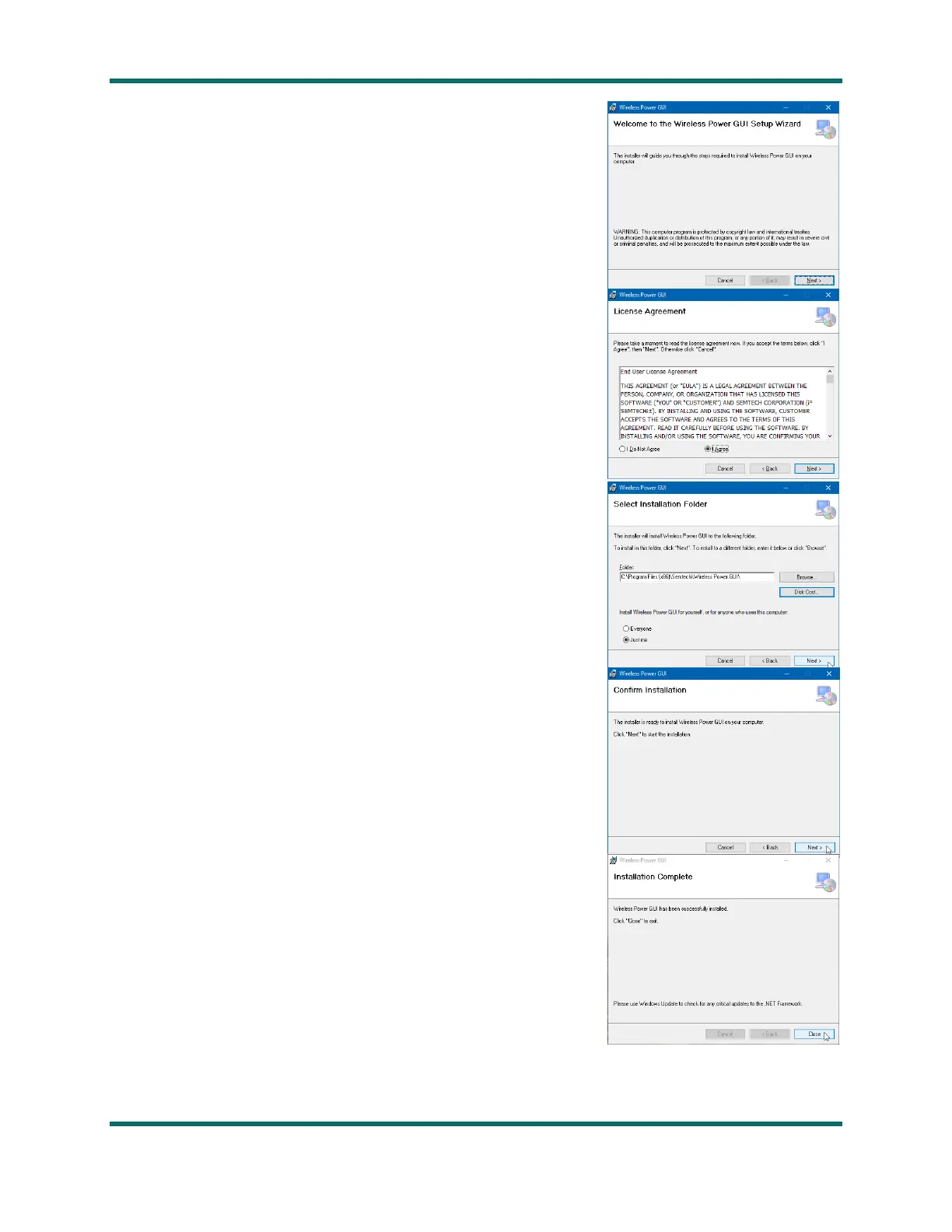
7. Double-click on setup.exe to launch the installation program.
- The “Welcome…” window should open.
- Click Next to proceed.
8. On the “License Agreement” screen:
- Review the license terms.
- Select I Agree.
- Click Next to proceed.
9. The “Select Installation Folder” screen offers options for:
- Where to extract the GUI files to.
- Which users to make the software available to.
The default values will usually suffice.
If not, modify them to your requirements.
Once the selections are made:
- Click Next to continue.
10. On the “Confirm Installation” screen:
- Click Next to begin the software extraction and installation.
The software installation progress screen should appear briefly.
11. When finished, the “Installation Complete” confirmation screen
should appear, indicating successful installation of the TS80002 GUI.
- Click Close to complete the installation process.



 To Next Page