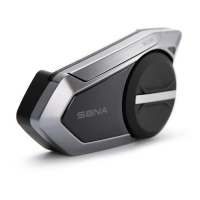
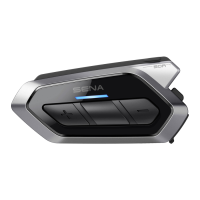
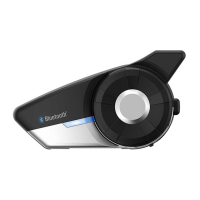
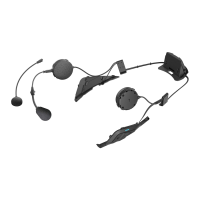
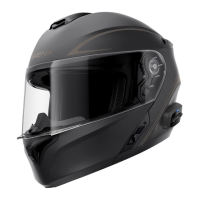
The Sena 50C is a motorcycle camera and communication system with Mesh Intercom™ technology, designed to enhance the riding experience by combining advanced communication capabilities with integrated video recording. This device allows riders to stay connected, capture their journeys, and manage various functions seamlessly while on the road.
Function Description
The Sena 50C serves as a comprehensive solution for motorcycle riders, integrating a camera, a communication system, and an FM radio into a single, compact unit. Its primary functions include:
-
Motorcycle Camera: The device features a camera with a 120-degree field of view and an F/2.4 aperture, capable of recording videos and taking photos. It supports various recording resolutions, though specific resolutions like 2160p/30fps may restrict photo-taking during video recording. The camera requires a microSD card for recording, which must be formatted before use. It supports microSD cards up to 128 GB and U3 or higher.
-
Communication System: The 50C offers both Mesh Intercom™ and Bluetooth Intercom functionalities.
- Mesh Intercom™: This advanced feature allows for communication within a group of riders without the need for individual pairing. It supports both Open Mesh, for communication within the same channel, and Group Mesh, for communication within a private group. The Mesh Intercom™ antenna can be pulled inwards to unfold for optimal performance. Users can enable/disable their microphone during Mesh Intercom™ conversations.
- Bluetooth Intercom: This traditional intercom method allows pairing with up to three other people for private conversations. The device supports Smart Intercom Pairing (SIP), which simplifies the pairing process by scanning QR codes via the SENA MOTORCYCLES App, eliminating the need to remember button operations. Alternatively, users can pair devices manually using button commands.
-
Phone Connectivity: The 50C can be paired with a smartphone to handle calls, activate voice assistants (Siri or Google Assistant), and control music playback.
-
FM Radio: An integrated FM radio allows riders to listen to their favorite stations on the go. It supports scanning for stations and navigating through preset stations.
-
Music Control: Riders can play, pause, skip tracks forward or backward directly from the device.
Usage Features
The Sena 50C is designed for intuitive operation, primarily using a Jog Dial, a Mesh Intercom Button, a Camera Button, and a Phone Button.
- Powering On/Off: The device is powered on by holding the Jog Dial for 1 second and powered off by tapping the Jog Dial once.
- Volume Control: Volume can be adjusted by rotating the Jog Dial clockwise (right) for volume up and counter-clockwise (left) for volume down.
- Battery Level Check: The battery level can be checked when the device is powered on, indicated by a series of blinking lights.
- Phone Pairing: To pair a phone, hold the Phone Button for 5 seconds until the status LED blinks red and blue, indicating "Phone pairing." Then, select "50C" from the list of Bluetooth devices on the smartphone.
- Call Management:
- Answer a call: Tap the Phone Button once.
- End a call: Tap the Phone Button once.
- Reject a call: Hold the Phone Button for 2 seconds.
- Voice Assistant Activation: Activate Siri or Google Assistant by tapping the Phone Button once.
- Music Playback:
- Play/Pause music: Hold the Jog Dial for 1 second.
- Track forward: Rotate the Jog Dial clockwise (right).
- Track backward: Rotate the Jog Dial counter-clockwise (left).
- Camera Operation:
- Camera On/Off: Tap the Camera Button once. An audible prompt "Camera on" or "Camera off" confirms the action.
- Start/Stop Recording: Hold the Camera Button for 1 second. The status LED blinks twice, and an audible prompt "Recording" or "[Shutter sound]" confirms.
- Take Photos: Tap the Camera Button once. The status LED blinks per shot, and an audible prompt "[Shutter sound]" confirms.
- Wi-Fi Channel Change: The device defaults to 5 GHz Wi-Fi. To change to 2.4 GHz (if the smartphone or region does not support 5 GHz), hold the Camera Button for 10 seconds to enter "WiFi channel" mode, then tap the Camera Button once to select 5 GHz or 2.4 GHz.
- Mesh Intercom™ Operation:
- Mesh Intercom™ On/Off: Tap the Mesh Intercom Button once. An audible prompt "Mesh intercom on, Open Mesh, channel 1" or "Mesh intercom off" confirms. When Mesh Intercom™ is on, the 50C automatically connects to nearby 50C users in Open Mesh (default: channel 1).
- Channel Setting (Open Mesh): To change the channel, tap the Mesh Intercom Button twice to enter "Channel setting." Rotate the Jog Dial to navigate between channels (1-9), then tap the Mesh Intercom Button once to save. The SENA MOTORCYCLES App can also be used for this.
- Group Mesh Creation: Users (You, B, and C) enter Mesh Grouping by holding the Mesh Intercom Button for 5 seconds. Once completed, they will hear "Group Mesh" and switch to Group Mesh mode.
- Joining an Existing Group Mesh: One current user in an Existing Group Mesh and new users in Open Mesh hold the Mesh Intercom Button for 5 seconds to enter Mesh Grouping. Upon completion, new users will hear "Group Mesh" and switch to Group Mesh mode.
- Enable/Disable Mic (Mesh Intercom™): Hold the Mesh Intercom Button for 1 second to toggle "Mic on" or "Mic off."
- Bluetooth Intercom Pairing:
- Using SIP: Pair the mobile phone, open the SENA MOTORCYCLES App, tap the Smart Intercom Pairing Menu icon, scan the QR code on a friend's phone, save, and repeat for other friends. Note that SIP is not compatible with Sena products using Bluetooth 3.0 or below.
- Using the Button: Users (You, B) enter Intercom Pairing by holding the Jog Dial for 5 seconds until the status LED blinks red and blue, indicating "Intercom pairing." The headsets will automatically pair. Repeat for other headsets (C and D).
- Two-way Intercom:
- Start/End conversation with First Intercom Friend: Tap the Jog Dial once.
- Start/End conversation with Second Intercom Friend: Tap the Jog Dial twice.
- Start/End conversation with Third Intercom Friend: Tap the Jog Dial three times.
- FM Radio Operation:
- FM Radio On/Off: Hold the Phone Button for 1 second.
- Start/Stop Scanning: Tap the Phone Button twice.
- Seek Forward: Rotate the Jog Dial clockwise (right).
- Seek Backward: Rotate the Jog Dial counter-clockwise (left).
- Navigating Preset Stations: Tap the Phone Button once. Preset stations can be saved via the Sena Device Manager or the SENA MOTORCYCLES App.
- Headset Configuration Menu:
- Accessing Menu: Hold the Jog Dial for 10 seconds to enter "Configuration menu."
- Navigating Options: Rotate the Jog Dial clockwise (right) or counter-clockwise (left).
- Executing Options: Tap the Jog Dial once.
Maintenance Features
The Sena 50C includes features for troubleshooting and resetting the device to maintain optimal performance.
- Fault Reset: In case of a malfunction, a fault reset can be performed by inserting a paper clip into the pinhole next to the DC Power Charging & Firmware Upgrade Port and gently pressing the button. Note that a fault reset will not restore the headset to factory default settings.
- Factory Reset: To restore the headset to its original factory settings, hold the Phone Button for 10 seconds until "Factory reset" is announced. Then, tap the Jog Dial once to confirm, and "Headset reset, good-bye" will be announced.
- Firmware Upgrades: Firmware updates are available through the Sena Device Manager, which can be downloaded from sena.com. Regular firmware upgrades ensure the device benefits from the latest features and performance improvements.
- Device Configuration: The Sena Device Manager and the SENA MOTORCYCLES App allow users to configure various device settings, including firmware upgrades and device-specific configurations.
- MicroSD Card Management: The microSD card used for camera recording needs to be formatted before use. This can be done by holding the Camera Button for 5 seconds until "Format SD card" is announced, then tapping the Jog Dial once to confirm. "Format SD card completed" will be announced upon successful formatting.
- User Guides: Detailed user guides and quick start guides are available for download at sena.com, providing comprehensive information on installation, operation, and troubleshooting.
- Customer Support: Sena Technologies, Inc. offers customer support, accessible via sena.com, for any queries or assistance required. Users can also follow Sena on social media platforms like Facebook, YouTube, Twitter, and Instagram for the latest information and helpful tips.

 Need help?
 General

 To Next Page