PT300 QuickStart Guide
Part Number BFA10068 (for Verizon)
-- 4 --
Step 5 - Web Access
a) Once you have an airtime account in
place and with your device successfully
provisioned, please open up your web
browser and go to Sendum’s web portal
(called Findum™) at
findum.sendum.com
b) If you already have a Findum account
in place and you ordered your new
product with the same email address,
your new PT300 device will have been
automatically added to your existing
account. Just log in using that email
address and your existing password.
c) If you are new to Findum, a new Findum
account would have been created for
you as a part of the purchase process.
The username for this new account is the
email address that you used, or specified,
during purchasing. To obtain a password
for this account, please go to findum.
sendum.com and click the “Forgot your
Password” link. Then just log into Findum
using your email address and your new
password. For a demo of this process,
please visit
www.sendum.com/getpassword
Step 6 - Configure
For complete information and tutorials on how
to use your PT300 trackers within Findum,
please refer to the detailed Findum Help Guide.
Once you are logged into Findum, the guide is
accessible by clicking the Help link in the upper
left hand corner of any Findum page.
Note that when first get your new tracker, you
will have to configure your device with an
Assisted Location, Autonomous Location, or
Sensor Reports interval before the device will
report data.
To access the Device Configuration page within
Findum, click the Devices menu item on the
left side, choose your device, then click the
Configuration tab.
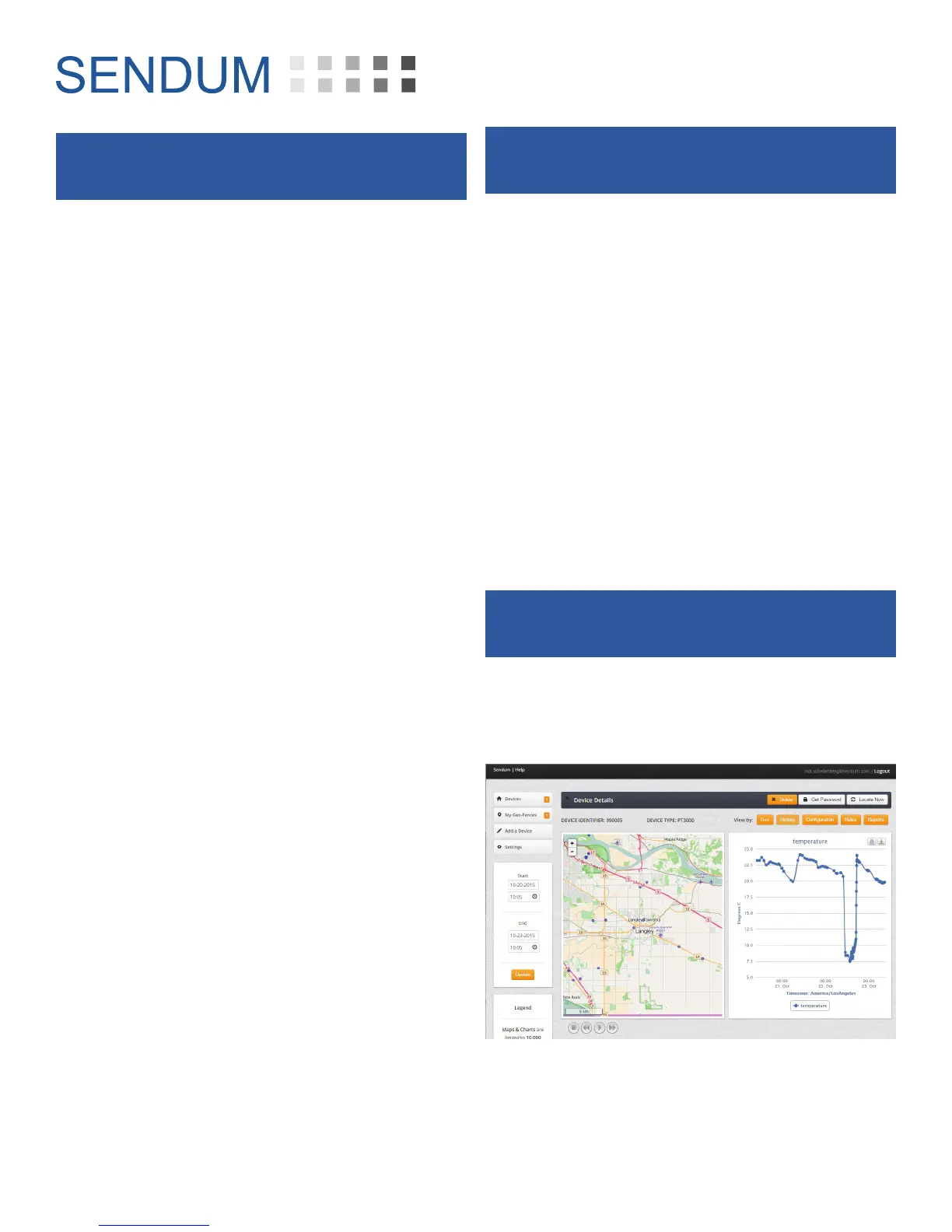
Step 7 - View your Data
Once your PT300 has been configured, you will
be able to track location, gather data, and view
reports.


 To Next Page
 Loading...