EasyManua.ls Logo

Sennheiser EPOS ADAPT 360 - User Manual

Sennheiser EPOS ADAPT 360
28 pages
Print Icon
To Next Page IconTo Next Page
Loading...
User Guide
ADAPT 360 | ADAPT 360 White
Over-ear Bluetooth
®
headset with ANC

Table of Contents

Question and Answer IconNeed help?

Do you have a question about the Sennheiser EPOS ADAPT 360 and is the answer not in the manual?

Summary

Package Contents

Product Overview

Headset Components and Controls

Details the headset's physical layout, buttons, and LED indicators.

Dongle Components and Controls

Details the dongle's physical layout, buttons, and LED indicators.

Getting Started

Pairing Devices via Bluetooth

Instructions for pairing the headset with Bluetooth devices.

EPOS Connect Software Installation

Guide to downloading and installing the EPOS Connect software for configuration.

Basic Headset Operations

Covers turning on/off, wearing, and adjusting headset volume.

Making Calls with the Headset

Initiating and Managing Calls

How to make, accept, reject, and end calls.

Advanced Call Features

Covers redialing, voice assistant, and managing multiple calls.

Microsoft Teams and Cortana Integration

Setting Up for Teams and Cortana

How to connect and use the headset with Microsoft Teams and Cortana.

Notifications and Voice Assistant Usage

Interpreting Teams notifications and using Cortana.

Listening to Music and Audio Playback

Controlling Audio Playback

How to control music playback functions like play, pause, skip, and rewind.

Using the Audio Cable

Instructions for using the wired audio connection.

Additional Headset Functions

Battery Charging and Status

How to charge the headset and check remaining battery power.

Storage and Bluetooth Range Management

Guidance on storing the headset and understanding Bluetooth range.

Reconnecting Bluetooth

Steps to reconnect the headset via Bluetooth.

Product Maintenance and Firmware Updates

Product Cleaning and Care

Guidance on cleaning the headset and replacing ear pads for hygiene.

Updating Product Firmware

Steps to update the headset and dongle firmware using EPOS Connect software.

Rechargeable Battery Replacement

Information on replacing the headset's rechargeable battery by authorized service.

Troubleshooting Common Problems

Resolving Common Issues

Solutions for common problems like headset not turning on or connectivity issues.

Resetting Pairing Lists

How to clear pairing lists for the headset and dongle.

Product Specifications

Headset General and Audio Specifications

Technical details of the headset, including audio performance.

Dongle Specifications

Technical details for the BTD 800 USB and USB-C dongles.

Overview

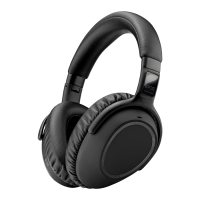
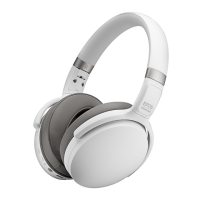
The ADAPT 360 | ADAPT 360 White is an over-ear Bluetooth® headset with Active Noise Cancellation (ANC), designed for professionals who need to concentrate in busy environments and ensure clear business calls. It is optimized for Unified Communications (UC) and allows for easy switching between devices for multitasking.

Function Description

The headset provides Active Noise Cancellation (ANC) to reduce background noise, helping users focus in open offices and boosting productivity on-the-go. It features an over-ear design with ergonomic ear pads for noise dampening and long-lasting comfort. The ADAPT 360 | ADAPT 360 White offers up to 46 hours of battery life and a foldable design for easy storage and transport. It is available in black or white to suit different styles.

The headset is certified for Microsoft Teams and optimized for UC solutions, ensuring clear calls. It supports multi-point connectivity, allowing simultaneous connection to any two Bluetooth® devices. Two advanced microphones are integrated to optimize voice pickup.

The ADAPT 360 | ADAPT 360 White can be used for listening to stereo music, making it suitable for both work and commuting. It also supports voice assistants like Cortana.

Usage Features

Getting Started:

To use the headset, it must first be paired with Bluetooth® devices. The headset complies with the Bluetooth 5.0 standard and supports "Hands-Free Profile" (HFP), "Headset Profile" (HSP), "Audio Video Remote Control Profile" (AVRCP), and "Advanced Audio Distribution Profile" (A2DP).

  • Pairing with a Dongle: The included BTD 800 USB or BTD 800 USB-C dongle is pre-paired with the headset in bundles. To connect, turn on the headset and plug the dongle into a computer's USB port. The dongle's LED will flash blue while searching and turn dimmed blue upon successful connection. If Microsoft Teams is invoked, the dongle connects to Teams and lights up purple. For manual pairing, activate pairing mode on both the headset (by holding the Power button) and the dongle (by holding its button) until their LEDs alternately flash blue and red.
  • Pairing with a Mobile Device: To pair with a mobile device, hold the headset's Power button for 4 seconds until the LED flashes blue and red, indicating pairing mode. Enable Bluetooth on the mobile device and search for "EPOS ADAPT 360" to establish a connection. The headset can save up to eight paired devices and connect to two simultaneously.
  • EPOS Connect Software: Installing the free EPOS Connect software from www.eposaudio.com/connect allows for configuration, firmware updates, and additional settings. Administrator rights may be required for installation.
  • Audio Settings (Microsoft® Windows): Windows usually adjusts audio settings automatically. If no sound is heard, right-click the Audio icon, select "ADAPT 360" as the speaker for output, and "ADAPT 360" as the microphone for input.

Basic Operation:

  • Turning On/Off: Press the Power button for 2 seconds to turn the headset on or off. When turning on, the LED flashes blue briefly and then flashes twice blue upon connecting to a paired device, turning off afterward. If no device is found, the LED flashes red. When turning off, the LED flashes red three times and then turns off.
  • Wearing the Headset: Adjust the headset so the headband runs over the top of the head, with the "R" marking on the right ear. Ensure ear pads comfortably cover the ears with gentle, even pressure and a snug fit.
  • Adjusting Volume: Use the Volume buttons to increase or decrease the volume. A beep or double beep indicates maximum or minimum volume. Volume can also be adjusted on the connected device. There are independent volume settings for call volume, audio streaming volume, and ring tone/voice prompt volume.
  • Microphone Volume (Softphones): Initiate a call and adjust the microphone volume in the softphone application or PC audio application.
  • Muting the Microphone: Press the Power button to mute or unmute the microphone.
  • Active Noise Cancellation (ANC): Press the Power button twice to activate or deactivate ANC. ANC can be used even when disconnected from a device, provided the battery is sufficiently charged and the headset is on.
  • TalkThrough: Press the Power button once (when ANC is on) to activate TalkThrough, allowing communication with colleagues without removing the headset. Music will be paused or muted.

Call Management:

  • Making a Call: Initiate a call on the connected device or press the Hook button to initiate a call via the softphone.
  • Accepting/Rejecting/Ending a Call: When a call is received, a ring tone sounds and the LED flashes blue.
    • To accept a call: Press the Hook button.
    • To reject a call: Press and hold the Hook button for 1 second.
    • To end a call: Press the Hook button.
    • To put an active call on hold: Double-press the Hook button.
  • Redialing: Double-press the Hook button to redial the last number. Press the Hook button once to cancel redialing.
  • Voice Assistant/Voice Dial: Press and hold the Hook button for 1 second to activate the voice assistant or voice dial on the last connected Bluetooth device. Press the Hook button once to cancel.
  • Managing Multiple Calls: The headset can manage two calls simultaneously.
    • To accept an incoming call and put the active call on hold: Press the Hook button.
    • To accept an incoming call and end the active call: Double-press the Hook button.
    • To reject an incoming call and continue the active call: Press and hold the Hook button for 1 second.
    • To toggle between active and held calls: Double-press the Hook button.
    • To end the active call and make the held call active: Press the Hook button.

Microsoft® Teams / Cortana Integration:

  • Invoking Teams: Plug the dongle into the computer's USB port. If Teams is running, the dongle's blue LED will turn purple. The LED pulses purple for notifications (Meeting Join, Voice Mail, Missed Call). Press the Hook button to check notifications on screen.
  • Activating Cortana: Press the Hook button. The dongle's LED will flash purple while activating Cortana and then light up purple when Cortana is ready.

Audio Playback:

  • Controlling Playback: Play media on the connected Bluetooth device. The dongle's LED lights up blue.
    • Press the Music Control button to start/pause playback.
    • Press the Music Control button to skip to the next track. Press and hold to fast-forward.
    • Press the Music Control button to skip to the previous track. Press and hold to rewind.
  • Using the Audio Cable: Insert the small jack plug into the headset's audio socket and turn clockwise to lock. Connect the 3.5 mm jack plug to the mobile device's audio output. Bluetooth is deactivated when the cable is connected. To disconnect, turn the plug counterclockwise and pull it out. The headset will then attempt to reconnect to Bluetooth devices. ANC can still be used with the audio cable connected.

Additional Functions:

  • Reconnecting/Disconnecting Bluetooth: Tap the headset's Hook button or the dongle's button to reconnect. The headset LED flashes twice blue, and the dongle flashes blue and lights up dimmed blue upon connection. Double-tap the dongle's button to disconnect Bluetooth; the LED flashes three times red. Bluetooth is automatically deactivated when the audio cable is connected.
  • Enabling/Disabling Voice Prompts: In idle mode, press and hold both Volume buttons until the headset announces "voice prompts on" or "voice prompts off." If voice prompts are deactivated, tones will be heard instead.

Maintenance Features

Charging the Headset Battery:

Connect the supplied USB cable to the headset's USB-C socket and a computer's USB socket. The LED lights up according to the battery status (e.g., more than 60%, more than 20%, less than 20%) and turns off when fully charged. Charging takes approximately 2 hours and 30 minutes. The headset turns off automatically when the battery is flat.

Verifying Remaining Battery Power:

Some mobile devices display the headset's battery status. To check manually, press both Volume buttons (not during a call). The LED flashes briefly, and a voice prompt announces the remaining power. When battery power drops below 20%, the LED flashes red, and "Recharge headset" is announced several times.

Storing and Transporting:

Fold the ear cups inwards towards the headband. Store the headset in its case when not in use or during transport to prevent nicks or scratches. Keep it in a clean and dry environment. If not used for extended periods, charge the built-in rechargeable battery every 3 months for about 1 hour.

Cleaning:

Only use a dry cloth to clean the product. Avoid liquids, cleansing agents, or solvents, as they can damage the electronics.

Replacing Ear Pads:

For hygiene, replace ear pads periodically. Spare ear pads are available from an EPOS partner. Carefully remove the old ear pad and insert the new one, ensuring the stitched line faces the bottom in the ear cup space.

Updating Firmware:

Install the free EPOS Connect software (see page 9). Connect the headset via USB cable to the computer, or plug the dongle into the computer's USB port. Start EPOS Connect, and if new firmware is available, the software will guide through the update process.

Replacing/Removing Rechargeable Battery:

The rechargeable battery must only be replaced or removed by an authorized EPOS service center. Contact your local EPOS service partner for battery replacement. Outside the warranty period, qualified service centers may replace or remove the batteries.

Sennheiser EPOS ADAPT 360 Specifications

General IconGeneral
FoldableYes
Headset typeBinaural
Product typeHeadset
Product colorWhite
Wearing styleHead-band
Recommended usageOffice/Call center
Quantity1
Cables includedAudio (2.5mm), Audio (3.5mm), USB Type-A to USB Type-C
Wireless receiver interfaceUSB Type-A
Frequency band2.402 - 2.48 GHz
Wireless range25 m
Bluetooth version5.0
Bluetooth profilesA2DP, AGHFP, AVRCP, HFP, HSP, SBC
Connectivity technologyWired & Wireless
Impedance- Ω
Driver typeDynamic
Ear couplingCircumaural
Headphone frequency18 - 22000 Hz
Headphone sensitivity108 dB
Total Harmonic Distortion (THD)0.3 %
Microphone typeBuilt-in
Microphone frequency80 - 8000 Hz
Number of microphones2
Microphone direction typeOmnidirectional
Battery typeBuilt-in battery
Standby time1499 h
Battery recharge time2.5 h
Continuous audio playback time46 h
Charging time150 min
Package depth196 mm
Package width135 mm
Package height105 mm
Package weight445.5 g
Master (outer) case width407 mm
Master (outer) case height163 mm
Master (outer) case length552 mm
Master (outer) case weight6060 g
Harmonized System (HS) code85183000
Quantity per master (outer) case10 pc(s)
Storage temperature (T-T)-20 - 60 °C
Operating temperature (T-T)40 - 10 °C
Storage relative humidity (H-H)10 - 95 %
Operating relative humidity (H-H)20 - 85 %
Weight and Dimensions IconWeight and Dimensions
Weight238 g

Related product manuals