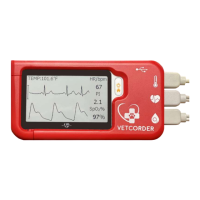
20
Tap to finish the setting.
5.2 Changing ECG recording length
To change the length of ECG recording in ECG Recorder:
In the Settings menu, choose <General>.
Tap <ECG Length>, then choose among <30s>, <60s> and
<90s>.
Tap <OK> to enable the
change.
5.3 Setting ECG Bandwidth
In the Setting menu, choose
<General>.
Tap the <ECG bandwidth>
to change between <Normal>
and <Wide>.
5.4 Erasing Data
1. In the Setting menu, choose <General>.
2. Arrow down to <Erase All Data>, and then <Yes>.
All measurements saved in the device will be deleted.
5.5 Factory Reset
1. In the Setting menu, choose <General>.
2. Arrow down to <Factory Reset> and then tap <Yes>.
All measurements, Pet information and other settings saved in the
device will be deleted, and the device will be restored to the
factory default settings.
21
5.6 Changing Sound Volume
In the Settings menu, tap the <Volume> area to change volume
directly. “X” means the volume is turned off.
5.7 Changing Temperature Unit
In the Settings menu, tap the <Thermometer> area to change
between Celsius (°C) and Fahrenheit (°F).
5.8 Pet Management
If Daily Check measurement is used for more than one Pet, then
each must have their own account.
To create a Pet account:
1. In the Settings menu, choose <Pet Management>.
2. Tap a “+” button to open the menu below.
3. Tap each area to edit corresponding information.
4. Tap to return the < Pet Management > menu.
To edit the information of a Pet:
1. In the Settings menu, choose <Pet Management>.
2. Choose the Pet that you want to edit.
3. Tap the information that you want to edit, and then modify.
4. Tap <OK> and to return the < Pet Management > menu.
To delete a Pet:
1. In the Settings menu, choose <Pet Management>.
2. Choose the Pet that you want to delete.
3. Tap the button.
4. Choose <Yes> to confirm.
The <Guest> Pet cannot be edited or deleted.
5.9 Identify Software Version
Go to the <Settings> menu and arrow down to <About>.
Select <About> to identify the software version of your device.
Telling the version information when reporting a problem may
help to identify and solve your problem.
22
5.10 Exporting Recordings
Vetcorder has built-in Bluetooth wireless connectivity, which
enables exporting measured records to mobile phones and tablets
running iOS or Android platform. After downloading the
Vetcorder Connect app, follow these instructions to pair and send
recordings to your mobile phone:
1. Tap the <Upload> icon, then the device will enter Bluetooth
mode, and the screen will show the Bluetooth icon in the
middle of screen.
2. On the mobile app, select your Vetcorder to pair, then
navigate to your recording type to select and download
recordings.
Note: Full instructions available at www.sentierconnect.com
6. Review
To open the Data Review menu
1. On second menu screen, tap the <Review> icon.
2. In Data Review, select icon of the records you would like to
view.
6.1 Reviewing Daily Check
To review Daily Check records
1. In the Data Review menu, select:
2. Choose the appropriate Pet or Guest to open the list as below,
and then select one record to review more information as
below.
In this menu, you can:
Select to delete this measurement.
Select to replay the ECG waveform as shown below.
30
ECG recorder 100 pcs of records without audio memo
Oximeter 100 pcs of records
Thermometer 100 pcs of records
Operating system IOS 7.0 or above, Android 4.0 or above
IOS Capability iPhone 4s and models launched subsequently; iPad 3
and models launched subsequently
Android Capability Mobile phone or pad with Bluetooth 2.1 or above
Functionality Data export, data review, waveform replay, trend
review, data sharing
* : External ECG cable, bandwidth mode set to wide
**: Heart rate is calculated based on average of every 5 to 30 QRS complex.
***: Only for measurement with external ECG cable, bandwidth mode set to wide
31
11. Electromagnetic Compatibility
The device meets the requirements of EN 60601-1-2. All the accessories
also meet the requirements of EN 60601-1-2 when in use with this
device.
Warnings and Cautionary Advice
Using accessories other than those specified in this manual may
result in increased electromagnetic emission or decreased
electromagnetic immunity of the equipment.
The device or its components should not be used adjacent to or
stacked with other equipment.
The device needs special precautions regarding EMC and needs to
be installed and put into service according to the EMC information
provided below.
Other devices may interfere with this device even though they
meet the requirements of CISPR.
When the inputted signal is below the minimum amplitude
provided in technical specifications, erroneous measurements
could result.
Portable and mobile communication equipment may affect the
performance of this device.
Other devices that have RF transmitter or source may affect this
device (e.g., cell phones, PDAs, and PCs with wireless function).
Guidance and Declaration - Electromagnetic Emissions
The Vetcorder is intended for use in the electromagnetic environment specified below. The customer or the User of the device
should assure that it is used in such an environment.
Emission tests Compliance Electromagnetic environment - guidance
RF emissions CISPR 11 Group 1 The device uses RF energy only for its internal function.
Therefore, its RF emissions are very low and are not likely to
cause any interference in nearby electronic equipment.
RF emissions CISPR 11 Class B The device is suitable for use in all establishments, including
domestic establishments and those directly connected to the
public low-voltage power supply network that supplies buildings
used for domestic purposes.
Harmonic emissions IEC61000-3-2 Class A
Voltage Fluctuations / Flicker
Emissions IEC 61000-3-3
Complies
32
Guidance and Declaration - Electromagnetic Immunity
The Vetcorder is intended for use in the electromagnetic environment specified below. The customer or the User of the Vetcorder
should assure that it is used in such an environment.
Immunity test IEC60601 test level Compliance level Electromagnetic environment -
guidance
Electrostatic discharge
(ESD) IEC 61000-4-2
± 6 kV contact
± 8 kV air
± 6 kV contact
± 8 kV air
Floors should be wood, concrete
or ceramic tile. If floors are
covered with synthetic material,
the relative humidity should be at
least 30 %.
Electrical fast
transient/burst
IEC 61000-4-4
± 2 kV for power
supply lines
± 1 kV for input/output
lines
± 2 kV for power
supply lines
± 1 kV for input/output
lines
Mains power quality should be that
of a typical commercial or hospital
environment.
Surge
IEC 61000-4-5
± 1 kV line(s) to
line(s)
± 2 kV line(s) to
earth
± 1 kV line(s) to
line(s)
± 2 kV line(s) to
earth
Voltage dips, short
Interruptions and Voltage
variations on power
supply input lines
IEC 61000-4-11
<5 % UT
(>95 % dip in UT)
for 0.5 cycle
40 % UT
(60 % dip in UT)
for 5 cycles
70 % UT
(30 % dip in UT)
for 25 cycles
<5 % UT
(>95 % dip in UT)
for 5 s
<5 % UT
(>95 % dip in UT)
for 0.5 cycle
40 % UT
(60 % dip in UT)
for 5 cycles
70 % UT
(30 % dip in UT)
for 25 cycles
<5 % UT
(>95 % dip in UT)
for 5 s
Mains power quality should be that
of a typical commercial or hospital
environment. If the User of our
product requires continued operation
during power mains interruptions, it
is recommended that our product be
powered from an uninterruptible
power supply or a battery.
Power frequency (50/60
HZ) magnetic field IEC
61000-4-8
3 A/m 3 A/m Power frequency magnetic fields
should be at levels characteristic of a
typical location in a typical
commercial or hospital environment.
Note: U
T
is the AC mains voltage prior to application of the test level.


 To Next Page
 Loading...