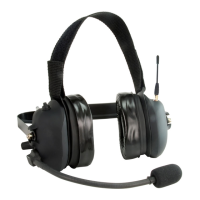
Setcom 900 Series Wireless Headset: User Guide
3
3.0 BASE STATION OPERATION
3.1 Installing the Base Station
Mount the Base Station in an enclosed area away from direct exposure to the elements using the four mounting screws
provided (part number: 21-8006). For optimal range, position the Base Station as high as practically possible (e.g. on the
roof of a vehicle’s cab, where the Base Station is installed in a vehicle). In all cases, position the Base Station’s antenna
vertically (relative to the ground).
Note: For optimal range, the Base Station’s antenna should be mounted as far away from large metal objects as possible.
For example, if the Base Station is mounted on the metal wall of a vehicle’s cab, the headset’s range on the opposite side of
the metal wall may be diminished.
Base stations should be mounted a minimum of 3 feet apart from each other and from other antennas. Farther apart is better.
Connect one of the two power cables supplied with the 900 Wireless Headset kit (part number: 25-1004) to a power source
(12Vdc) and plug it into the Base Station’s Power Cable Connector (Fig. 2 [c]).
The Base Station will turn on automatically when DC power is supplied.
Connect one end of the 900 Wireless Adapter Cable (e.g. part number: 25-0735-10; sold separately) to the intercom system’s
headset jack (e.g. the tip-ring-sleeve jack on a Setcom System 900 master station - IM-900 or IM-900E). Connect the
Adapter Cable’s round connector (5-pin, mini-XLR) to the Base Station’s Adapter Cable Connector (Fig. 2 [d]).
3.2 Pairing
See Section 2.5 above.
3.3 Base Station LED Indicator (Fig. 2 [a])
Steady green: Power is on and the Base Station is idle (not linked).
Slow flashing green: Power is on, and the Base Station is linked to the headset.
Slow flashing amber: The Base Station is in pairing mode and seeking a link with the headset.
Amber with green flashes: The headset’s Mobile Radio Push-to-Talk has been pushed, and the mobile radio is keyed to
transmit.
4.0 CELL PHONE OPERATION
Note: while all third generation wireless headsets include the Cell Phone Button (Fig. 1 [h]), interfacing a cell phone is only
possible with those headsets that have the feature enabled (kit numbers ending with “-CP”, e.g. CSB-900W3-CP Kit).
Note: please carefully review your cell phone’s user manual for specific instructions regarding connecting to Bluetooth devices,
such as Setcom’s third generation wireless headset.
4.1 Pairing with a Bluetooth-enabled Cell Phone
Activate the Bluetooth function on your cell phone. Bluetooth power should be ON, and the phone should be in “Visible” or
“Discoverable” mode.
Locate the Cell Phone Button (Fig. 1 [h]) on the headset. Press and hold it until a single “beep” is heard. The headset will
enter search mode, and the LED will flash green faster than it normally would when linked to the Base Station.
Set your cell phone to Search mode. In short order, it should find or “see” a device labeled “SETCOM”. Accept this
connection, and set your cell phone to pair with it. The PIN code is: 0000
Once the connection has been made, you will hear a low beep and then three higher beeps. Until you pair the headset with
another phone or the phone with another Bluetooth-enabled device, the headset should automatically connect to your cell
phone. You are now ready to receive or initiate phone calls with your phone. The headset will remain in Cell Phone Mode
until you manually switch back to Headset Mode (intercom and/or mobile radio functions).
While in Cell Phone Mode, you will not be able to communicate over intercom and/or mobile radio.
While in Cell Phone Mode, even during a phone call, you can switch to Headset Mode, then talk on intercom and/or mobile
radio, and the call will remain active. When switching back to Cell Phone Mode, the call will simply resume. See below


 To Next Page
 Loading...