Brightness adjustment
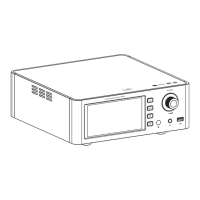
1. Press the [DIMMER] button on remote to adjust brightness of the multifunctional display, cycling between
Bright, Dark and Off.
2. At default, Amplifier is set to Bright.
A3.2
INTEGRATED AMPLIFIER
14
Realtek High Definition Audio
Realtek High Definition Audio
Realtek Digital Output
Shanling Audio Device
Configure(C)
Amplifier
Ready
Ready
Default device
Amplifier
Select the following devices to modify the settings:
Sound
Set default(S)
Attribute(P)
OK Cancel
Apply(A)
Play Record Sound Communication
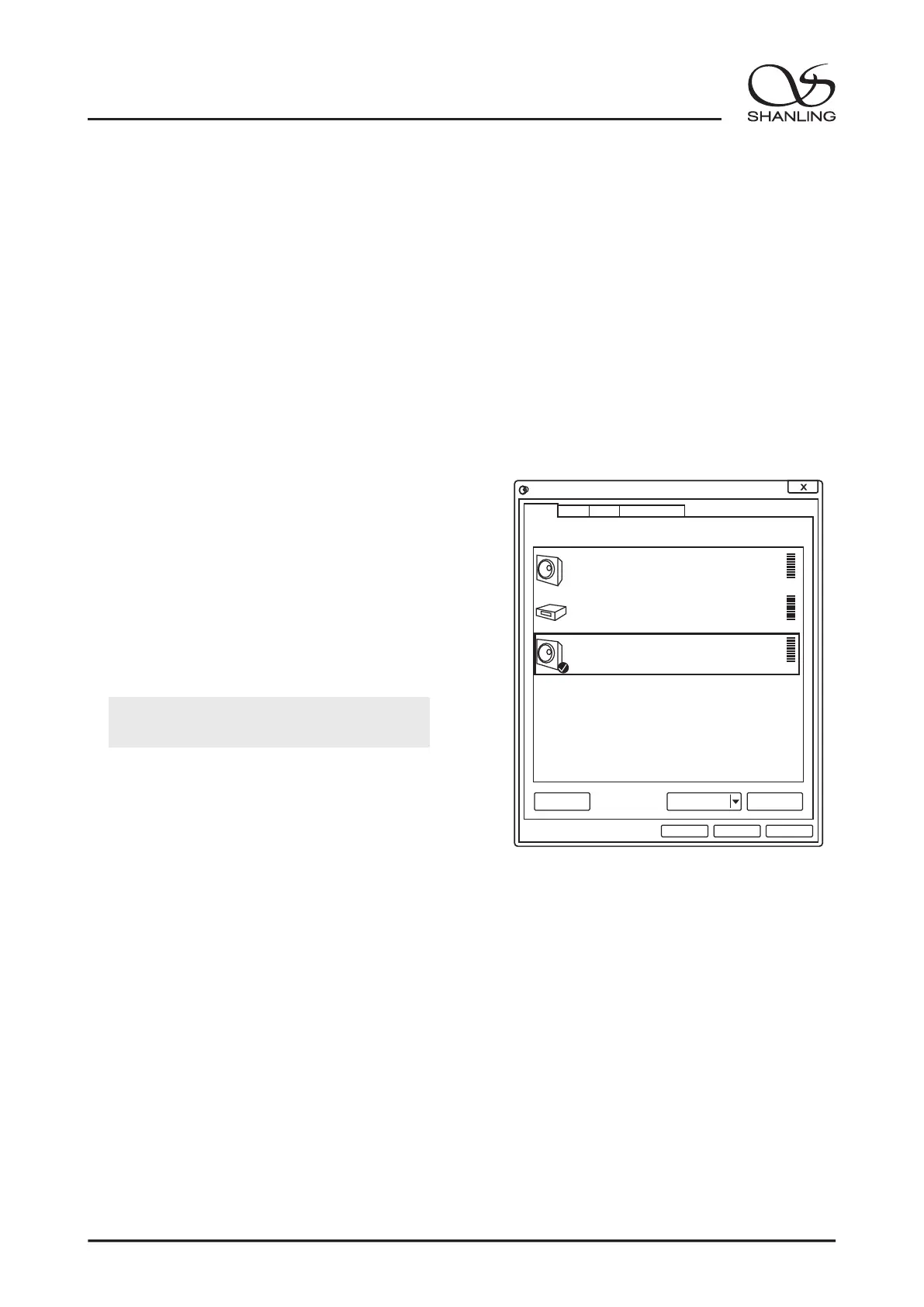
4. Go into sound settings on your computer and
set the "Shanling Audio Device" as your
default device for sound.
5. Player supports DSD playback via DOP. Please
set your software accordingly.
1. Connect a USB cable from your computer to
the rear panel of amplifier.
USB DAC Mode
3. Install matching USB drivers onto your
Windows computer.
Drivers can be downloaded from our
2. Turn on the amplifier and switch input source
to USB inout.
Official website en.Shanling.com, look for
A3.2 (21) in the downloads section.
Bluetooth Input
1. Switch the input to Bluetooth BT mode.
2. Open Bluetooth settings on your device and search for new devices.
3. Amplifier will show up as "Shanling A3.2(21)"。
4. Pair it with your device and let it connect.


 To Next Page