16
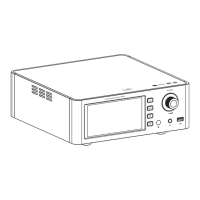
EH3
Desktop DAC Amplifier
SyncLink Control
Scan code to download
the Eddict Player app
1. Press the [ ] knob to enter the settings menu.
2. Go to Bluetooth settings and turn on Bluetooth.
3. Turn on the SyncLink function in the settings menu." "
4. Insert USB drive and switch source to the USB Drive input.
5. On your phone, open Eddict player app, go to SyncLink function and turn on SyncLink Controller .
Select "Shanling EH3" from list of available devices.
" "
6. Click on Scan Music to scan for music files on the USB Drive." "
7. Now you can control music playback on your EH3.
/ MENU
Eddict Player
WiFi Connection
2. Go to Wi-Fi settings and enable Wi-Fi.
3. Open the Eddict Player app on your smartphone. Click the icon in top left corner and then select
"Wireless Distribution Network". From searched device, click on "Shanling EH3", click on "Next" and
enter Wi-Fi password. To finish, click on "Start Network Configuration".
" " " "
4. On the EH3, select Wi-Fi Configuration – One-key network configuration and press [ ] to finish. " "
1. Press the [ ] to enter settings menu.
/ MENU
Bluetooth Input
1. Switch the source / input to Bluetooth mode.
2. Open Bluetooth settings on your device and search for new devices.
3. Player will show up as "Shanling EH3".
4. Pair it with your device and let it connect.
USB DAC Mode
1. Connect player to the computer using USB cable.
2. to switch to "USB DAC mode. Press the [ SOURCE ] button on the machine or the [ INPUT ] button "
USB drivers download:
3. For Windows, please download our dedicated drivers. No drivers are needed for other systems.
4. Make sure to set EH3 as the active sound device on your computer.
Visit download section on our official website to downloads the latest USB drivers for your device:
en.shanling.com


 To Next Page