sharkclean.comsharkclean.com
What should I do if my Shark® robot won't connect to Wi-Fi or loses Wi-Fi connectivity?
If you are an iOS user and recently upgraded to iOS 14, you need to enable local network access on your phone
for the SharkClean app. Please take the following steps to enable. Go to your phone settings --> Select Privacy
--> Select Local Network --> Toggle SharkClean on, then try connecting again. Make sure your phone is con-
nected to your home Wi-Fi network before trying to connect your robot. Typical home Wi-Fi networks support
both 2.4 GHz and 5 GHz. Make sure you are connected to a 2.4 GHz network when you enter your username
and password. Ensure your robot is turned on and you hear an audio prompt.
Do not use a VPN or a proxy server. Make sure Wi-Fi isolation is turned o on the router.
There may be instances where your Shark robot loses connectivity while operating, due to a weak Wi-Fi signal,
or entering a zone that blocks Wi-Fi.
Turn o the robot. Wait 10 seconds, then turn the power back on and wait for the voice prompt. Power o your
phone, wait 30 seconds, and power back on.
Open Wi-Fi settings on your phone, find the Shark network, then select Forget Network. Reopen the
SharkClean app and retry the connection process.
It is normal for your robot to temporarily lose connectivity when it goes under furniture, or moves far from
your router. Your Shark robot will automatically reconnect to Wi-Fi. If the robot does not reconnect on its own,
remove the unit from the Self-Empty Base. Power the robot o, wait 10 seconds, and place it back on the base.
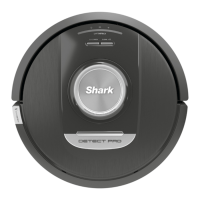
USING THE SHARK DETECT PRO™
3D SENSOR AND AI LASER NAVIGATION™
After setup is complete, your robot will conduct an
Explore Run to create an initial map of your home.
The robot will travel from room to room to identify
walls, furniture, and other obstacles as it cleans.
This run will take less time than a full cleaning, as it
doesn’t cover the entire floor.
The robot's object detection technology helps it
navigate around obstacles taller than 4.5" in height,
as well as some common household objects like
cords, cables, shoes, and clothes.
MANUAL CLEANING MODE
To manually start a cleaning cycle, press the CLEAN button on the robot or on the mobile app. To
immediately send the robot back to the Self-Empty Base, press the DOCK button.
TROUBLESHOOTING
MATRIX CLEAN
Matrix Clean is targeted deep cleaning of a specific room or spot. A Matrix Clean can be activated with the
SharkClean® app, or manually without the app.
Matrix Clean with the SharkClean app: To set up a Matrix Clean with the app, select a specific room or spot to
be cleaned on the map. Your robot will clean this targeted area on demand.
For a Matrix Spot Clean of a specific 5-foot-by-5-foot area, place the robot in the spot to be cleaned, then
press and hold the CLEAN button for 5 to 7 seconds.
NOTE: Be sure to charge the robot completely before its first cleaning so that it can explore, map, and clean as much of
your home as possible. It may take up to 6 hours to fully charge your robot.
NOTE: Avoid moving the dock. If it is relocated, the robot may not be able to find its way back to the dock, and you will
need to remap your home. If the robot is relocated while in use, it may not be able to follow its intelligent cleaning path,
or find its way back to the dock.

 To Next Page
 Loading...