6
8.3 Programming the keys
Everysinglekeyofthekeyboardcanbeprogrammedindividually,pleaseproceedasfollows:
1.Selectthekeyyouwishtoprogrambyleft-clickingitintheconguratorwiththemouse.Thefollowing
dropdownmenuwillopenup:
A – Assignsthekeyasanotherkey(8.3.1).
B – Assignsthekeyamacro(see8.3.2).
C – Assignsthekeyamousefunction(8.3.3).
D – AssignsthekeyanInternetfunction(8.3.4).
E – AssignsthekeyanOfcefunction(8.3.5).
F – AssignsthekeyaMediafunction(8.3.6).
G– Assignsthekeyadditionalcommands(8.3.7).
H – Denesthekeyasswitchbetweendifferentproles(8.3.8).
I – Runsaprogram(8.3.9).
J – Discards already assigned functions.
K – Deactivates the key.
2. Select the desired function.
3.Thefunctionwillbeassignedtoakey.
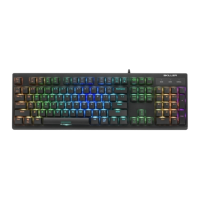
4.Theprogrammedkeywillbehighlightedinwhite:
8.3.1 Button assignment
Eachkeycanbeassignedanyotherkeyfunctionusingthecongurator:
1.Select“Singlekey”fromthedropdownmenu(see8.3).Thefollowingwindowwillappear:
2.Pressthekey,whichwillthenbeassignedtotheselectedkey.
3.Click“OK”toconrmyourselectionor“Cancel”todiscardit.
A
B
C
D
E
F
G
H
I
J
K











 To Next Page