Screen 1
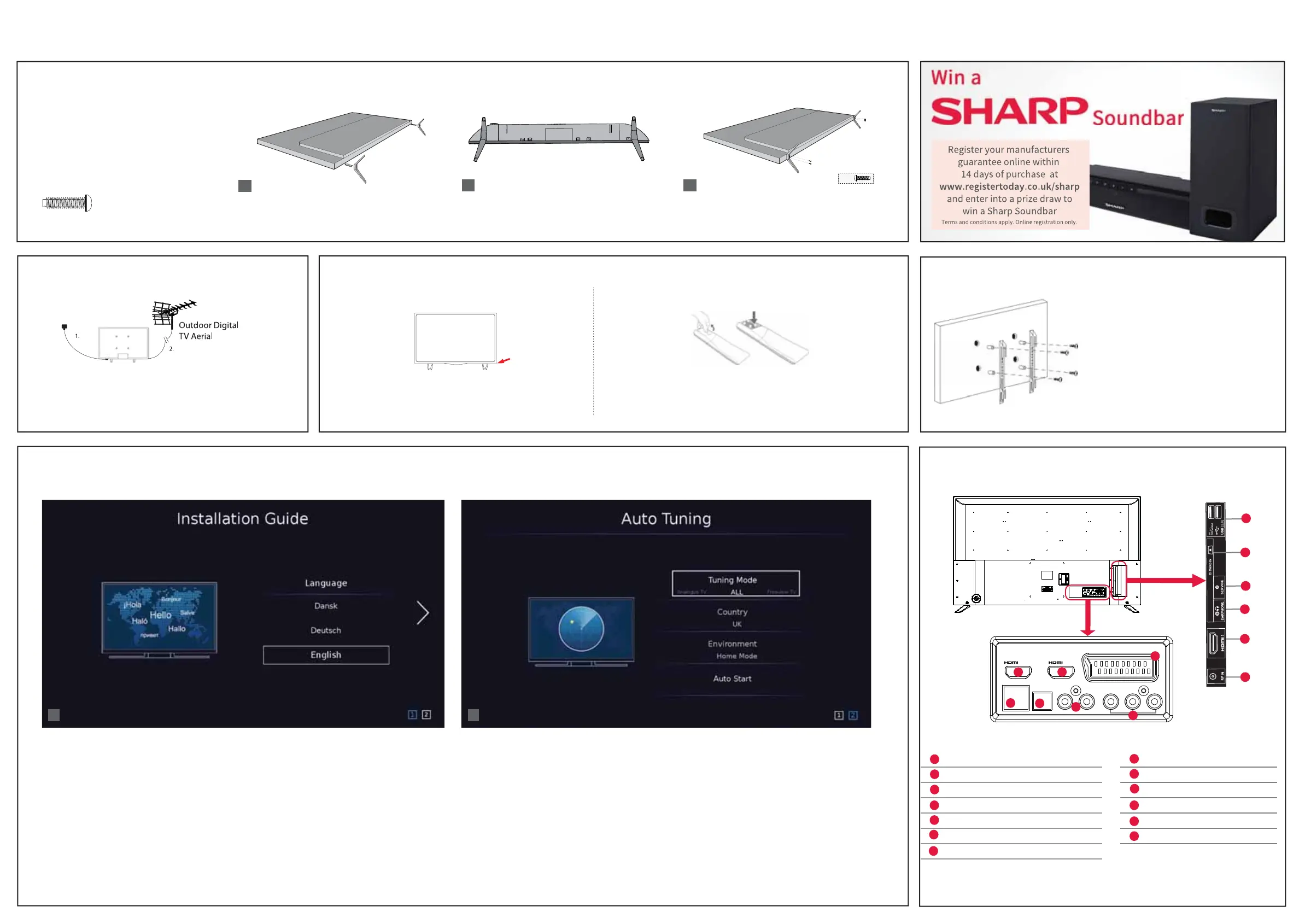
When you first turn on the set, you will be welcomed by the First Time Installation screen as shown above.
Language: Select your preferred on-screen display language. This will change the language in which the menus and associated
information is displayed in. When the setup has been completed, this can be changed by selecting Menu > Settings > Language.
4
Fitting the stand
Connecting your set
First time installation
1 2
Screen 2
Tuning Mode: Select what you wish to tune via TV’s built-in tuner. You can choose from Freeview TV, Analogue TV and ALL
(Freeview + Analogue). At the next step, the set will tune in selected option.
Country: Select the correct country in which the set will be used in. This will enable the TV to correctly install the functions ap-
plicable in the country of use.
Environment: Use this option to select either Home or Store mode.
HOME MODE is a power saving mode which reduces the energy used by up to 25% (by reducing the power to the LED/LCD panel).
When in STORE MODE the picture will be brighter. An on-screen banner showing the sets functionality will appear on the screen
after 2 minutes.
Note: In Home Mode, the TV will switch itself to the standby mode after 4 hours in the event that the buttons on the remote
control or TV are not used.
For the stand installation, there is one type of screw
provided as shown below.
To complete the stand installation you will require a
cross head screw driver.
Place the TV set on a fl at and clean surface with the
panel facing downwards to avoid damage.
Setting up the TV set for the rst time
1) Connect the TV to your power socket.
2) If you wish to use the TV to receive Freeview/Saorview channels,
connect the RF input from the TV to your outdoor Digital TV aerial.
If you do not wish to receive Freeview/Saorview, skip this step.
1
2
1
2
4 x
3
4
1
2
3
Used for attaching the stand
to the TV set ( g.2)
4 x
TV panel must be facing downwards.
Place the TV set on a fl at and clean surface with
the panel facing downwards to avoid damage.
When the stand feet are installed correctly the
stand feet will be longest at the front of the TV
and shortest at the back with the feet pointing
away from each other.
When the stand/feet are in the correct position, secure
the feet to the underside of the TV set using 4 screws
provided.
3 Powering On the TV
Switch on the television by pressing
the TV control stick located on the
TV set.
TV control stick
Insert the batteries supplied into the
remote control and press the standby
button to power on the TV.
TV Control Stick Remote Control: Installing Batteries
Back/Shortest
Front/Longest
Wall Mounting the TV
Image for illustration only.
1. Remove the four screws that are supplied
in the wall mounting holes.
2. The wall mount can now be easily
attached to the mounting holes on
the rear of the TV.
3. Install the wall mounting bracket to the
television as advised by the bracket
manufacturer.
The picture shows the use of spacers, which
are not applicable to all sets/installations.
Connectivity
J
I
H
K
M
Ethernet/LAN* Network connection
Digital Audio Digital Optical Audio Output
HDMI 1 HDMI input
HDMI 2 HDMI input (ARC)
L/R HDMI input (ARC)
Video/YPbPr HD input (YPbPr)
SCART SCART input
RF in RF / TV aerial input
HDMI 3 HDMI input
Earphones Earphone input
Service Input Input is used only by service centres
CI card in Common interface module
USB 2.0 USB port 2.0
* The Ethernet/LAN port is used for Freeview HD services and smart functions.
A
H
L
K
B
I
M
C
D
E
F
G
J
1
2
SCART
ETHERNET
DIGITAL
AUDIO OUT
OPTICAL
L R VIDEO/Y
Pb Pr
A
B
C
D
E
F
Audio shared for Video/Composite
and component/ YPbPr
Video Input (green) and HD input
(Ypbpr)
G
L
SHA-QSW-0110 32BB2I.indd 2SHA-QSW-0110 32BB2I.indd 2 09/10/2019 14:37:2009/10/2019 14:37:20


 To Previous Page
 Loading...