EasyManua.ls Logo

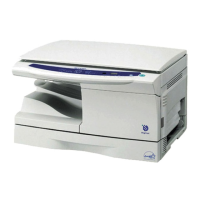
Sharp AR M207 - B/W Laser - All-in-One - User Manual

Sharp AR M207 - B/W Laser - All-in-One
35 pages
Print Icon
To Next Page IconTo Next Page
Loading...
OPERATION
MANUAL
(for printer and scanner)
DIGITAL MULTIFUNCTIONAL
SYSTEM
Page
INTRODUCTION ....................1
CONTENTS............................2
PRINT.....................................3
PRINTER SHARING ............11
SCAN ...................................15
KEY OPERATOR PROGRAMS
...26
TROUBLESHOOTING .........28
SPECIFICATIONS ...............32

Questions and Answers

  • L
    Lydia VargasAug 15, 2025
    What to do if my Sharp All in One Printer printed image is dirty?
    • S
      Sheri SandersAug 15, 2025
      If the printed image from your Sharp All in One Printer is dirty, check the following: * Make sure you are using paper within the specified size and weight range. * Replace the paper if it is curled or damp. * Set sufficient margins in the paper settings of your application.
  • D
    drewscottAug 18, 2025
    How to fix Sharp AR M207 - B/W Laser - All-in-One when print jobs are not received?
    • M
      Marie WalshAug 18, 2025
      If your Sharp All in One Printer isn't receiving print jobs, and the DATA indicator isn't blinking, here are a few things to check: * Ensure the printer is online by pressing the [PRINT] key and selecting "ON LINE". * Verify that the correct printer is selected in the application's print dialog box. * Wait for any ongoing copying, scanning, or fax printing to complete. * Check that the printer cable is securely connected at both ends. * Confirm the port setting is correct. * If "CANCEL JOBS OF INVALID ACCOUNTS" is enabled, contact the key operator.
  • J
    jermainejonesAug 21, 2025
    What to do if my Sharp AR M207 - B/W Laser - All-in-One All in One Printer is printing slowly?
    • S
      susan49Aug 22, 2025
      If your Sharp All in One Printer is printing slowly, it might be due to using multiple applications at once. Try quitting all unused software programs before printing.
  • D
    Dennis MartinezAug 26, 2025
    Why is my Sharp All in One Printer not printing, even though the DATA indicator is blinking?
    • J
      Jordan DavisAug 26, 2025
      If your Sharp All in One Printer's DATA indicator is blinking but it's not printing, it could be due to a lack of paper in the specified tray. Make sure to load paper into the tray. Alternatively, if "FORCED OUTPUT OF PRINT" is disabled, add paper to the bypass tray, press the [PRINT] key to switch to printer mode, and select "BYPASS-TRAY" to resume printing.
  • G
    georgecarpenterAug 28, 2025
    How to troubleshoot poor scanning quality on Sharp AR M207 - B/W Laser - All-in-One All in One Printer?
    • A
      Amanda KnightAug 28, 2025
      To troubleshoot poor scanning quality on your Sharp All in One Printer: * Regularly clean the document glass and the underside of the document cover/SPF. * Use a clean original document for scanning. * Ensure the resolution setting in the scanner driver is appropriate for the original. * Adjust the "B/W Threshold" setting, or click the [Auto Threshold] button on the [Image] tab of the "Custom Settings (or Professional)" screen.
  • T
    Teresa ThomasAug 31, 2025
    Why is my Sharp AR M207 - B/W Laser - All-in-One printed image light and uneven?
    • J
      jeffery47Aug 31, 2025
      If the printed image from your Sharp All in One Printer is light and uneven, it might be because the paper is loaded so that printing occurs on the back side. Ensure the paper is loaded correctly for proper toner adhesion.
  • T
    Thomas JohnsonSep 4, 2025
    What to do if Sharp AR M207 - B/W Laser - All-in-One All in One Printer printed image is skewed or runs off the paper?
    • J
      John KerrSep 4, 2025
      If the printed image from your Sharp All in One Printer is skewed or runs off the paper, try these solutions: * Ensure the paper size set in the printer driver matches the paper size loaded in the tray. * Verify the "Image Orientation" setting is correct in the printer driver's [Paper] tab. * Make sure the paper is properly loaded. * Check the paper size and margin settings in the application.
  • R
    Robert KlineSep 7, 2025
    What to do if I am unable to scan the image on my Sharp All in One Printer?
    • M
      Michael ThompsonSep 7, 2025
      If you're unable to scan images with your Sharp All in One Printer: * Restart your computer, turn off the printer, unplug it, then restore power and try again. * Ensure your application is TWAIN/WIA compliant. * Select the machine's scanner driver in your application. * Lower the resolution or specify a suitable scanning area in the scan preferences.
  • D
    David ThomasSep 12, 2025
    Why is the scanner transfer speed slow on my Sharp AR M207 - B/W Laser - All-in-One All in One Printer with the dual function board installed?
    • M
      Mrs. Victoria YatesSep 12, 2025
      To improve slow scanner transfer speeds on your Sharp All in One Printer with the dual function board installed, ensure your computer meets the system requirements for the USB 2.0 interface (Hi-Speed mode). Then, set "USB2.0 MODE" to "HI-SPEED" in the key operator programs.

Summary

PRINT

BASIC PRINTING

Explains the fundamental procedure for printing a document from an application.

PRINTER DRIVER SETTINGS

Details the various options and controls within the printer driver setup screen.

PRINTER SHARING

SHARED PRINTER SETTINGS

Guides through the process of configuring sharing settings on the computer connected to the machine.

CLIENT SETTINGS

Explains how to install the printer driver on client computers to access the shared printer.

SCAN

SCANNING FROM A TWAIN-COMPLIANT APPLICATION

Details scanning using a TWAIN-compliant application and its driver.

SCANNING FROM A WIA-COMPLIANT APPLICATION (WINDOWS XP)

Describes the process of scanning using the WIA driver in Windows XP.

SCANNING FROM THE SCANNER AND CAMERA WIZARD (WINDOWS XP)

Guides users through scanning images using the Windows XP Scanner and Camera Wizard.

KEY OPERATOR PROGRAMS

TROUBLESHOOTING

PRINTING PROBLEMS

Lists common printing issues and their solutions.

SCANNING PROBLEMS

Lists common scanning issues and their solutions.

Sharp AR M207 - B/W Laser - All-in-One Specifications

General IconGeneral
Print Speed20 ppm
Print Resolution600 x 600 dpi
Copy Speed20 cpm
Copy Resolution600 x 600 dpi
Scan Resolution600 x 600 dpi
Printing TechnologyLaser
Grayscale Half-Tones256 levels
Max Document Reduction50%
FunctionsCopier, Printer, Scanner
ConnectivityUSB
Max Copies99
Media TypePlain, Recycled
Standard Media SizeA4, A5
Input Media Capacity250 sheets
PC ConnectivityUSB 2.0

Related product manuals