EasyManua.ls Logo

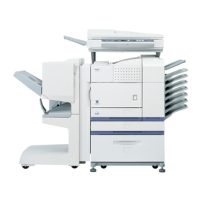
Sharp AR-M351N - User Manual

Sharp AR-M351N
64 pages
Print Icon
To Next Page IconTo Next Page
Loading...
LASER PRINTER
OPERATION
MANUAL
(for network scanner)

Table of Contents

Other manuals for Sharp AR-M351N

Questions and Answers

  • S
    Seth WilliamsJul 30, 2025
    What to do if the Sharp printer recipient does not receive data sent by e-mail (Scan to E-mail)?
    • J
      Jose LarsenJul 30, 2025
      If the recipient does not receive data sent by e-mail, it may be because a limit has been set in the "Maximum size of e-mail attachments" of the key operator program. The limit can be set from 1 MB to 10 MB in the key operator program. Consult your key operator and select a suitable limit. Also, the amount of data that can be sent in one e-mail transmission is sometimes limited by the administrator of the mail server. Decrease the amount of data sent in the e-mail transmission (reduce the number of pages scanned).
  • A
    Allison YorkAug 4, 2025
    Why is the Sharp AR-M351N transmission taking a long time?
    • A
      andersoncodyAug 4, 2025
      Transmission can take a long time if there's a large amount of image information, resulting in a large data file. To address this, adjust the resolution and data compression settings to suit the transmission's purpose, balancing resolution and file size. If the original document doesn't have photos or illustrations, using "300x300dpi" (E-MAIL/FTP mode) or "STANDARD" (Internet-Fax mode) can provide a more workable scanned image. Reserve higher resolution modes for originals with photographs when image quality is a priority.
  • J
    Jonathon Blair Jr.Aug 9, 2025
    What to do if the Sharp AR-M351N Printer scanned image is clipped?
    • K
      knightmadisonAug 9, 2025
      If the scanned image is clipped, it could be because the set original scanning size is smaller than the actual original size. Set the scanning size to match the actual original size. If you intentionally set a smaller size, position the original using the guides, considering the set original size.
  • C
    Courtney PayneAug 14, 2025
    What to do if the Sharp AR-M351N scanned image is upside down or on its side?
    • R
      Ryan CummingsAug 14, 2025
      If the scanned image is upside down or on its side, it is likely that the original was not placed in the correct orientation. Place the original in the correct orientation.
  • A
    Anthony BrownAug 19, 2025
    What to do if the Sharp AR-M351N scanned image range is on the opposite side of the selected image range?
    • K
      Katie LeeAug 19, 2025
      If the scanned image range is on the opposite side of the selected image range, it means that the original was placed with the left and right sides reversed. Place the original in the correct orientation.
  • T
    Tyler PerezAug 25, 2025
    What to do if the received image data from Sharp AR-M351N cannot be opened?
    • H
      hortondavidAug 25, 2025
      If the received image data cannot be opened, it may be because the viewer program used by the recipient does not support the format of the received image data. Try selecting a different file type (TIFF or PDF) and/or a different compression format (NONE, MH (G3), or MMR (G4)) when sending the image data. Otherwise, open to use Sharpdesk or a viewer program that supports the above combinations of file types and compression formats.

Summary

About the Network Scanner Function

Settings and Programming Required for the Network Scanner Feature

Setting Up Destination Information

Guide to storing addresses for E-mail, FTP, Desktop, and Internet-Fax destinations.

Storing Sender Information (Scan to E-mail)

Procedure for storing sender name and e-mail address for outgoing emails.

Settings for Network Scanning

Steps to configure basic network scanner settings via the administrator screen.

Protecting Information Programmed in the Web Page (Passwords)

How to set passwords to protect web page access and settings.

Sending an Image

Basic Transmission Method

Step-by-step guide for scanning and sending an image.

Destination Input Methods

Various methods to input destination addresses for sending.

Scanning and Transmitting a Two-Sided Original (when using B;W scanner module;DSPF)

Instructions for scanning and transmitting two-sided documents.

Scanning Settings (Original Size, Exposure, Resolution, and File Format)

Special Functions

Automatic Transmission at a Specified Time (Timer Transmission)

Scheduling transmissions to occur at a specified time.

Programming Frequently Used Operations (Program)

Storing and recalling frequently used operations as programs.

Priority Transmission of a Stored Job

Cancelling an E-mail;FTP Transmission

Transferring Received Internet-Faxes to Another Machine When Printing Is Not Possible (Forwarding Function)

Using the Transfer Function

Steps to transfer received Internet-Faxes to another machine.

Storing, Editing, and Deleting from the Touch Panel

Storing One-Touch Keys (only addresses for Scan to E-mail and Internet-Fax)

How to store destinations using one-touch keys via the machine panel.

Troubleshooting

Key Operator Programs

Setting Programs

Overview of programs available for machine settings and operations.

E-mail;FTP Settings

Configuration for default sender, compression, file format, and attachment size.

I-Fax Settings

Settings for I-Fax name, address, speaker volume, and transaction reports.

Sharp AR-M351N Specifications

General IconGeneral
FunctionsPrint, Copy, Scan, Fax
Print Speed35 ppm
Print Resolution600 x 600 dpi
Scan Resolution600 x 600 dpi
USB PortYes
Max Paper SizeA3
Fax Modem Speed33.6 Kbps
TypeMultifunction
Original SizeA3
Warm-up Time30 seconds
DuplexStandard
Network Interface10Base-T/100Base-TX
PDLPCL 6
Scan toEmail, FTP, USB
Operating System CompatibilityWindows, Mac, Linux
Copy Speed35 ppm
Scanner TypeFlatbed, ADF

Related product manuals