E-8
Listening to the iPod, iPhone or iPad
(continued)
● Sound will only switch from iPhone to the main unit
after authentication process is completed in
approximately 10 seconds.
● Incoming calls will pause the playback.
● Once the calls are answered, the conversation can only
be heard through the built-in iPhone speaker. Turn on
the iPhone speaker or undock the iPhone to start
conversation.
Caution:
Unplug all accessories from the iPod or iPhone before
inserting it into the dock.
Note:
Docking station is not recommended for iPad connection.
For iPod nano or iPod touch :
For additional support, apply dock spacer (supplied) as
shown.
Note:
When navigating the iPod, iPhone or iPad menu with remote
control, do not operate any of the buttons on the iPod or iPhone
unit. The volume level is adjusted by pressing the VOL (+ or –)
button on the main unit or the remote control. Adjusting the
volume on the iPod, iPhone or iPad units give no effect.
iPod, iPhone and iPad operations:
The operations described below depend on the generation iPod,
iPhone and iPad you are using.
System on operation:
When the main unit is powered on, the iPod, iPhone or iPad units
will automatically power on when docked or connected in the unit.
System off (stand-by operation):
When the main unit is turned to stand-by mode, the docked iPod,
iPhone or connected iPad unit will automatically turn to stand-by
mode.
■ iPhone playback
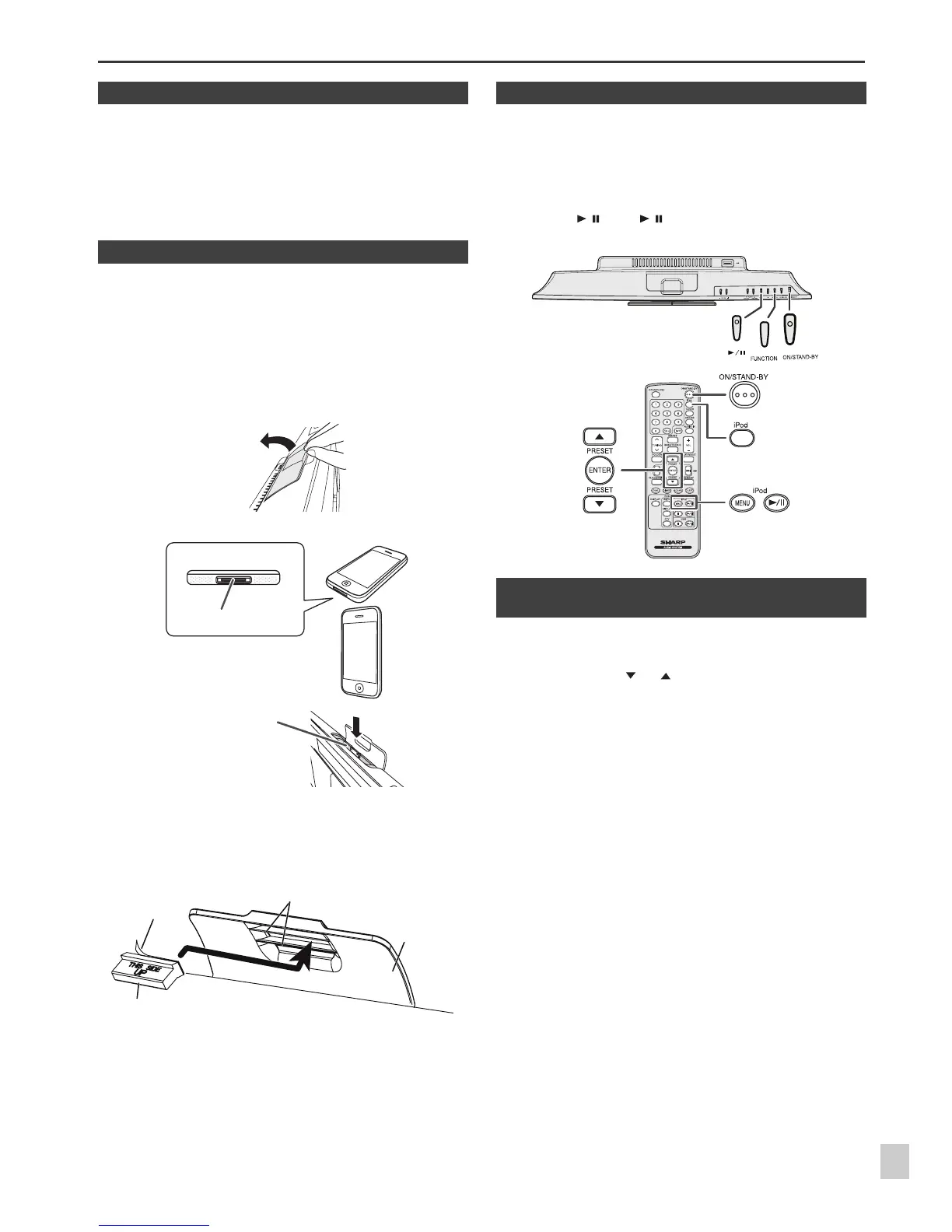
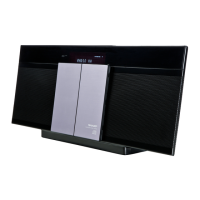
■ iPod and iPhone connection (Dock only)
1
Open the docking station for iPod and iPhone by pulling
up the cover.
2 Dock your iPod or iPhone into the unit.
1 Peel off the double sided tape separator.
2
Place the spacer between the two ribs of the iPod docking
cover as shown.
iPhone
Dock connector
iPhone (bottom)
Dock for iPhone
Rib
iPod
docking
cover
Dock spacer
Peel off
separator
■ iPod or iPhone playback
1
Press the ON/STAND-BY button to turn the power on.
2
Press the iPod button on the remote control or FUNCTION
button repeatedly on the main unit to select iPod function.
3
Insert iPod or iPhone unit into the dock of main unit. “DOCK
OK” will appear.
4
Press the / (iPod / ) button to start playback.
■ Navigating the iPod, iPhone or iPad
menus
1
Press the MENU button to view the menu on iPod, iPhone or
iPad unit. Press it again to go back to previous menu.
2
Use the PRESET ( or ) button to select an item on the
menu and then press ENTER button.


 To Next Page