■ Introduction : Open Accessory
Open Accessory support allows external USB hardware
(an Android USB accessory) to interact with an Android-
powered device in a special accessory mode. When an
Android-powered device is in accessory mode, the con-
nected accessory acts as the USB host (powers the bus
and enumerates devices) and the Android-powered device
acts in the USB accessory role. Android USB accessories
are specifically designed to attach to Android-powered
devices and adhere to the Open Accessory Protocol, that
allows them to detect Android-powered devices that sup-
port accessory mode.
■ Android device connection (USB)
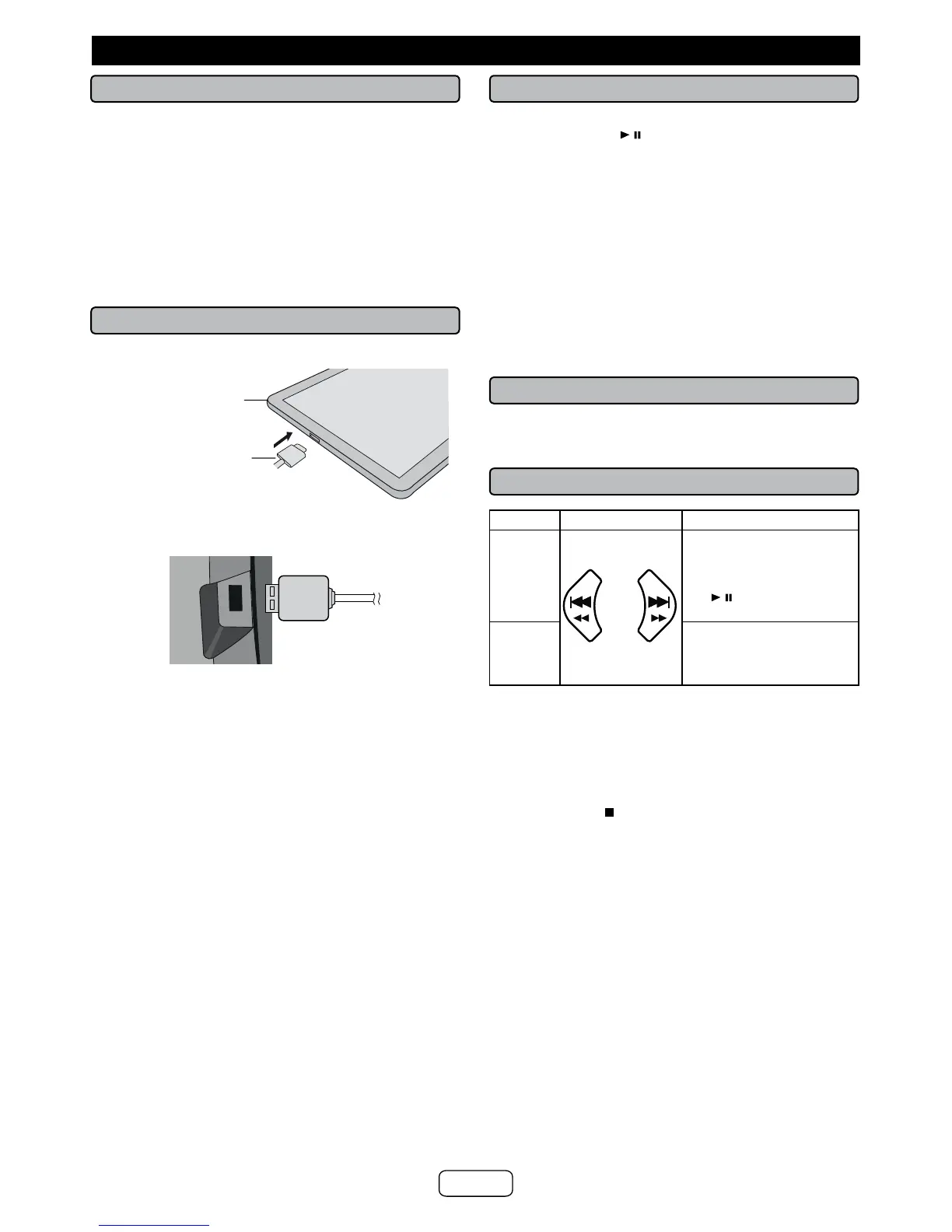
1 Insert the connector to the Android device.
Connector
(not supplied)
Device
(Smartphone/Tablet)
2 Plug in the Android device to the unit via USB
connector.
■ Android device playback
1 Press the ON/STANDBY button to turn the power on.
2 Press the USB / button on the main unit or the
remote control to select USB function.
3 Connect the device (Smartphone/Tablet) to the unit.
4 Press play (on remote control or source device).
Notes:
● If the source device has an extra bass or equalizer
function, set them to off. If these functions are on,
sound may be distorted.
● Incoming calls will pause the playback/application.
● Once the calls are answered, the conversation can only
be heard through the built-in speaker of the cellular
device. Turn on the device speaker or disconnect the
device to start conversation.
■ To disconnect the Android device
1 Pause the playback or quit the application (app).
2 Disconnect the device from the USB terminal.
■ Various functions
Function Remote control Operation
Track
up/down
Press in the playback or
stop mode.
If you press the button
in the stop mode, press
the / button to start the
desired track.
Fast
forward/
reverse
Press and hold down in
the playback mode.
Release the button to
resume playback.
Notes:
● If non-compatible device is detected “NOT SUPT” will
be displayed.
● Controls (play/pause/track up/track down) will function
based on actual application (app) controls used on
Android devices.
● Stop button ( ) is invalid during Android device
playback.
Android is a trademark of Google Inc.
Listening on Android™ devices
E-14


 To Next Page