13 14
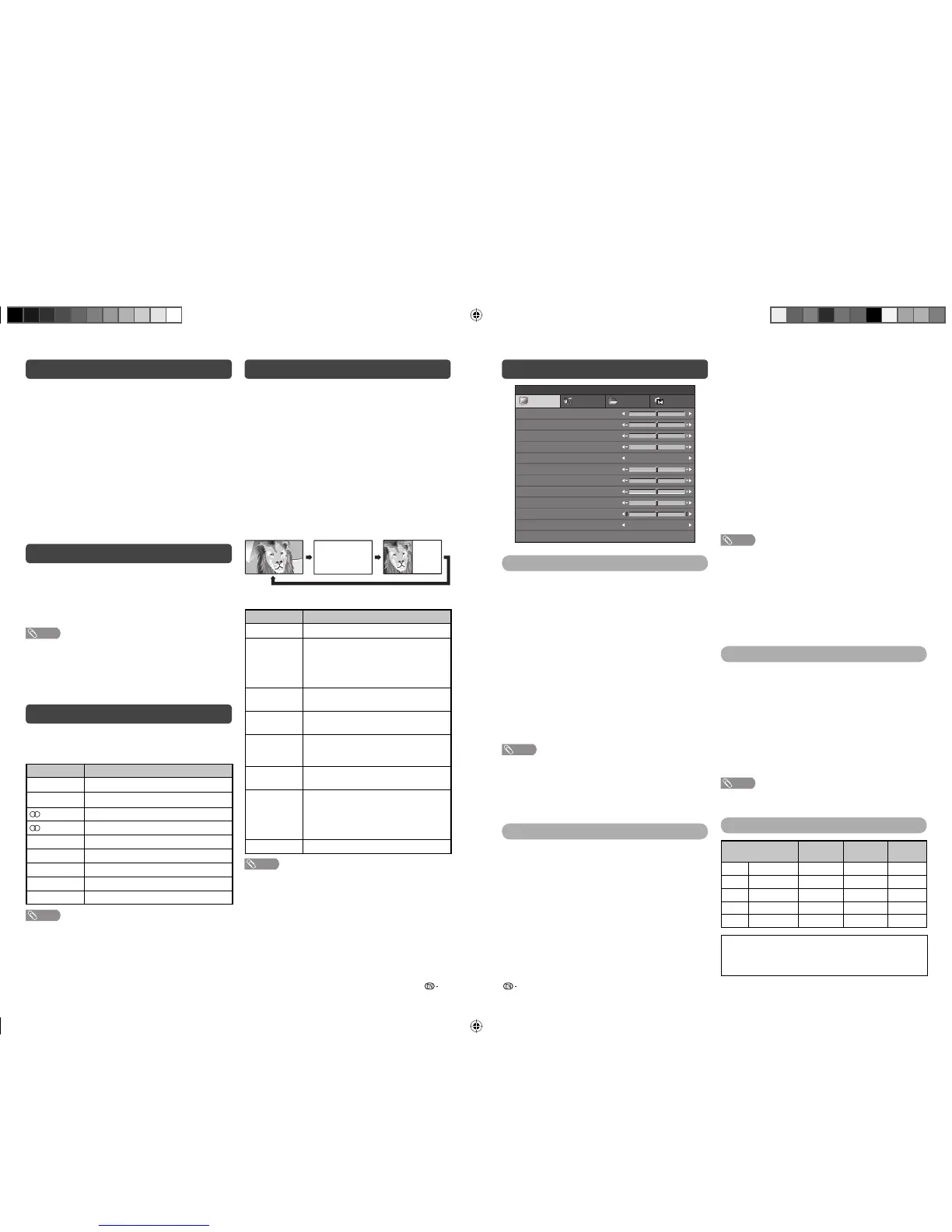
Connecting a PC (Picture menu)
Teletext* function
Picture and still image
Feature menu (Continued)
Switching the analogue audio format
H
Horizontal
Centres the image by moving it to the left or
right.
H
Vertical
Centres the image by moving it up or down.
H
Phase
Adjust when characters have low contrast or
when the image fl ickers.
H
Clock
Adjust when the image fl ickers with vertical
stripes.
3
Press
c
/
d
to adjust the item to your desired
position.
4
Press MENU or EXIT to exit menu screen.
NOTE
• For resetting all adjustment items to the factory preset
values, press
a
/
b
to select “Reset”, and then press
c
/
d
to select “On”.
• Images may not be displayed properly depending on the
settings and/or input signals.
• For certain resolution of PC or HDMI input which TV
unable to display, “Incompatible Input Signal” message will
appear.
• For compatible resolution, please refer to PC
compatibility chart.
Power management
You can set the TV to automatically standby mode
for approximately 4 seconds when no image is
displayed on PC.
1
Repeat steps 1 to 2 in Auto Sync..
2
Press
a
/
b
to select “Power Management”.
3
Press
c
/
d
to select “On”.
4
Press MENU or EXIT to exit menu screen.
NOTE
• See page 10 for details on “Contrast”, “Brightness”,
“Colour”, “Backlight” and “Colour Temp.”.
PC compatibility chart
Resolution
Horizontal
Frequency
Vertical
Frequency
VESA
Standard
VGA
640
g
480
31.5 kHz 60 Hz
✓
SVGA
800
g
600
37.9 kHz 60 Hz
✓
XGA
1024
g
768
48.4 kHz 60 Hz
✓
WXGA
1360
g
768
47.7 kHz 60 Hz
✓
SXGA
1280
g
1024
64.0 kHz 60 Hz
✓
Power Management is a registered trademark of Sun
Microsystems, Inc.
VGA and XGA are registered trademarks of International
Business Machines Corp.
Power Management On
Reset
Contrast
Brightness
Colour
Backlight
Auto Sync.
Horizontal
Vertical
Phase
Clock
Colour Temp.
[ 30]
[0]
[0]
[0]
[0]
[0]
[0]
[0]
MENU
[
Picture
]
Picture Audio Setup Feature
Adjusting the PC image automatically
This function enables the screen to be automatically
adjusted to its best possible condition when the
analogue terminals of the TV and PC are connected
with a commercially available RGB cable, etc.
H
Auto Sync.
1
Press MENU and the MENU screen displays.
2
Press
c
/
d
to select “Picture”.
3
Press
a
/
b
to select “Auto Sync.”.
4
Press
c
/
d
and Auto Sync. is started.
“Adjusting” will shown during Auto Sync. only.
5
Press MENU or EXIT to exit menu screen.
NOTE
• Auto Sync. is likely to succeed when an input PC image
has wide vertical stripes (e.g. pattern with high contrast
stripes, or cross-hatched).
It may fail when an input PC image is solid (low contrast).
• Be sure to connect the PC to the TV and switch it on
before starting Auto Sync.
Adjusting the PC image manually
Ordinarily you can easily adjust the picture as
necessary to change image position using Auto
Sync. In some cases, however, manual adjustment
is needed to optimise the image.
1
Repeat steps 1 to 2 in Auto Sync..
2
Press
a
/
b
to select a specifi c adjustment item
among “Horizontal”, “Vertical”, “Phase” and
“Clock”.
What is Teletext?
Teletext broadcasts pages of information and
entertainment to specially equipped television sets.
News, weather reports, sports information, stock
exchange prices and programme previews are
among the many services available.
Turning on and off Teletext
1
Select a TV channel or external input source
providing the Teletext programme.
2
Press
m
to display the Teletext.
3
Each time you press
m
, the screen switches
as shown below.
Button functions
Buttons Description
a
/
b
Increase or decrease the page number.
Colour
(Red/Green/
Yellow/Blue)
You can select a group or block of pages
displayed in the coloured brackets at
the bottom of the screen by pressing
the corresponding Colour (Red/Green/
Yellow/Blue) on the remote control unit.
0 — 9 Directly select any page from 100 to 899
by using 0 — 9.
v
(Top/
Bottom/Full)
Switch the Teletext image to Top, Bottom
or Full.
k
(Reveal
hidden
TELETEXT)
To reveal hidden information such as an
answer to a quiz.
3
(Hold)
To stop updating Teletext pages
automatically or release the hold mode.
[
(Subtitle
for
TELETEXT)
Display the subtitle or exit the subtitle
screen.
• Subtitle will not be displayed when
the service does not contain subtitle
information.
1
(Subpage)
Change subpage display.
TELETEXT
TELETEXT
You can freeze a motion picture on the Display.
1
Press FREEZE.
• A still image displays.
2
Press FREEZE again to exit still image.
NOTE
• The still image automatically goes out after 30 minutes.
• FREEZE doesn’t function for HDMI/COMPONENT input
(1080p resolution) and PC input (all resolution). “Not
Available” message will appear.
H
Blue Back
Automatically turns the screen blue if a broadcast
signal is not received.
H
HDMI Audio (HDMI input mode only)
• Digital: Select “Digital” for audio signal via the HDMI
terminal.
• Analogue: Select “Analogue” for audio signal via
the AUDIO jack.
H
Power Save
Reduces the picture brightness to create a softer
image while saving electricity.
You can switch between multiple audio modes
when watching a multiple audio or stereo broadcast
programme.
Icon Mode
b
(red)
Nicam Force Mono
b
(green)
Force Mono
(white) Stereo
(red) Nicam Stereo
I
(white)
Dual
I
II
(white)
Dual
II
I
(red)
Nicam Dual
I
II
(red)
Nicam Dual
II
empty Mono
NOTE
• The reception mode is depend on the receiving signal.
** MPX function is not applicable for Philippines market.
NOTE
* Teletext function is not applicable for Philippines market.
LC22L50M-L50M_EN.indd 7LC22L50M-L50M_EN.indd 7 9/14/09 2:45:02 PM9/14/09 2:45:02 PM


 To Next Page
 Loading...